

Prerequisites
- An AWS account with admin or IAM-capable permissions.
- Access to the Clarion dashboard.
Step 0 — Generate a Webhook URL in Clarion
Before configuring AWS subscriptions, open your Clarion workspace and generate a webhook URL.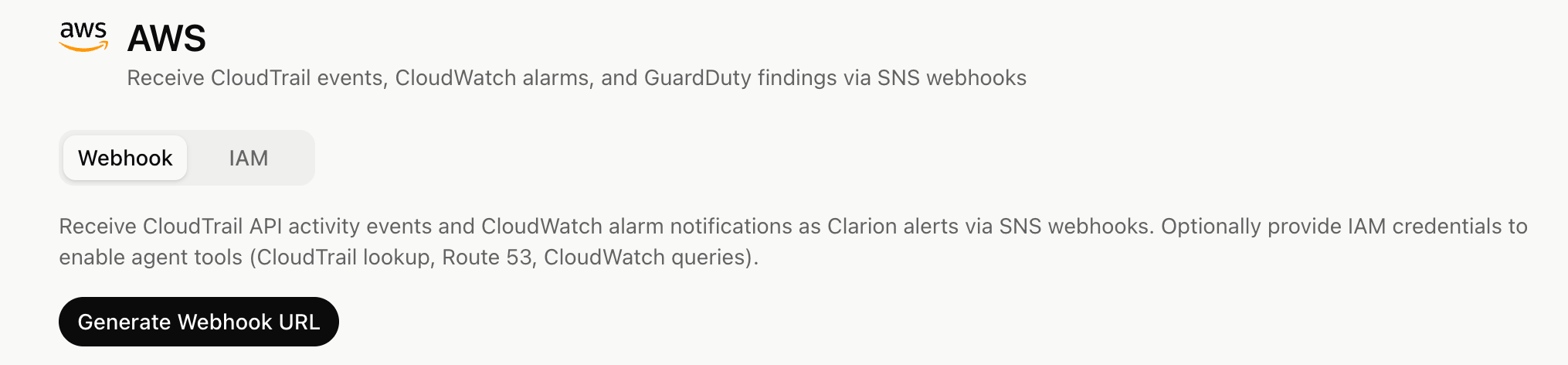
Step 1 — CloudTrail via EventBridge
Send CloudTrail management events (API calls and console sign-ins) to Clarion through an SNS topic and an EventBridge rule.This path sends the CloudTrail event body through EventBridge and SNS. Clarion does not need S3 bucket access for this delivery mode.
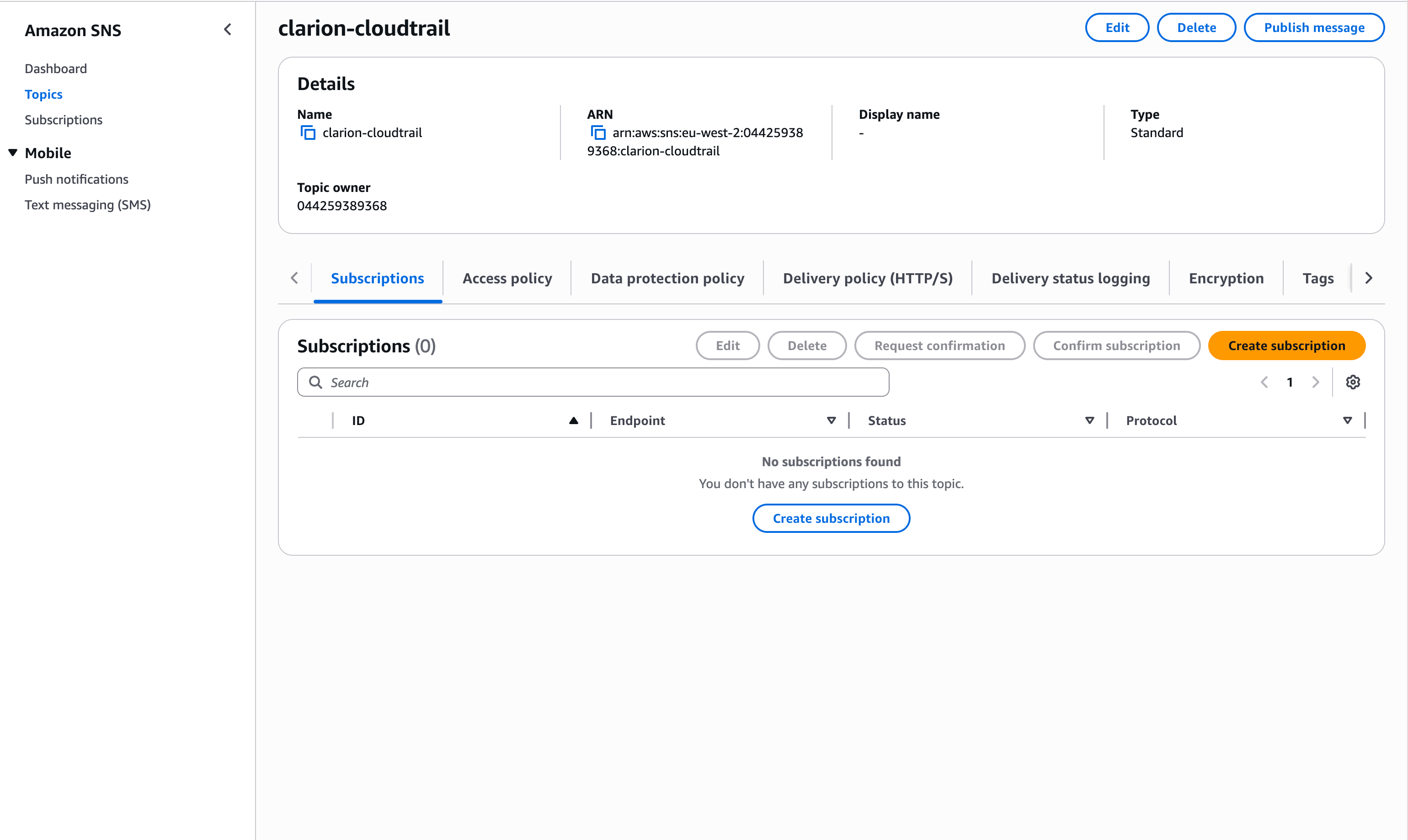
1.1 Create an SNS topic
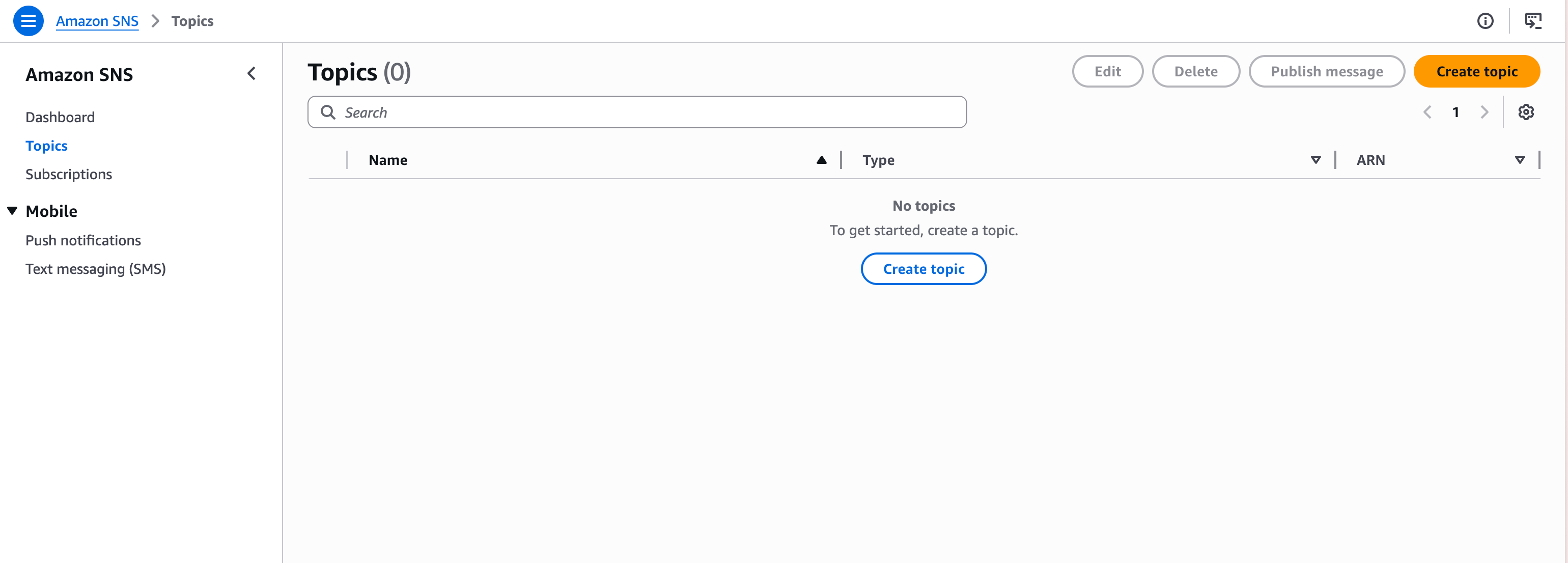
- Open the Amazon SNS console and go to Topics.
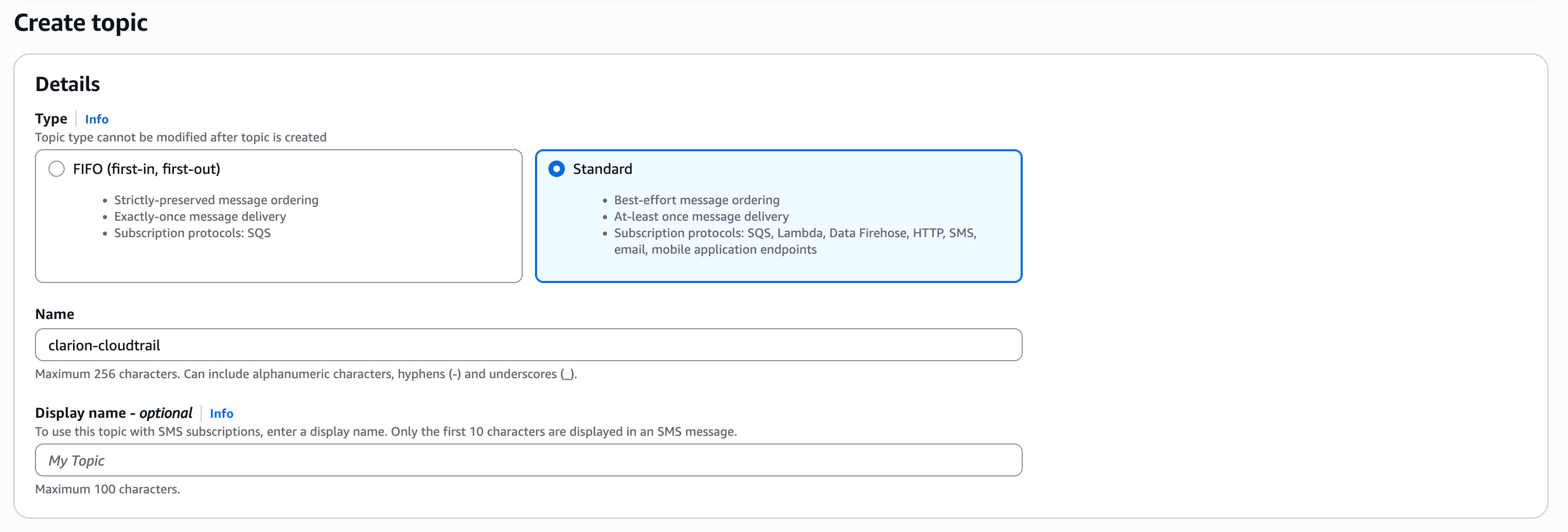
- Create a new Standard topic (e.g.
clarion-cloudtrail). - Copy the topic ARN, paste it into Clarion’s SNS topic ARN field for the CloudTrail monitor, and save the monitor.
1.2 Subscribe Clarion to the topic
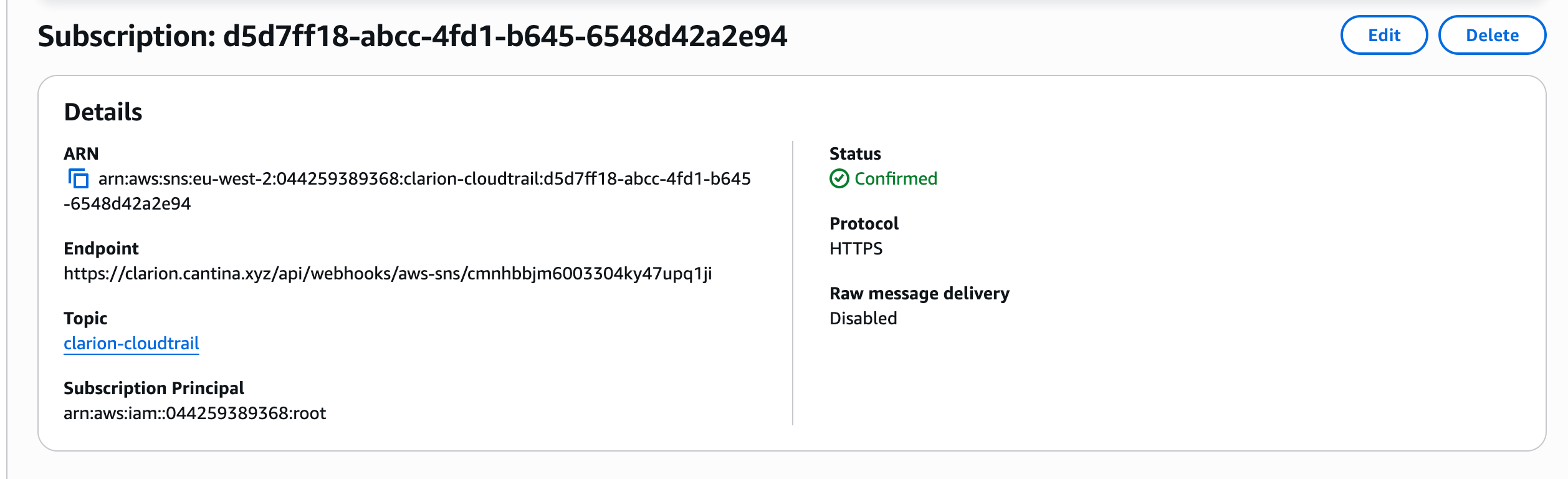
- On the topic you just registered in Clarion, click Create subscription.
- Set the protocol to HTTPS and paste the webhook URL from Clarion.
- SNS will send a confirmation request — Clarion auto-confirms it.
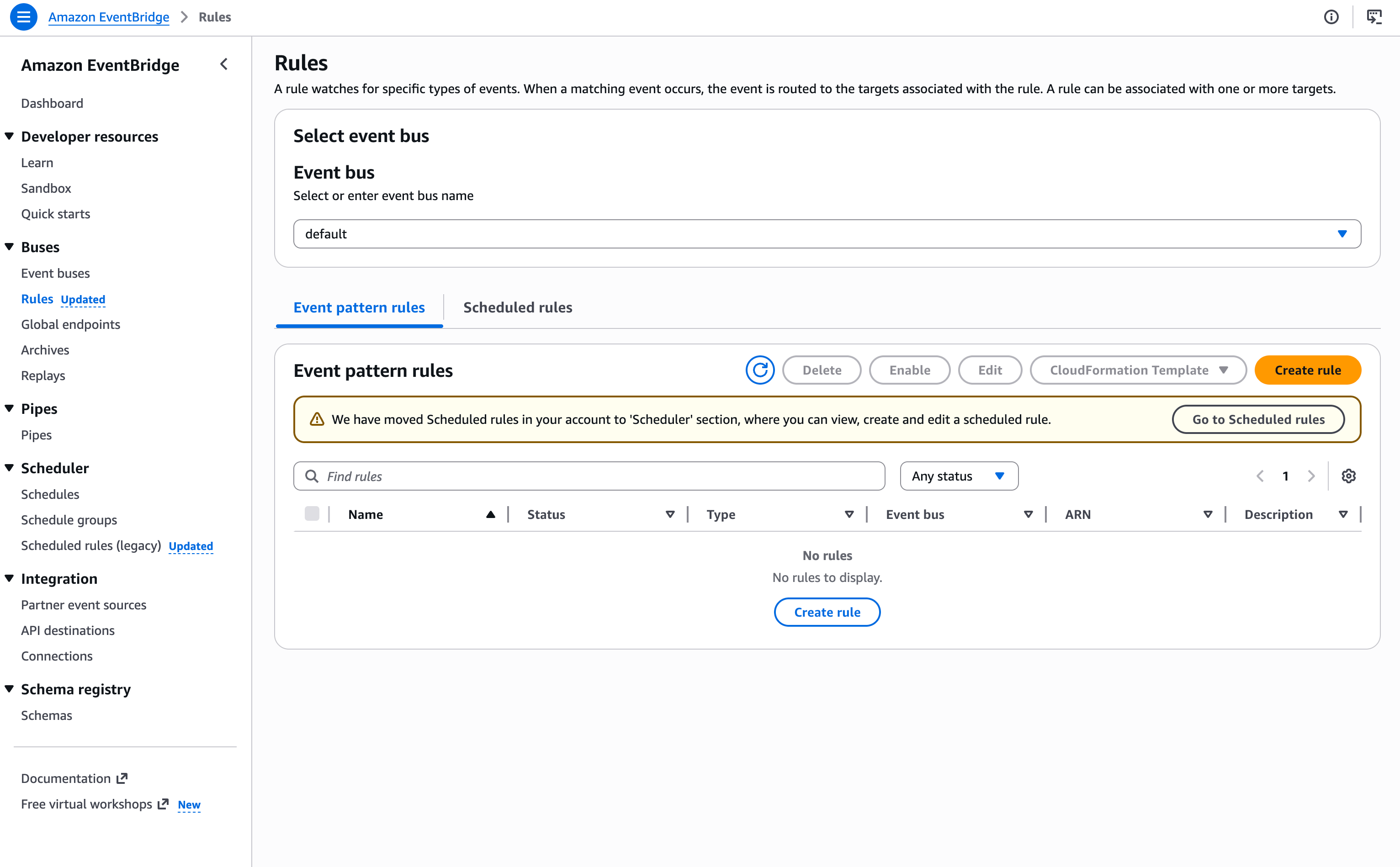
1.3 Create an EventBridge rule
- Open the Amazon EventBridge console and create a new rule.
- Use the following event pattern to forward all CloudTrail events to Clarion:
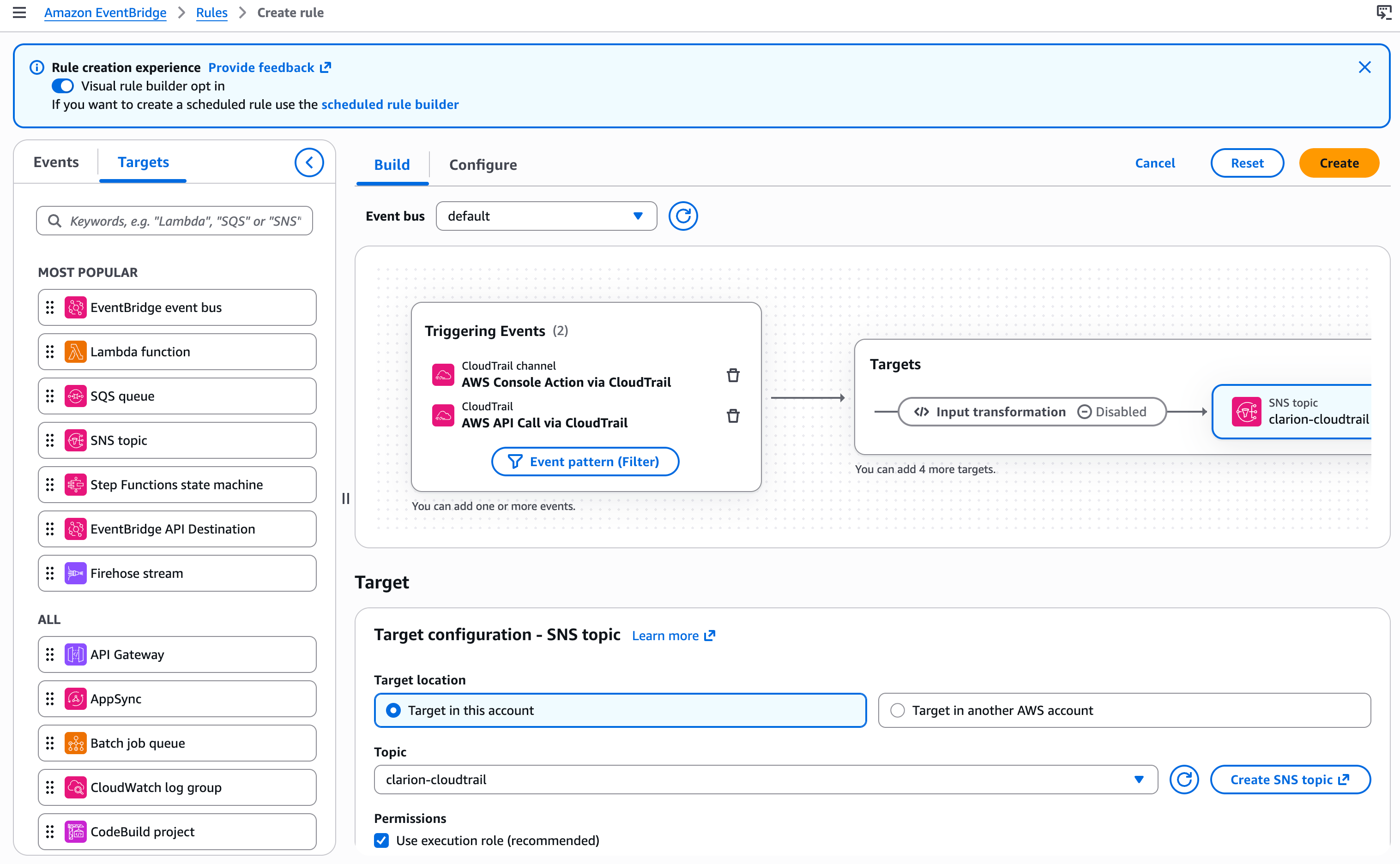
Clarion has signal rules that depend on console sign-in events (login failures,
MFA checks, root account logins, multi-IP detection), so including the
console sign-in detail-types is important for full coverage.
A fourth detail-type,
AWS Insight via CloudTrail, exists for
CloudTrail Insights
anomaly detection events. Add it to the pattern if you have Insights enabled
on your trail.
- Set the target of the rule to the SNS topic you created (
clarion-cloudtrail).
Step 1B — CloudTrail via Consolidated S3 Logging
An AWS Organizations trail writes CloudTrail events from every member account and region into a single S3 bucket — typically a dedicated log-archive account. Clarion subscribes to that bucket’s S3 event notifications, fetches each new log file, and creates one signal per CloudTrail record. One SNS topic and one Clarion subscription cover the whole organization.1B.1 Place the Clarion IAM role in the log-archive account
Configure the Clarion IAM role from Step 4 in the account that owns the consolidated CloudTrail bucket — usually the AWS Organizations log-archive account. The role needs S3 read access to the CloudTrail log objects.1B.2 Create an SNS topic for S3 notifications
- In the log-archive account, open the SNS console and create a Standard topic in the same region as the consolidated log bucket (e.g.
clarion-cloudtrail-s3). - Copy the topic ARN, add it to Clarion’s SNS topic ARN list on the CloudTrail monitor, and save.
1B.3 Subscribe Clarion to the topic
- On the topic, click Create subscription.
- Set the protocol to HTTPS and paste the webhook URL from Step 0.
- Clarion auto-confirms the subscription.
1B.4 Configure S3 event notifications on the bucket
- In the log-archive account, open the consolidated CloudTrail bucket in the S3 console.
- Go to Properties → Event notifications → Create event notification.
- Restrict the trigger to the CloudTrail prefix (e.g.
AWSLogs/) and suffix.json.gz. - Event types: All object create events (
s3:ObjectCreated:*). - Destination: SNS topic, then select the topic from 1B.2.
1B.5 (SSE-KMS only) Allow the Clarion role to use the bucket’s KMS key
If the consolidated log bucket uses SSE-KMS, the CMK’s key policy must allow the Clarion IAM role from Step 4 to callkms:Decrypt. Keys created through the CloudTrail setup wizard delegate to IAM by default, in which case Clarion’s role policy is sufficient and no key-policy change is needed. Otherwise, add the following statement to the CMK’s key policy, replacing <your-clarion-role-arn>:
Step 2 — CloudWatch Alarms
Send CloudWatch alarm state changes to Clarion by publishing to an SNS topic subscribed to your webhook URL.- Create a new SNS Standard topic for CloudWatch alarms (e.g.
clarion-cloudwatch), or reuse a topic you have already registered in Clarion. - Copy the topic ARN, paste it into Clarion’s SNS topic ARN field for the CloudWatch monitor, and save the monitor.
- Add an HTTPS subscription using the webhook URL from Clarion. Wait for Clarion to auto-confirm.
- In the CloudWatch console, open the alarm(s) you want Clarion to monitor.
- Edit the alarm’s notification actions and set it to publish to the SNS topic you created.
Step 3 — GuardDuty Findings
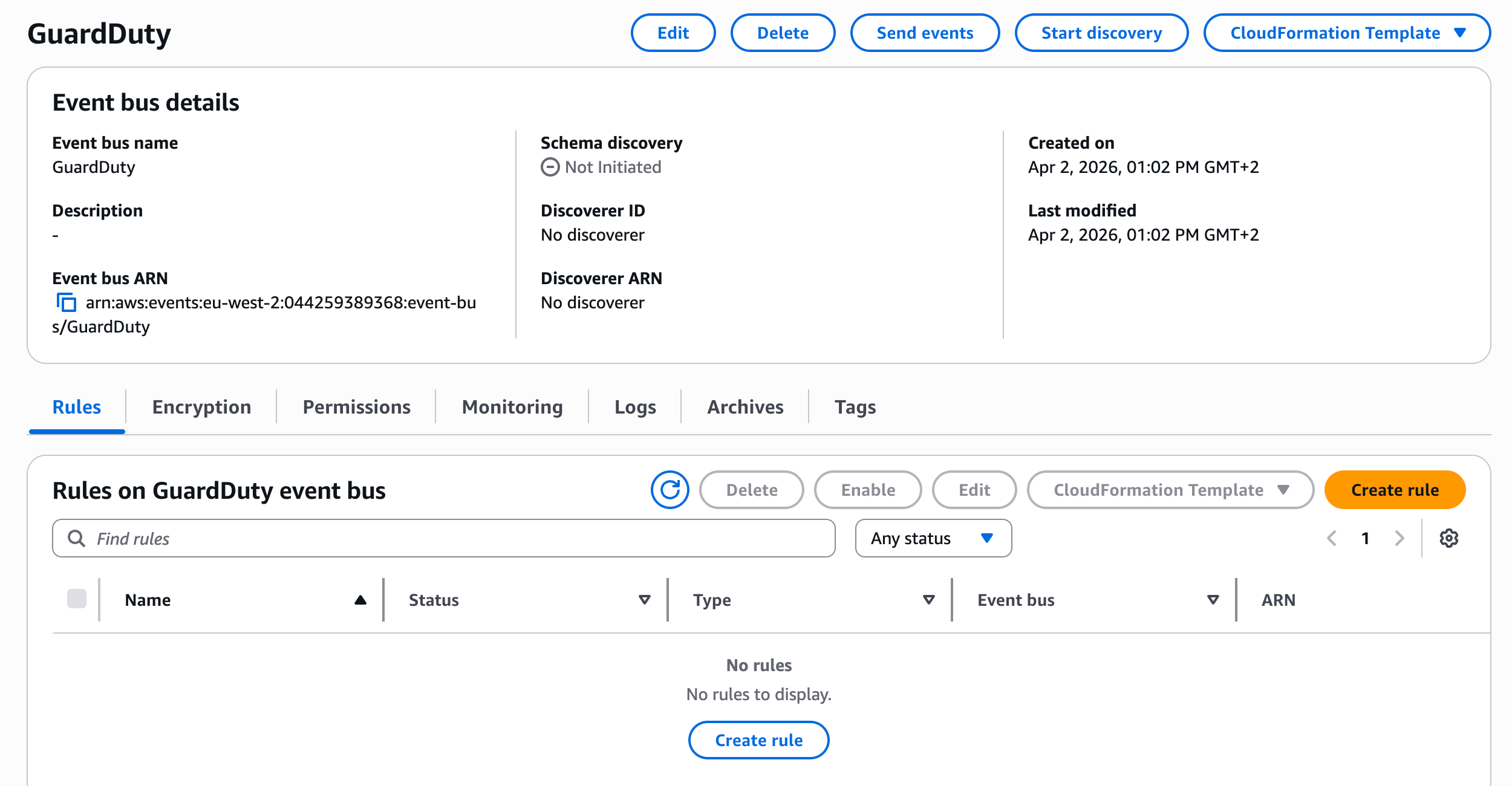
Route GuardDuty findings to Clarion through EventBridge and SNS.3.1 Create an event bus
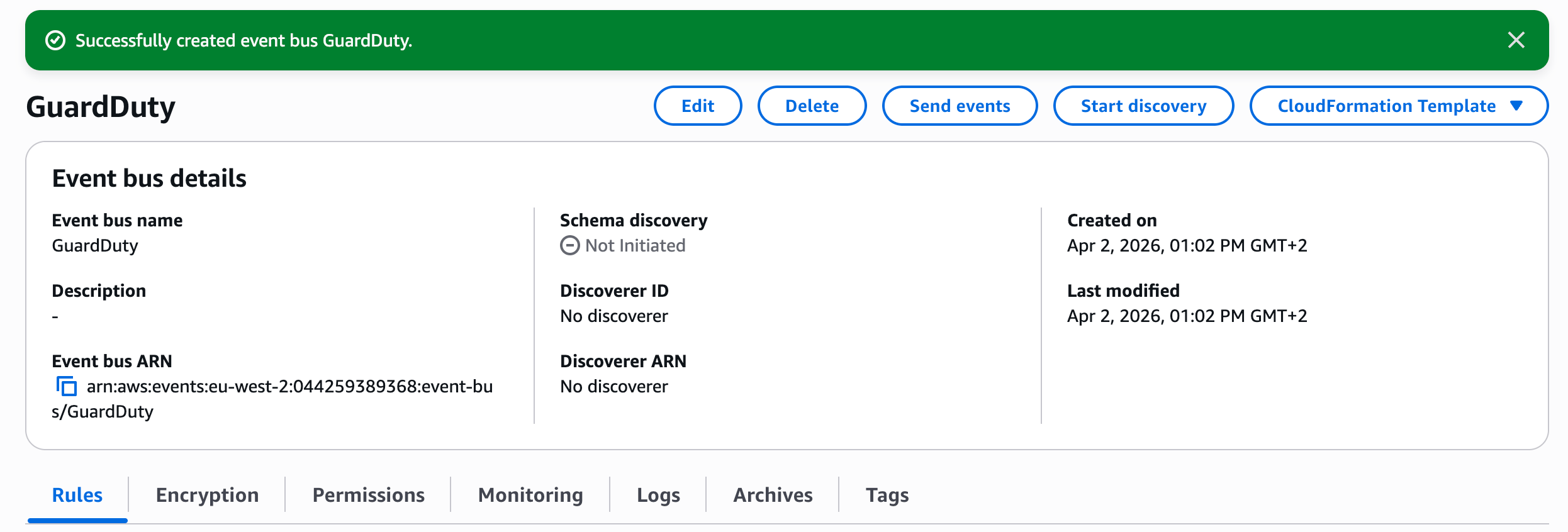
- Open the Amazon EventBridge console.
- You can use the default event bus, or create a new custom event bus if you want to isolate GuardDuty events (e.g.
clarion-guardduty-bus).
3.2 Create an EventBridge rule for GuardDuty
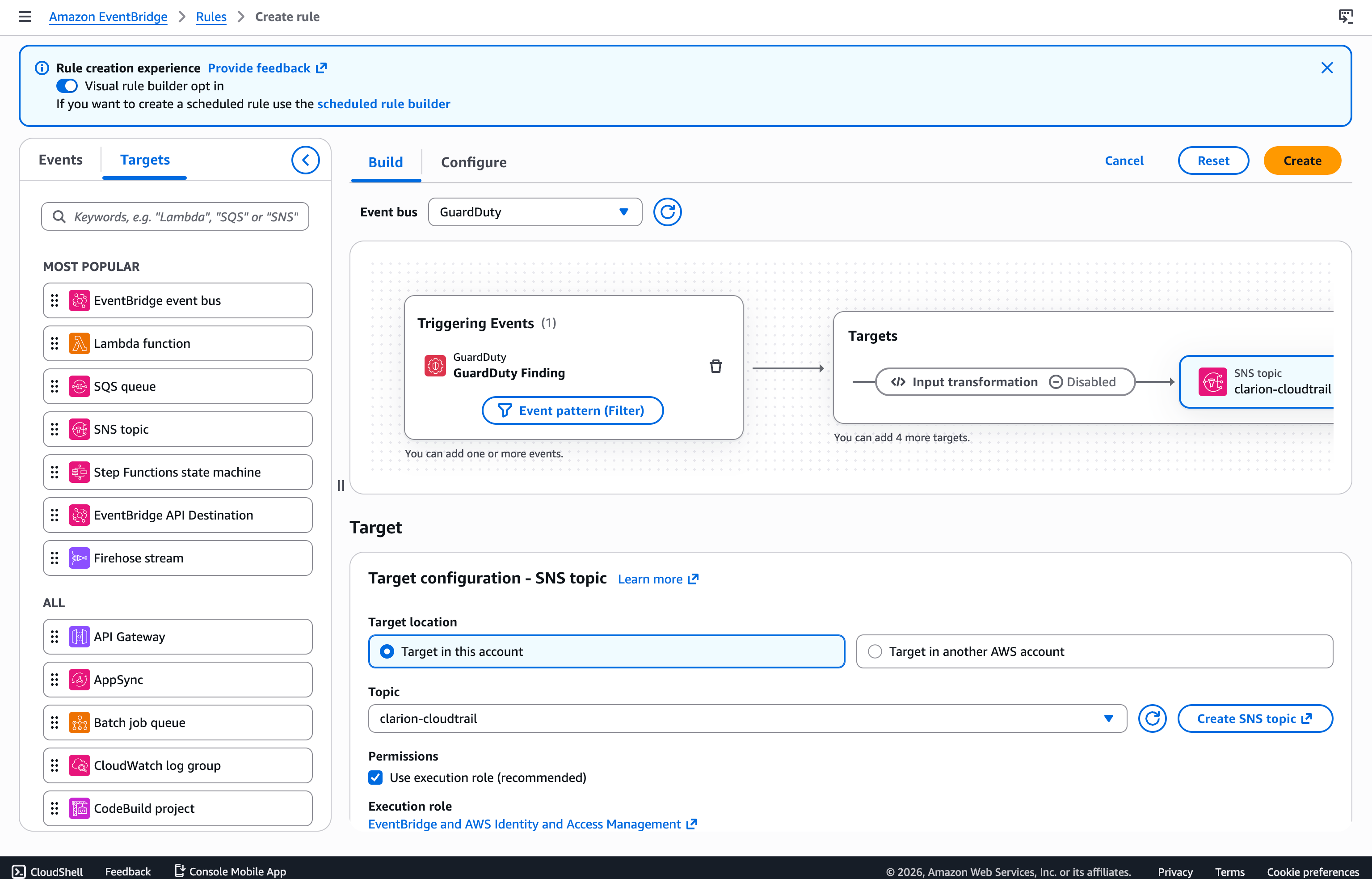
- Within the event bus, create a new rule.
- Set the event source to GuardDuty findings.
- Make sure you’re using the following event pattern:
- Set the target to the SNS topic you created for Clarion. If you create a dedicated
clarion-guarddutytopic, copy that topic ARN into Clarion’s SNS topic ARN field for the GuardDuty monitor and save before creating the HTTPS subscription. - Give the rule a descriptive name (e.g.
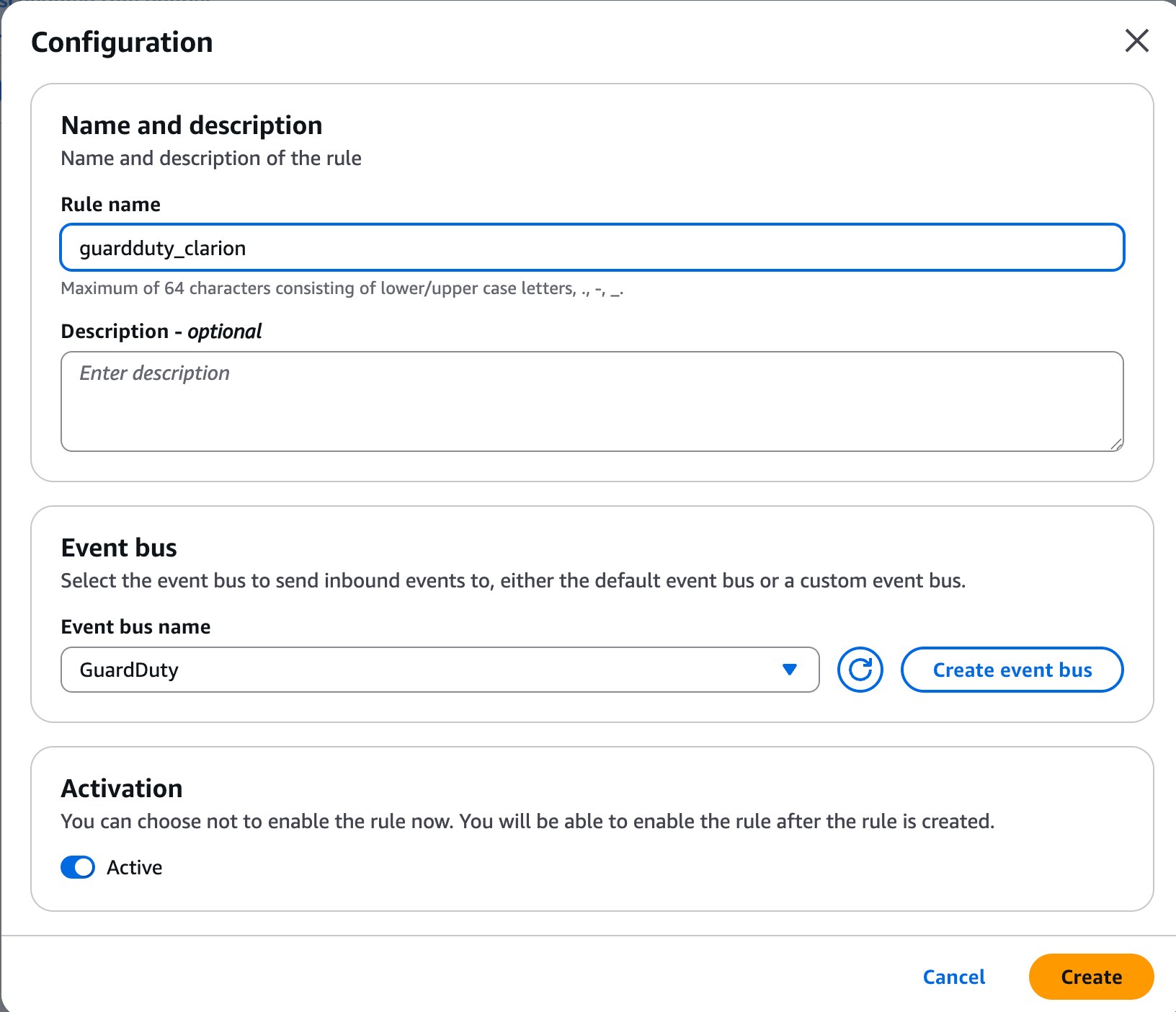
clarion-guardduty-findings), review, and save.
Step 3B — Amazon Inspector Findings
Route Amazon Inspector v2 vulnerability findings to Clarion through EventBridge and SNS. Clarion creates a vulnerability issue for each finding and triages it against your connected AWS assets to estimate blast radius.3B.1 Create an SNS topic
- In the Amazon SNS console, create a topic (e.g.
clarion-inspector). - Copy the topic ARN, paste it into Clarion’s SNS topic ARN field for the Amazon Inspector monitor, and save the monitor.
3B.2 Subscribe Clarion to the topic
- On the topic, create a subscription with protocol HTTPS and paste the webhook URL from Step 0.
- Clarion confirms the subscription automatically once the topic ARN is saved on the monitor.
3B.3 Create an EventBridge rule for Inspector
- In the Amazon EventBridge console, create a new rule on your event bus.
- Set the event source to Amazon Inspector findings using the following event pattern:
- Set the target to the
clarion-inspectorSNS topic. - Give the rule a descriptive name (e.g.
clarion-inspector-findings), review, and save.
Step 4 — IAM Role for Agent Tools
Clarion needs an IAM role to run agent tools (CloudTrail lookup, Route 53, CloudWatch queries). You can set this up via the AWS Console or the AWS CLI.Option A — AWS Console
1. Check for an existing role
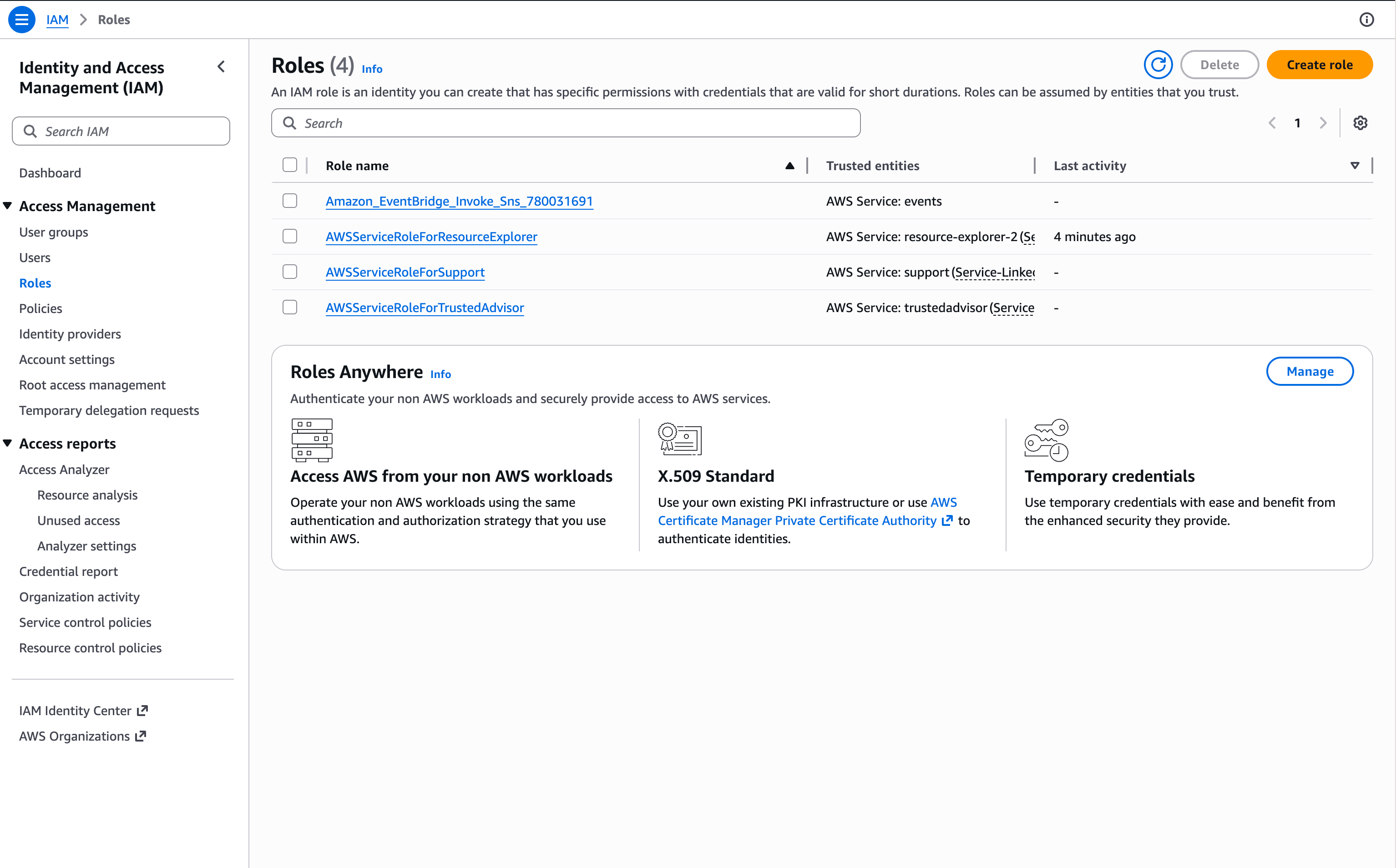
ClarionIntegrationRole. If it exists, skip to step 3 to update the trust policy.
2. Create the policy and role
- Go to IAM console > Policies and create a new policy with the JSON below.
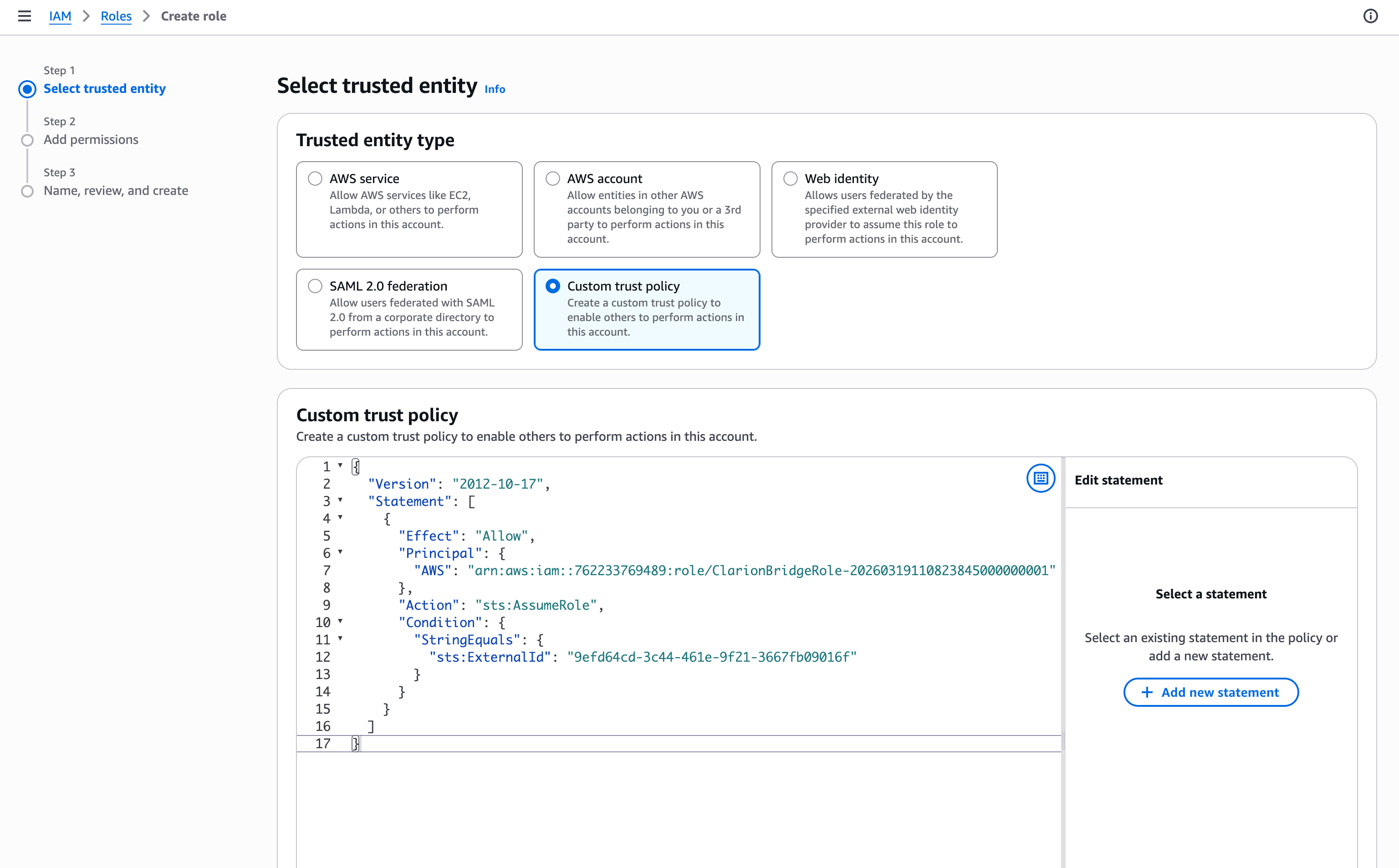
- Then go to IAM console > Roles and create a new role.
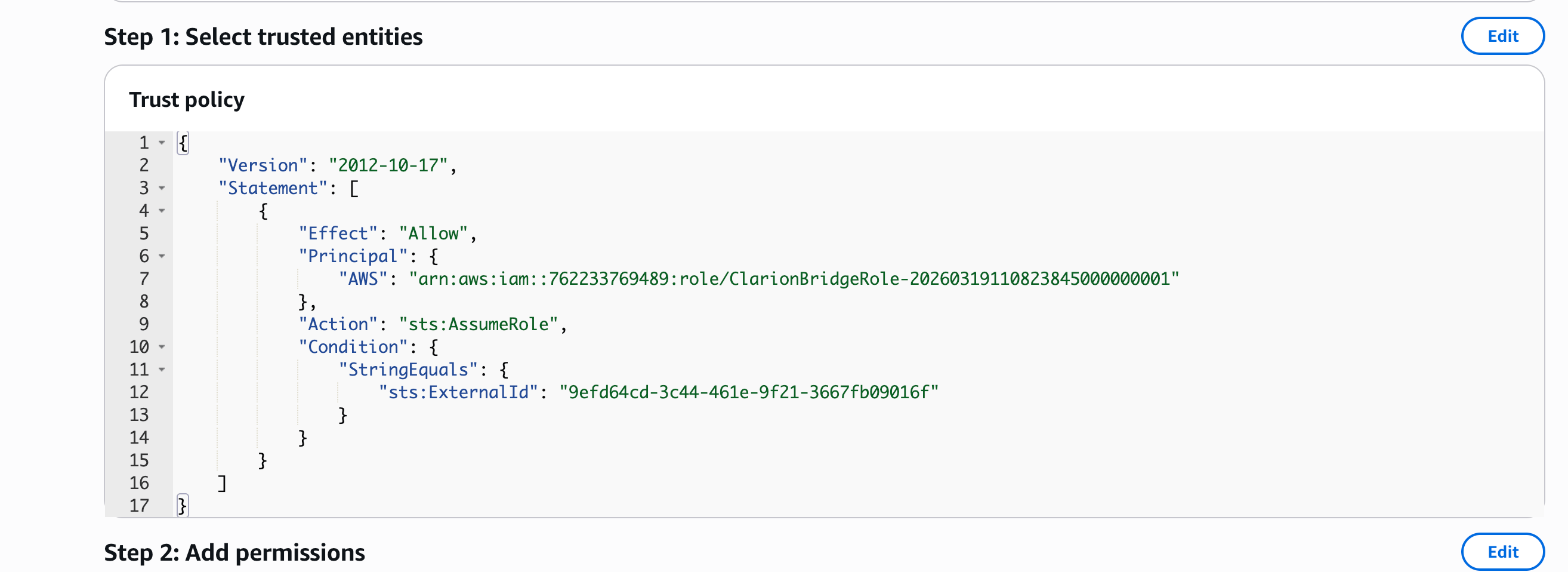
- Select Custom trust policy and paste the trust policy JSON below.
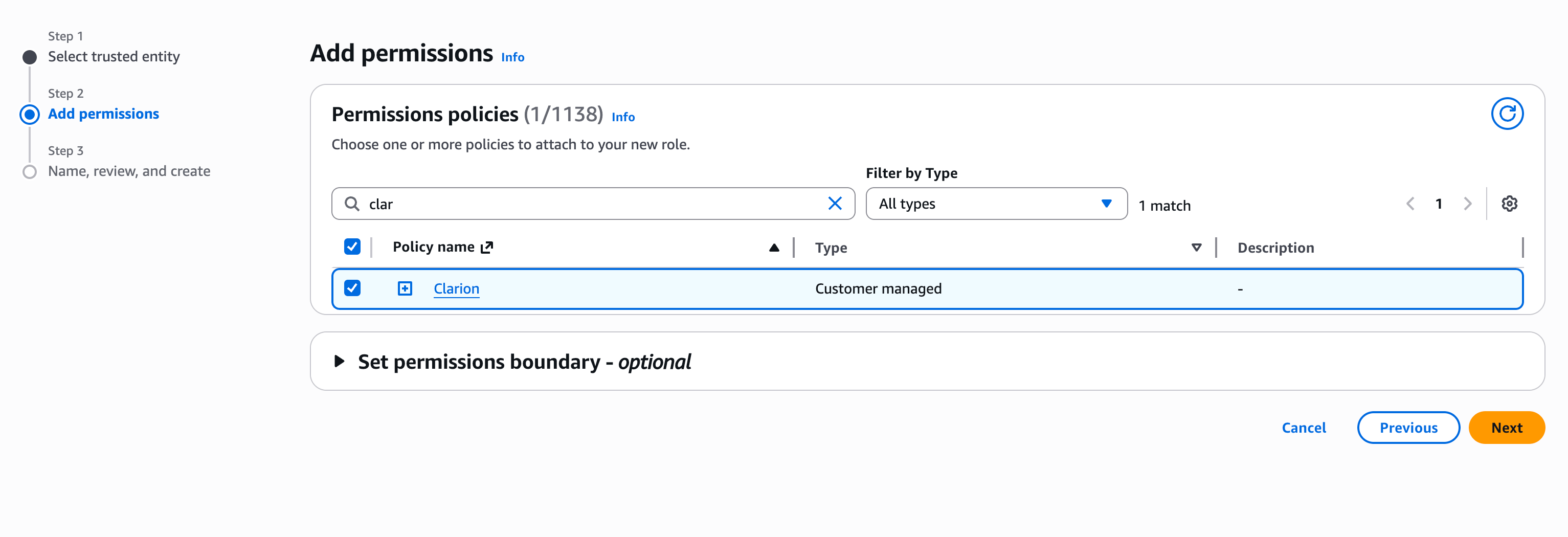
- Attach the policy you just created.
3. Verify or update the trust policy
- Open the role’s Trust relationships tab.
- Verify (or update) the trust policy to match:
4. Copy the Role ARN
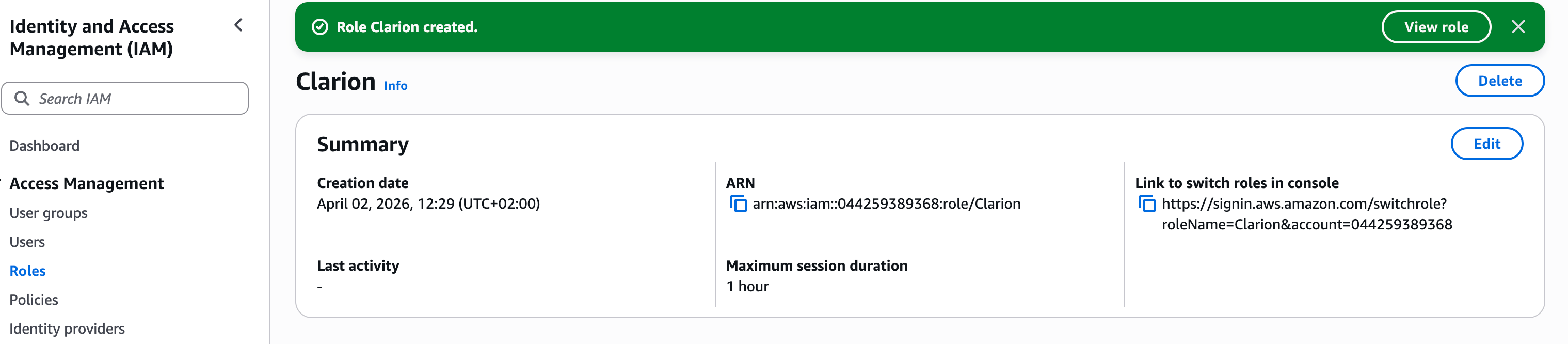
Option B — AWS CLI
IAM Permission Policy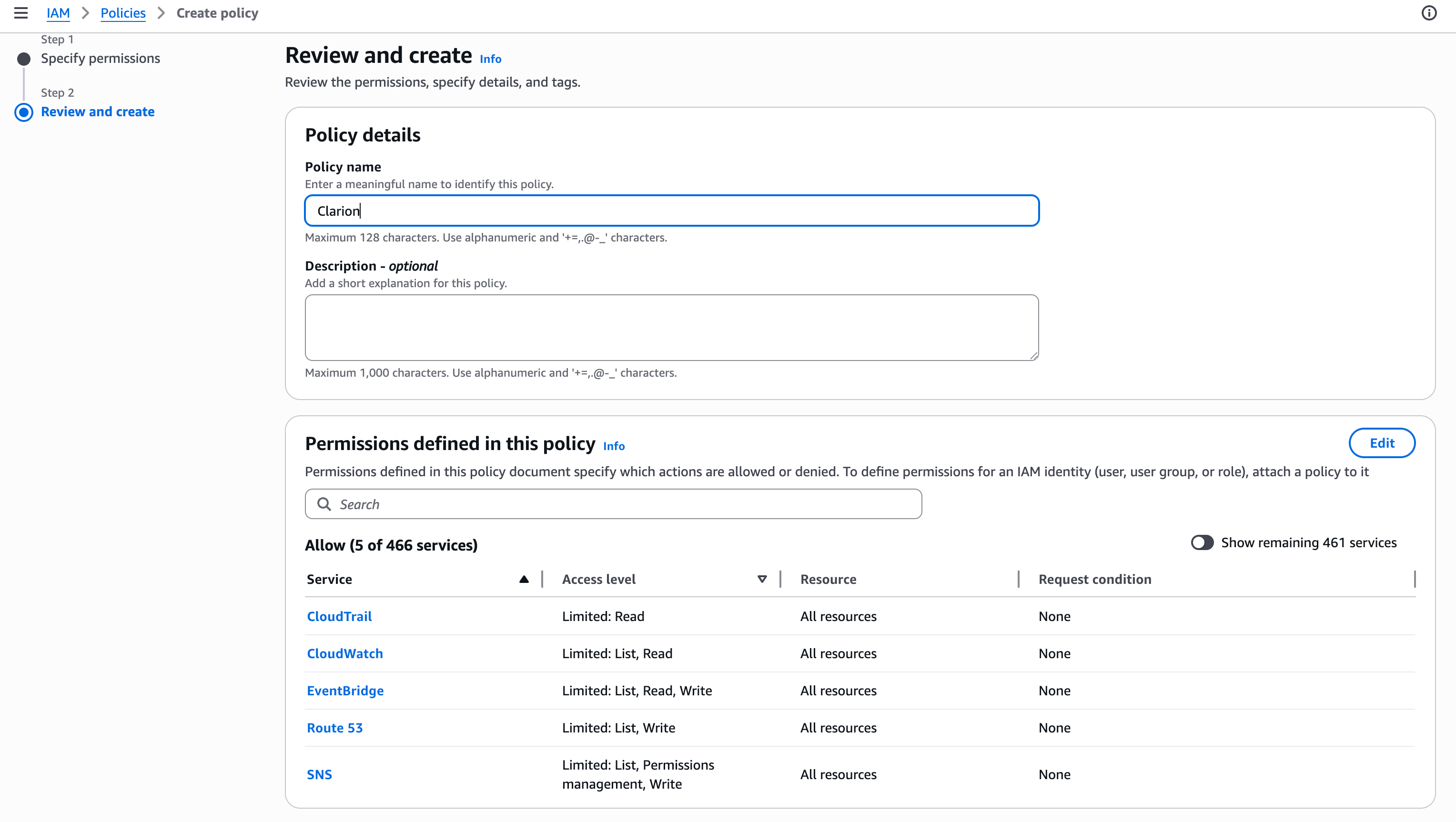
1. Check if the role already exists
2. Create the IAM policy
3. Create the IAM role with trust policy
4. Update the trust policy (existing role only)
Run this instead of step 3 if the role already existed:5. Attach the policy to the role
Step 4B — Connecting Multiple AWS Accounts
Agent MCP tools (aws_describe, aws_logs_insights, aws_athena, aws_cloudtrail, inspect_alb_auth) can target any account you connect to the workspace. Repeat Step 4 once per account: create a ClarionIntegrationRole in each account, give it the same trust policy and IAM policy, and add the role ARN to Clarion’s AWS integration as a new connected account.
When invoking an AWS MCP, the agent passes an accountId parameter to select which account the call should hit. Omitting the parameter falls back to the primary account.
4B.1 Pick a primary
Exactly one connected account is marked primary. The primary’s role is used whenever an MCP call omitsaccountId. Pick the account you query most often — typically the AWS Organizations log-archive account if you also use the consolidated-S3 ingest from Step 1B.
4B.2 External ID
By default every connected account uses the same workspace external ID, so you paste the same value into every role’s trust policy. If you want stricter isolation between accounts (a separate external ID per account so a leak in one does not compromise the others), generate a per-account external ID in the Clarion UI’s account-list panel and use that in the corresponding role’s trust policy.4B.3 IAM policy
Every connected account’s role uses the same IAM policy JSON from Step 4. Permission selection (theiamPermissionGroupIds list) is workspace-wide for now — every connected account is expected to honor the same set of granted permissions.
Step 5 — Activate Monitors in Clarion
- Go back to Clarion and add the CloudTrail monitor.
- Enable all the rules, then confirm.
- Review the listed event types and click to enable all relevant ones.
- If you set up GuardDuty or CloudWatch, add the GuardDuty and CloudWatch monitors as well. These monitors receive GuardDuty findings and CloudWatch alarms directly, so you don’t have to configure additional rules.
You’re done! Clarion is now receiving CloudTrail events, CloudWatch alarms, and GuardDuty findings from your AWS account.