

Estimated time: 5–10 minutes. You will need Microsoft Entra admin access to grant tenant-wide consent, plus access to the Clarion workspace where you want to connect Sentinel.
What this integration provides
Connecting Sentinel unlocks two things, both covered by a single connection:How the connection works
Unlike the Microsoft Entra ID SSO integration, you do not register your own app. Clarion ships a single multi-tenant Entra application — Clarion Sentinel — and a tenant admin grants it consent inside your tenant.- One consent per workspace. A single tenant-wide admin-consent screen covers incident polling, KQL queries, and the Sentinel triage tools. You don’t manage client IDs or secrets.
- Monitors are configured separately. The connection only stores the OAuth credential. You pick which workspace(s) to poll, and with what filters, when you add a monitor.
- One workspace per monitor. Add a second monitor to ingest from another workspace under the same Entra tenant.
Prerequisites
- A Microsoft Entra admin account that can grant tenant-wide admin consent
- A Microsoft Sentinel workspace with incidents you want to ingest
- Access to the Clarion workspace where you want to connect Sentinel
- (Recommended) Your tenant onboarded to the Microsoft Sentinel data lake — required for the Data lake workspace picker and the Data Lake KQL tools. Incident polling works without it (see Troubleshooting).
Step 1 — Connect Sentinel in Clarion
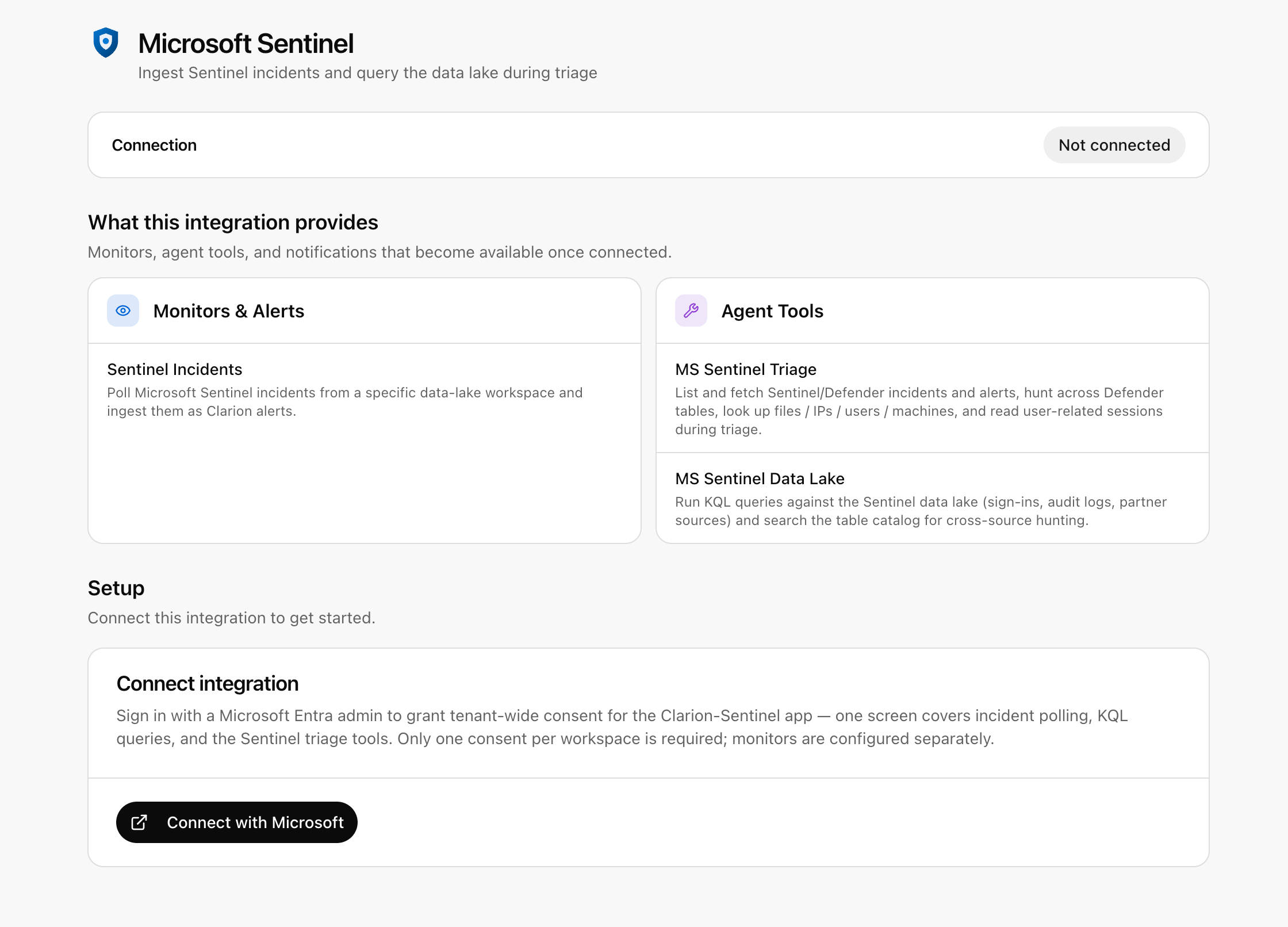
- Open Clarion and go to Integrations → Microsoft Sentinel.
-
Click Connect with Microsoft. You’ll be redirected to Microsoft to sign in.
Step 2 — Grant tenant-wide admin consent
Sign in with a Microsoft Entra admin account. Microsoft shows a Permissions requested screen for the Clarion Sentinel app. It requests:
Review and click Accept.
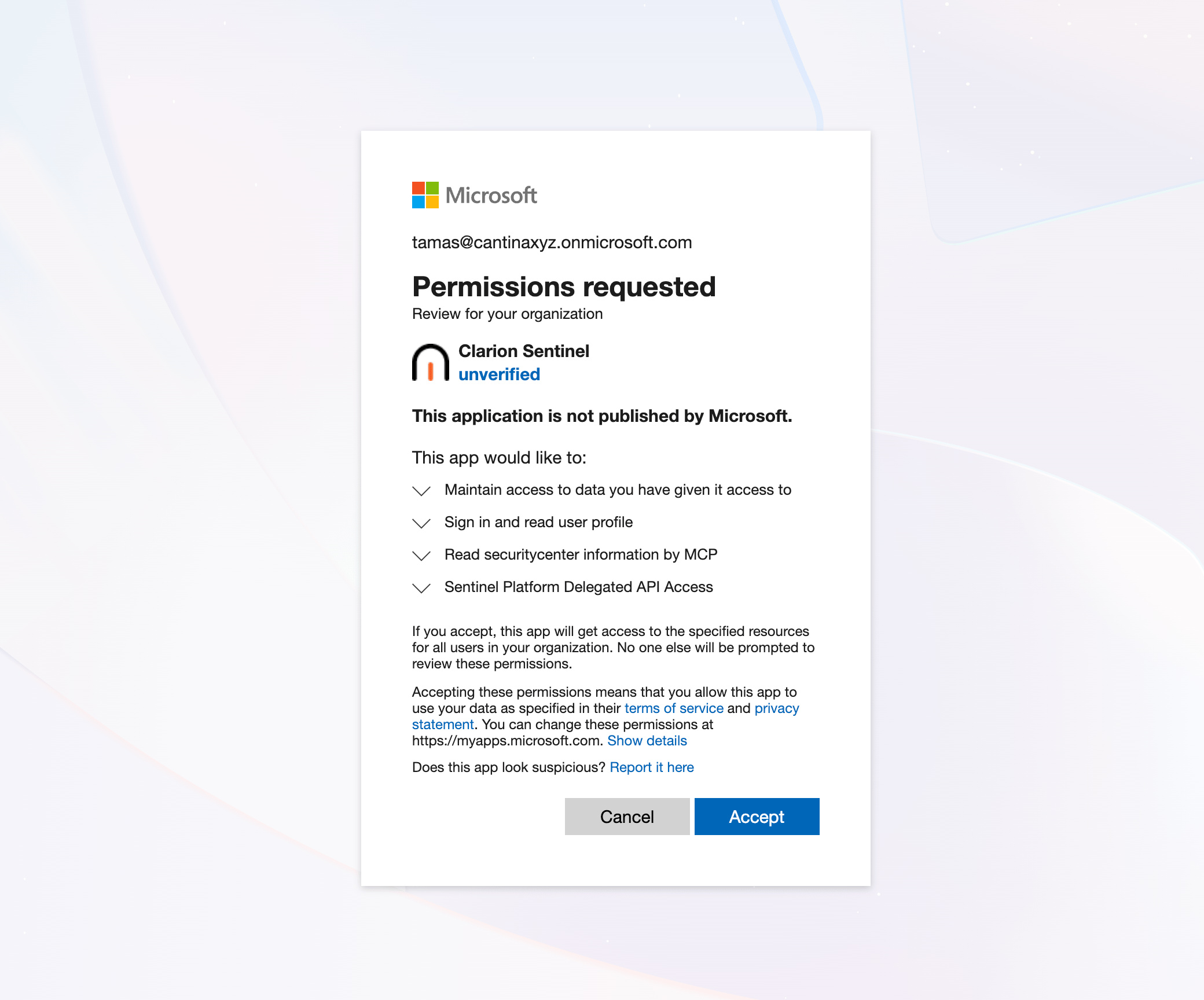
Microsoft labels the app as unverified / “not published by Microsoft.” That’s expected for a tenant-consented line-of-business app — consent is granted inside your tenant and applies only there.
Step 3 — Add a Sentinel Incidents monitor
On the connected integration page, click Add monitor.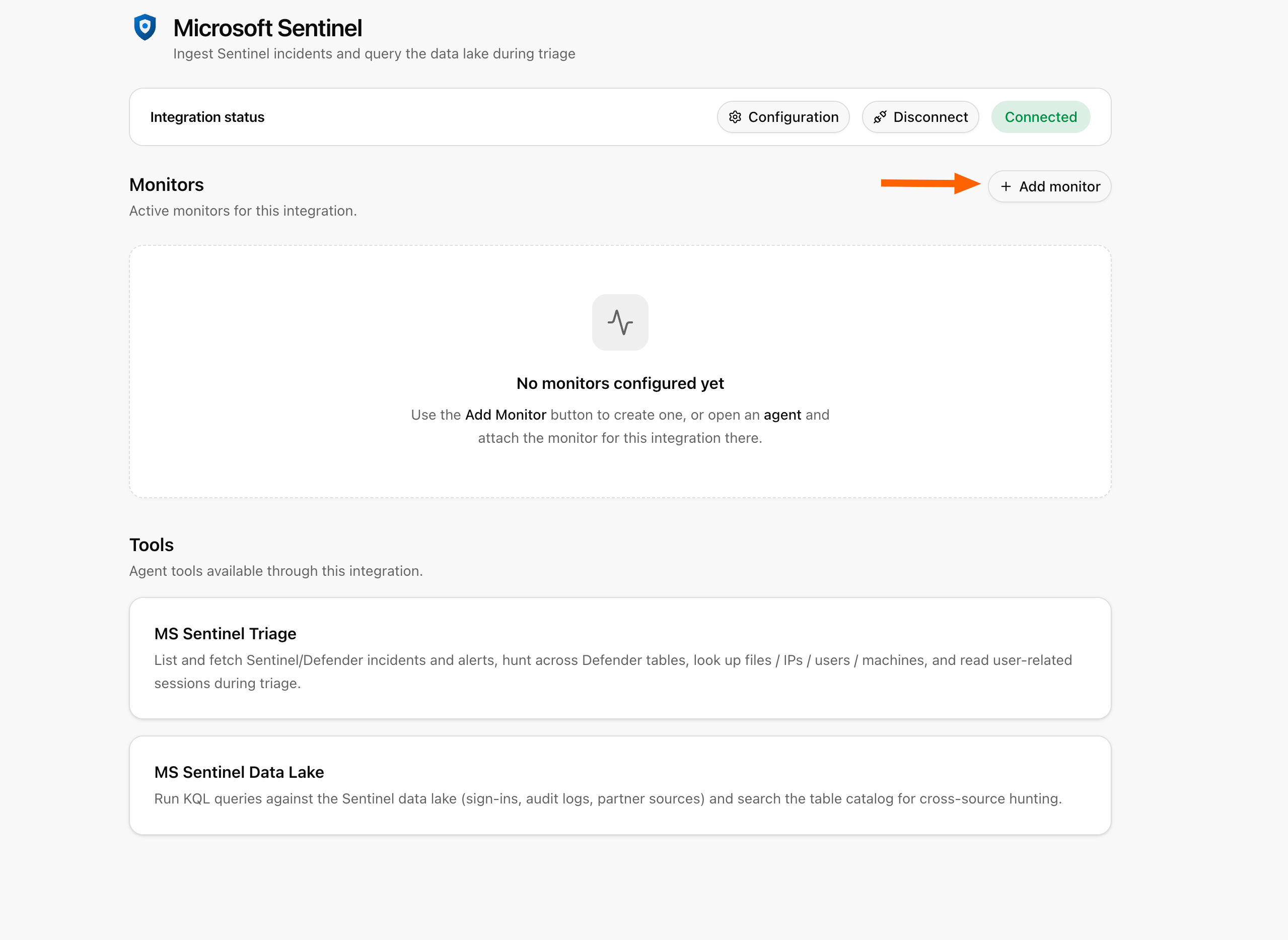
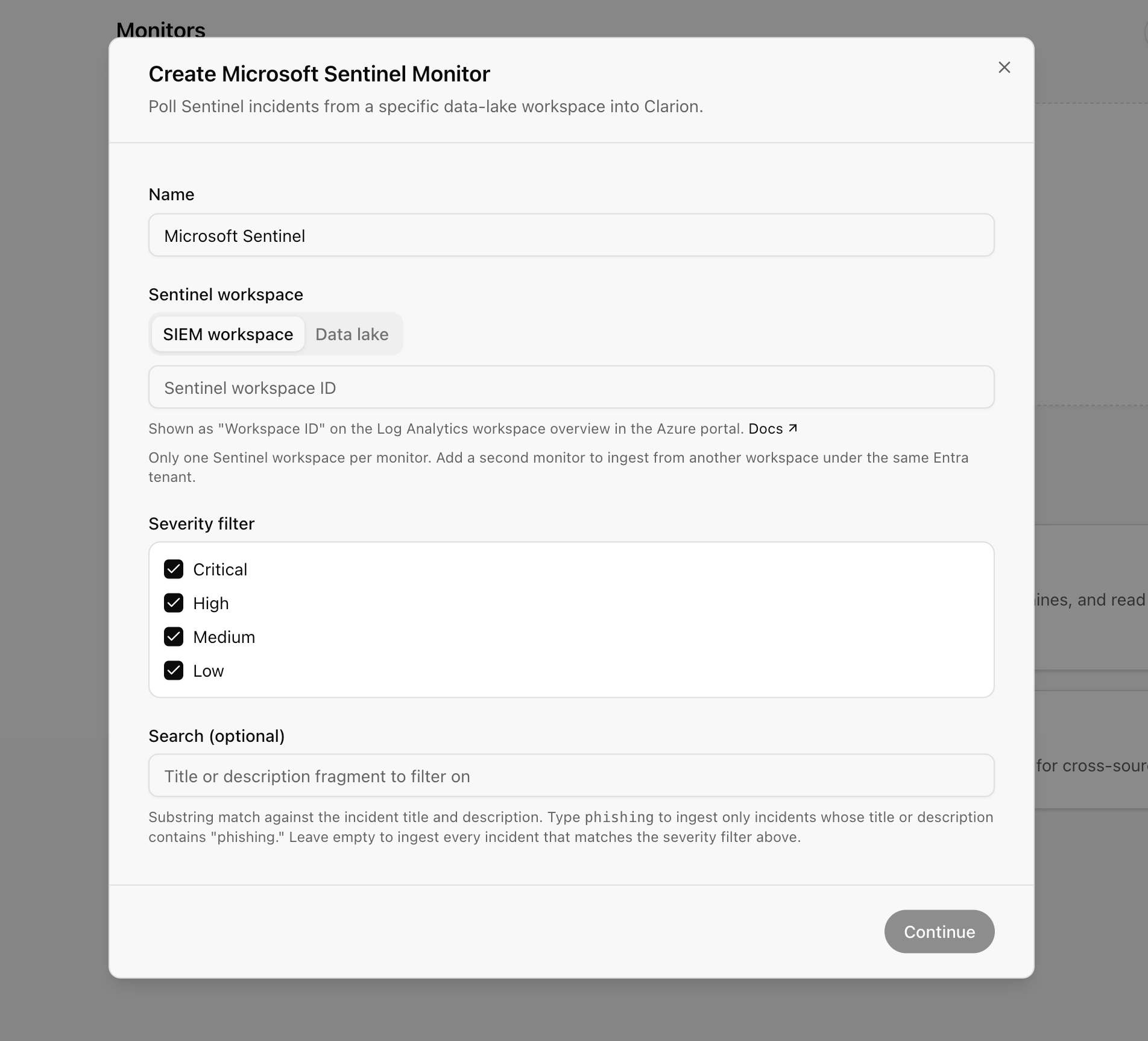
- Name — a label for this monitor, e.g.
Microsoft Sentinelor a per-region name likeSentinel EU. - Sentinel workspace (required) — two tabs cover the two ways to provide it:
- SIEM workspace (default) — paste the workspace identifier. It’s shown as Workspace ID on the Log Analytics workspace overview in the Azure portal.
- Data lake — pick the workspace from a dropdown listing the workspaces the connected tenant can see. Requires your tenant to be onboarded to the Microsoft Sentinel data lake.
To find your Workspace ID, see Finding your workspace ID below.
- Severity filter (optional) — all severities are checked by default. Uncheck Critical / High / Medium / Low to skip incidents of those severities. The filter is applied after Sentinel returns incidents. Unchecking everything disables the filter — incidents of every severity are ingested.
- Search (optional) — a substring matched against each incident’s title and description. For example, type
phishingto ingest only incidents whose title or description contains “phishing.” Leave empty to ingest every incident that matches the severity filter.
Finding your workspace ID
On the SIEM workspace tab you enter the workspace identifier by hand. In the Azure portal, open Microsoft Sentinel, confirm the selected workspace, then read the Workspace ID from that workspace’s Log Analytics workspace overview.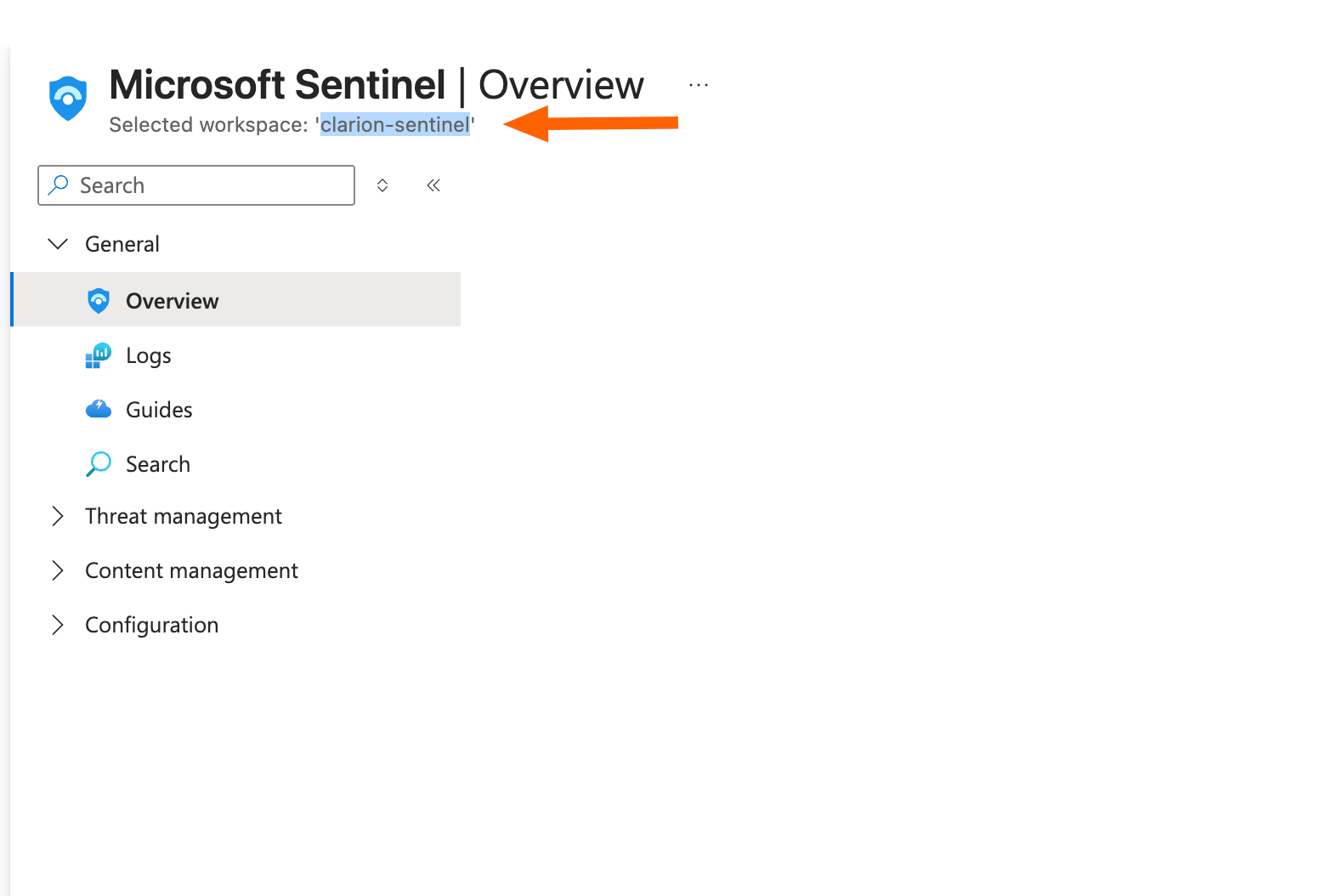
How incident polling works
- Clarion polls each connected monitor about once a minute and opens a Clarion issue for every new Sentinel incident that passes your severity and search filters.
- Polling is forward-only — a monitor ingests incidents created after it’s connected, tracked by each incident’s creation time.
- Incidents are deduplicated by their Sentinel incident ID, so retries and overlapping polls never create duplicate issues.
- Each issue carries the Sentinel incident title, description, severity, and a deep link back to the Defender/Sentinel portal, plus the full incident payload for agents to read without an extra round-trip.
Severity mapping
Clarion maps Sentinel’s severity onto its own issue severities:Agent tools
Once connected, attach Sentinel tools to a skill in the skill editor so your triage agents can investigate alerts directly:- MS Sentinel Triage Tools — list and fetch Sentinel and Defender incidents and alerts, run advanced hunting across Defender tables, and look up files, IPs, users, machines, and user-related sign-in sessions.
- MS Sentinel Data Lake Tools — run KQL queries against the Sentinel data lake (sign-ins, audit logs, partner sources) and search the table catalog for cross-source hunting.
Incident ID formats differ. The triage tools’ Get Incident By Id expects a Sentinel incident identifier (a GUID or numeric Sentinel ID), which is not the Defender incident number shown in the Defender portal. If a lookup by number fails, use ListIncidents to find the incident and its correct identifier first.
Monitoring multiple workspaces
Each monitor polls exactly one workspace. To ingest from several workspaces in the same tenant, click Add monitor again and pick a different workspace — each monitor keeps its own filters and sync health. You only consent once per Clarion workspace, no matter how many Sentinel workspaces you poll.Disconnect
Click Disconnect on the integration page to remove the Sentinel connection. This also removes all Sentinel monitors for the workspace so polling stops cleanly. Other integrations are unaffected.Troubleshooting
Re-connect required
If the integration shows Re-connect required, the stored credentials are no longer usable — typically because a tenant admin reset consents or the refresh token expired. Click Connect with Microsoft and sign in again to resume incident polling and agent queries. You don’t need to disconnect first.Couldn’t list workspaces
The tenant may not be onboarded to the Microsoft Sentinel data lake, or the integration may need to be reconnected.The Data lake workspace picker and the Data Lake KQL tools require your tenant to be onboarded to the Microsoft Sentinel data lake; incident ingestion does not. If listing fails, switch to the SIEM workspace tab and enter the Workspace ID — the monitor will still poll incidents normally. If you expect the data lake to be available, reconnect the integration.
Required Microsoft service not enabled (AADSTS650052)
This means your tenant has no service principal for one of the Microsoft resources the connection requires — Microsoft only provisions these for some clients while the feature is in preview. Consent can’t be recorded against a resource that doesn’t exist in your tenant, so the connect flow stops withAADSTS650052.
Two resources are required, and either can be the missing one:
Clarion’s error message names the specific service that’s missing and includes the exact command to run. A tenant administrator creates the missing service principal by running the matching command in Azure Cloud Shell (shell.azure.com):
az ad sp show --id <resource app ID> — a “does not exist” response confirms it’s the one to create. Then connect again.
”Microsoft did not return a refresh token”
The Clarion Sentinel app needs theoffline_access permission to poll on your behalf. Ask your Entra admin to grant offline_access and try connecting again.
”The sign-in used a different tenant than the one that granted consent”
The account you signed in with at the second screen belongs to a different tenant than the one that granted admin consent. Reconnect using the same account that approved the consent.No incidents are arriving
- Confirm the Workspace ID is correct and matches a workspace that actually receives incidents.
- Check the monitor’s severity filter — if you checked only
Critical, lower-severity incidents are skipped by design. - Check the Search filter — a substring that doesn’t match any incident title/description will suppress everything.
- Remember polling is forward-only: incidents created before the monitor was connected aren’t backfilled.