

- OAuth admin consent — grant Clarion access to your Microsoft Entra tenant.
- Bot installation — add the Clarion bot from the Microsoft Teams app store.
- Member mapping — link Clarion workspace members to their Teams accounts.
- Notification channel — pick a default Teams channel or chat for notifications.
Estimated time: 15-20 minutes. You will need Microsoft Entra admin access (to grant tenant-wide consent), permission to add apps to your Microsoft Teams organization, and access to the Clarion workspace where you are configuring the integration.
Prerequisites
- A Clarion workspace with permission to manage integrations
- A Microsoft Entra (Azure AD) account with permission to grant admin consent for tenant-wide applications
- Permission to add apps from the Microsoft Teams app store (or Teams Admin Center access if your organization blocks store apps)
- A team and channel (or chat) in Microsoft Teams where Clarion should post notifications
Step 1 — Connect with Microsoft
- In Clarion, open Integrations and find Microsoft Teams.
- Click Connect with Microsoft. A new tab opens to the Microsoft admin consent screen.
- Sign in with a Microsoft Entra account that can grant tenant-wide consent.
- Review the requested permissions and click Accept to grant consent for the entire tenant.
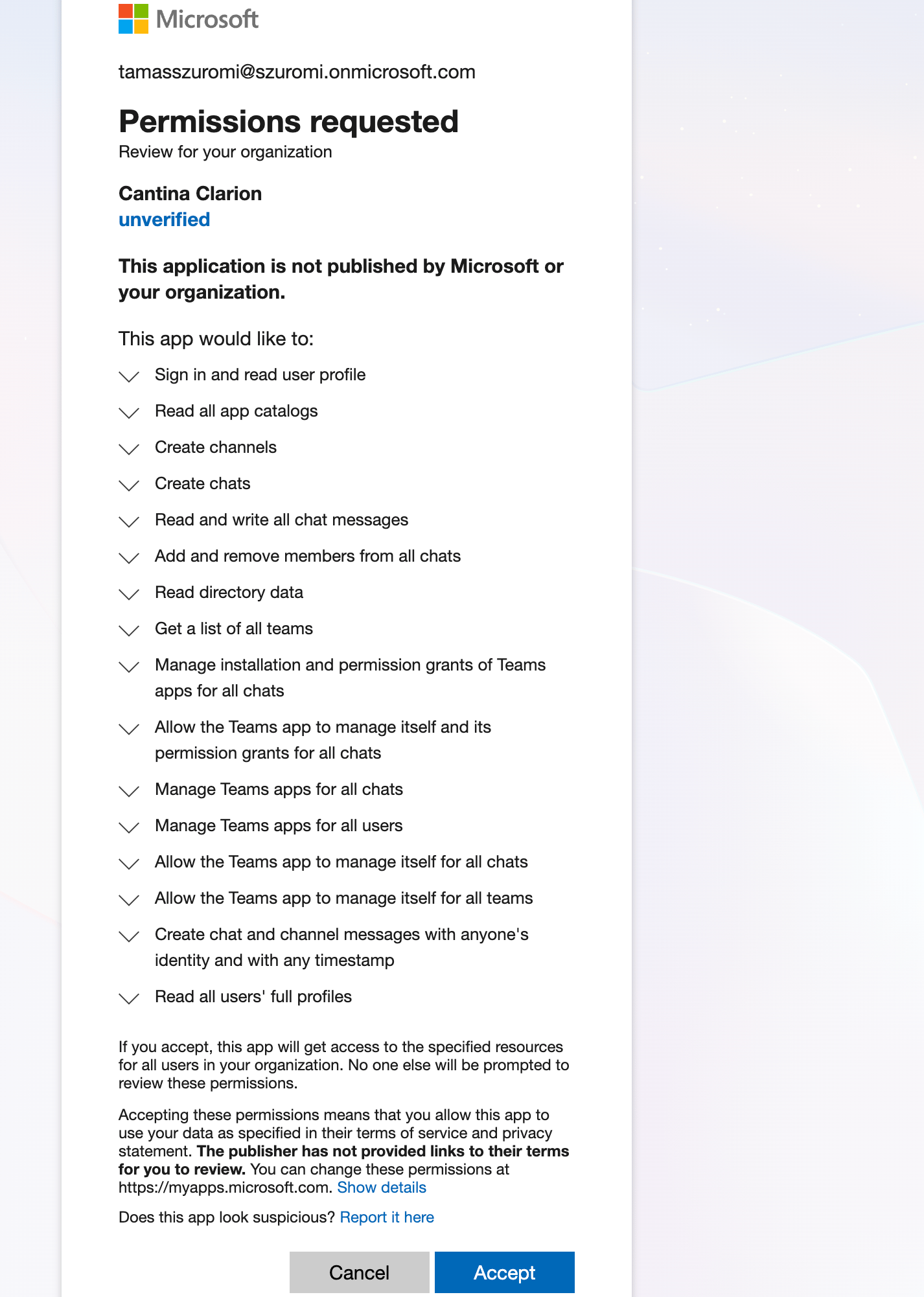
Clarion uses the admin consent flow with app-only (client credentials) tokens. The consenting account does not need to be the same account that uses Clarion day-to-day, because admin consent applies to your whole Microsoft Entra tenant.
Step 2 — Install the Clarion bot in Teams
OAuth gives Clarion access to your tenant’s directory and chats, but posting messages requires the Clarion bot app to be installed in your organization’s Teams app catalog. The bot is published on the Microsoft Teams app store, so you can add it directly without uploading a package.-
On the Setup page, find the Bot Installation card.
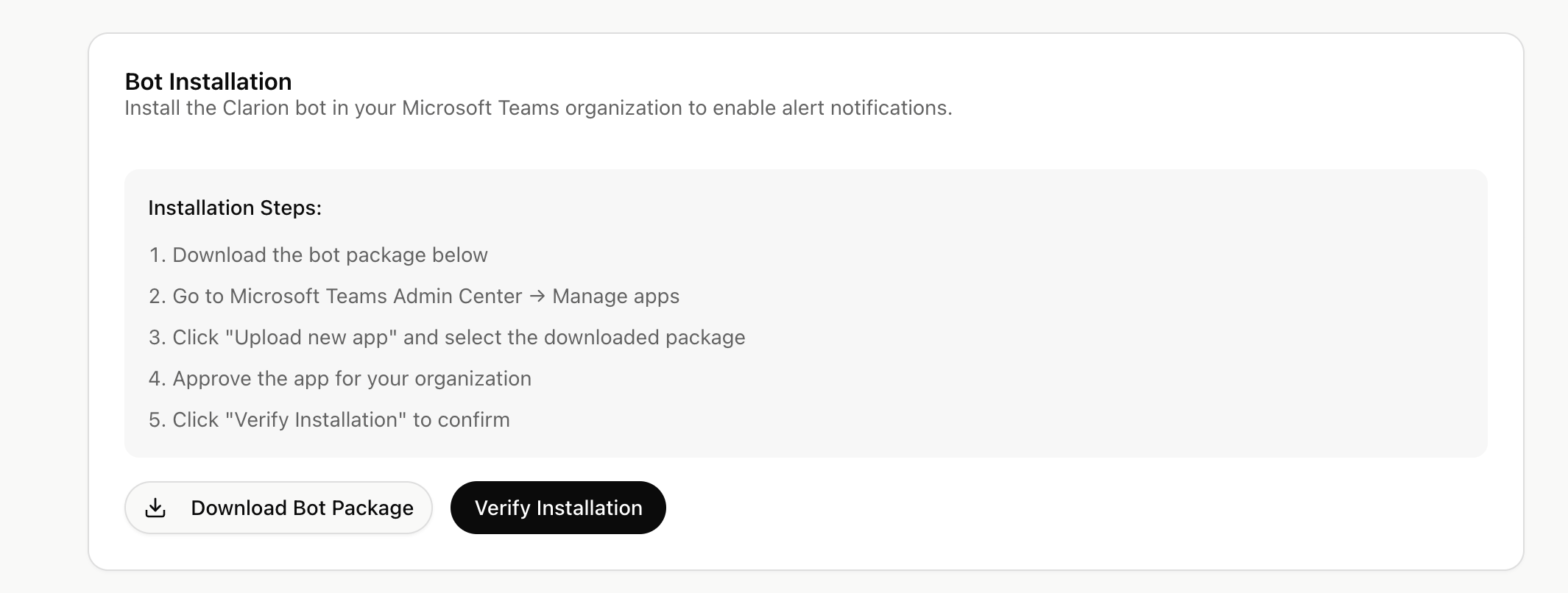
- Click Open in Teams app store to open the Clarion by Cantina listing.
- Click Add to install the bot for your organization.
- Back in Clarion, click Verify Installation.
Install the app for everyone
Adding the bot to your app catalog makes it available, but by default only the person who added it — and the workspace members you map in Step 3 — can act on Clarion’s Adaptive Cards from inside Teams. When someone the app is not installed for clicks a button on an approval or clarification card, Teams blocks the click before it reaches Clarion and shows:This action can’t be performed since the app does not exist or has been uninstalled.To let any teammate in a Teams chat or channel — including guests and people without a Clarion account — respond to approval and clarification requests, install the Clarion app for everyone in your tenant:
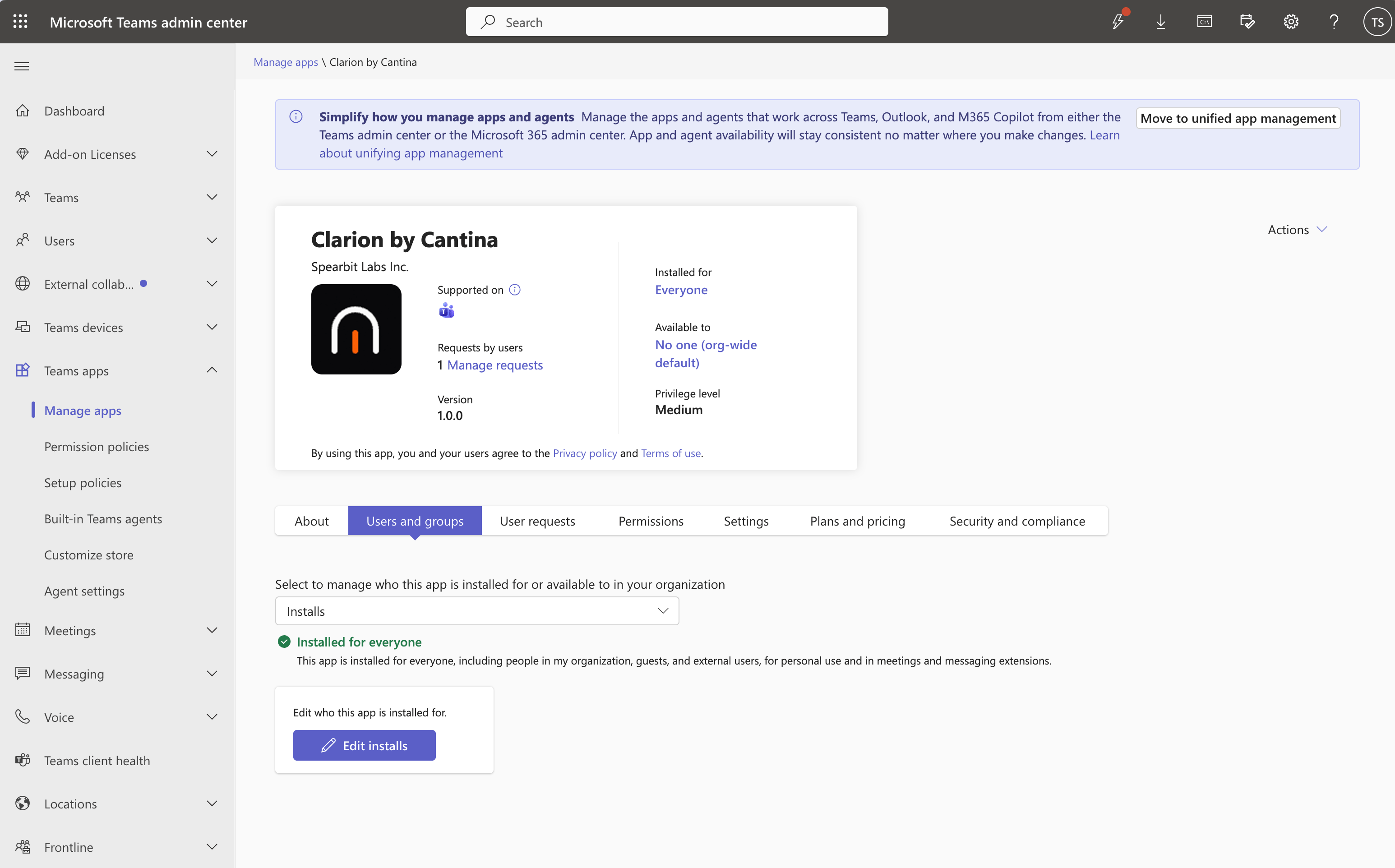
- Open Teams Admin Center → Manage apps → Clarion by Cantina → Users and groups.
- With Installs selected, click Edit installs and choose Everyone, then save.
This pairs with two settings:
- Anyone can respond to human input (Settings → Workspace): lets any workspace member (including read-only users) and any teammate in the linked chat answer approvals and clarifications, even without a Clarion account.
- Allow agents to post to any channel (Settings → Agents → Escalation & notifications): lets agents deliver those cards to any chat or channel, not only the ones named in skills or instructions.
Alternative: manual upload
If your organization blocks apps from the Teams app store, you can side-load the bot package instead:-
In the Bot Installation card, click Download Bot Package to download the Clarion bot manifest (a
.zipfile). - Open Microsoft Teams Admin Center → Manage apps. You can also click the Manage apps link in the Bot Installation card to jump straight there.
-
Click Upload new app and select the downloaded package.
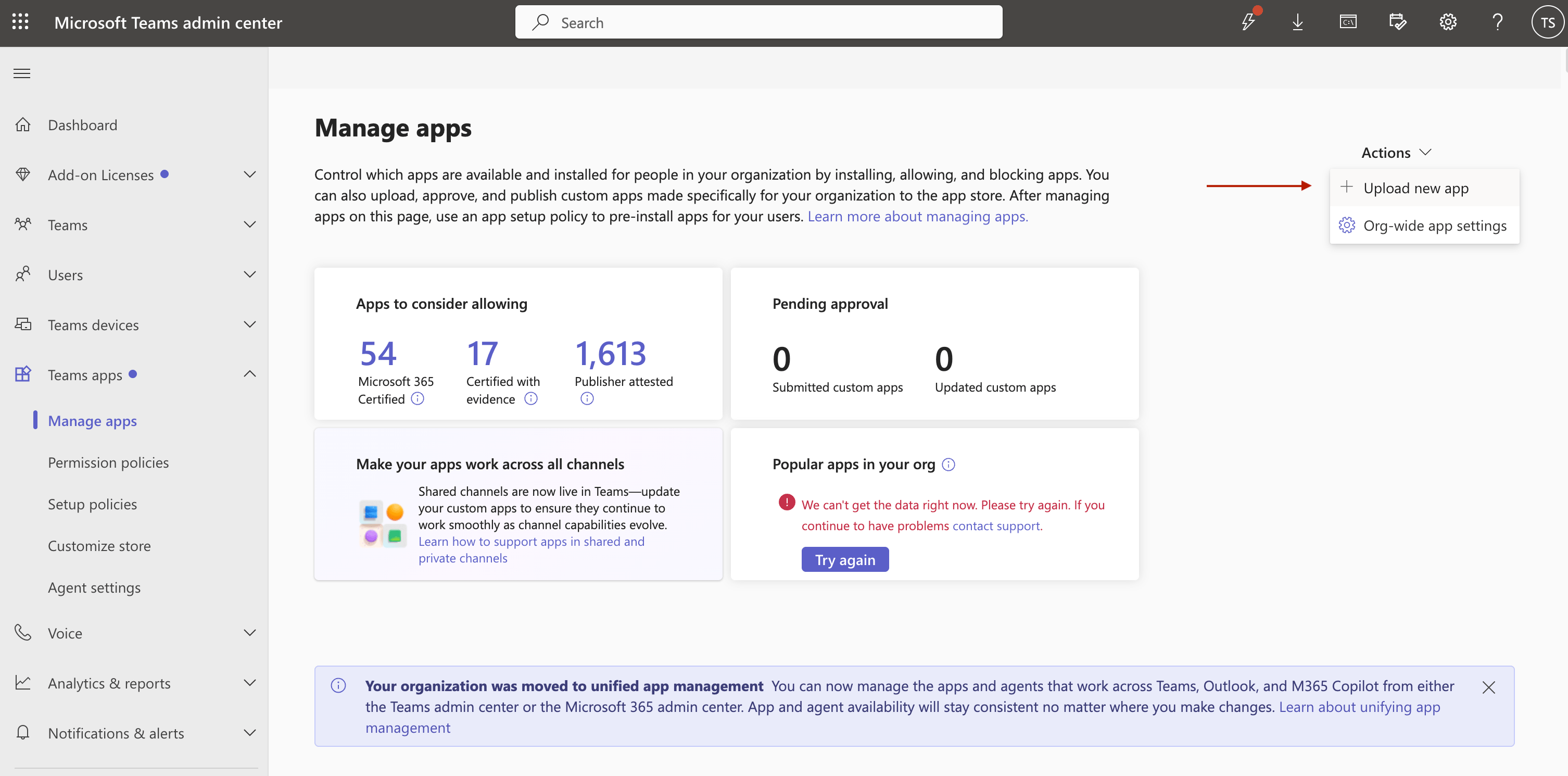
- Approve the app for your organization, then click Verify Installation back in Clarion.
Private-label the bot (MSPs)
Managed service providers running one Clarion workspace per client can rename the Teams bot so the client sees the provider’s brand instead of Clarion. This is a beta feature. Ask your Clarion contact to enable it for a workspace. When it is on, the Setup page shows a Bot branding card above Bot Installation:- Enter a Bot name (up to 30 characters; Microsoft rejects longer names) and, optionally, a Publisher name. Save.
- Click Download Bot Package. The manifest carries your brand.
- Upload it in Microsoft Teams Admin Center → Manage apps → Upload new app, and approve it for the organization.
- Back in Clarion, click Verify Installation.
Known limitations
- Developer links stay Cantina’s. Teams requires website, privacy, and terms URLs in every manifest; branded packages still point at
cantina.xyz. These appear in the app’s About page in Teams. - Issue cards deep-link to Clarion. The “View Details” button on an issue card opens
clarion.cantina.xyz, because that is where the issue lives. - Icons are Clarion’s. Custom icons are not supported yet; the package ships the default color and outline icons.
- One brand per Microsoft tenant. The tenant app catalog holds a single entry per app, so two workspaces on the same Entra tenant cannot use different bot names. Clarion rejects the second, conflicting brand.
- Branded tenants are upload-only. There is no store listing under your name, so every install goes through Admin Center.
- Clearing a brand needs a fresh install. Reverting to default branding resets the manifest version to
1.0.0, which Admin Center will not accept as an update over a branded package. Remove the uploaded app first, then install “Clarion by Cantina” from the store.
Step 3 — Link workspace members to Teams accounts
For approval cards and direct messages to reach the right person, Clarion needs to know each workspace member’s Microsoft Teams identity.- On the Member Mapping card, click Auto-match to link members whose Clarion email matches a Microsoft Entra user.
- For any members who did not auto-match, use the dropdown next to their name to pick the correct Teams user.
- At least one member must be linked before you can run the test connection in Step 4.
Member mapping is stored as the user’s Microsoft Entra object ID. If you re-invite a workspace member or they change email, you may need to re-link them.
Step 4 — Test the connection
- On the Test Connection card, click Create Test Chat.
- Clarion creates a small group chat in Teams that includes the linked members and posts a test message.
- Open Teams and confirm the message arrived. The card also shows a direct link to the test chat.
Step 5 — Choose a default notification channel
Click Back to Teams settings to return to the main configuration page.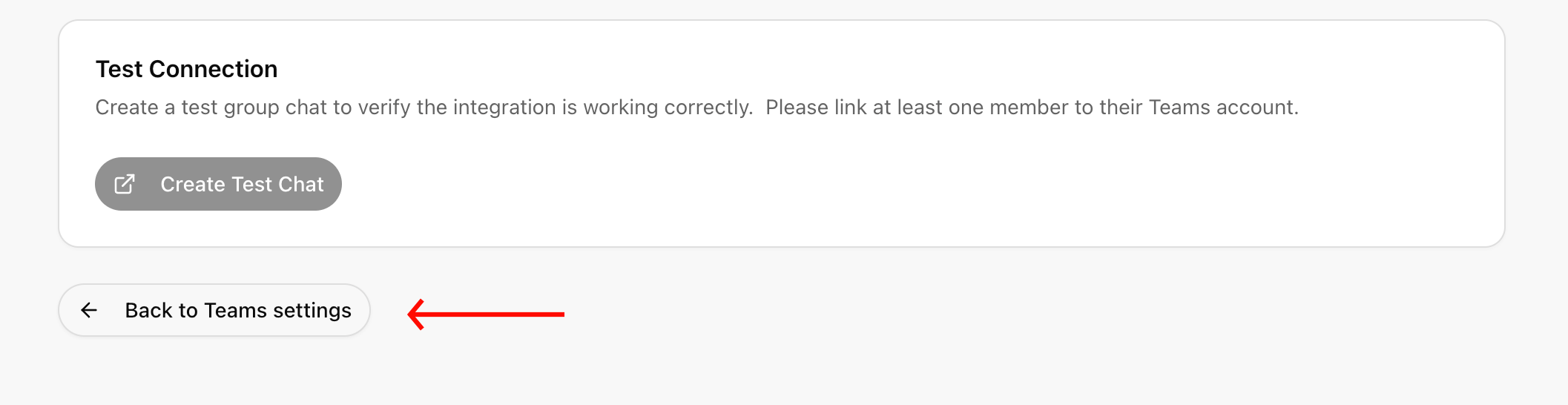
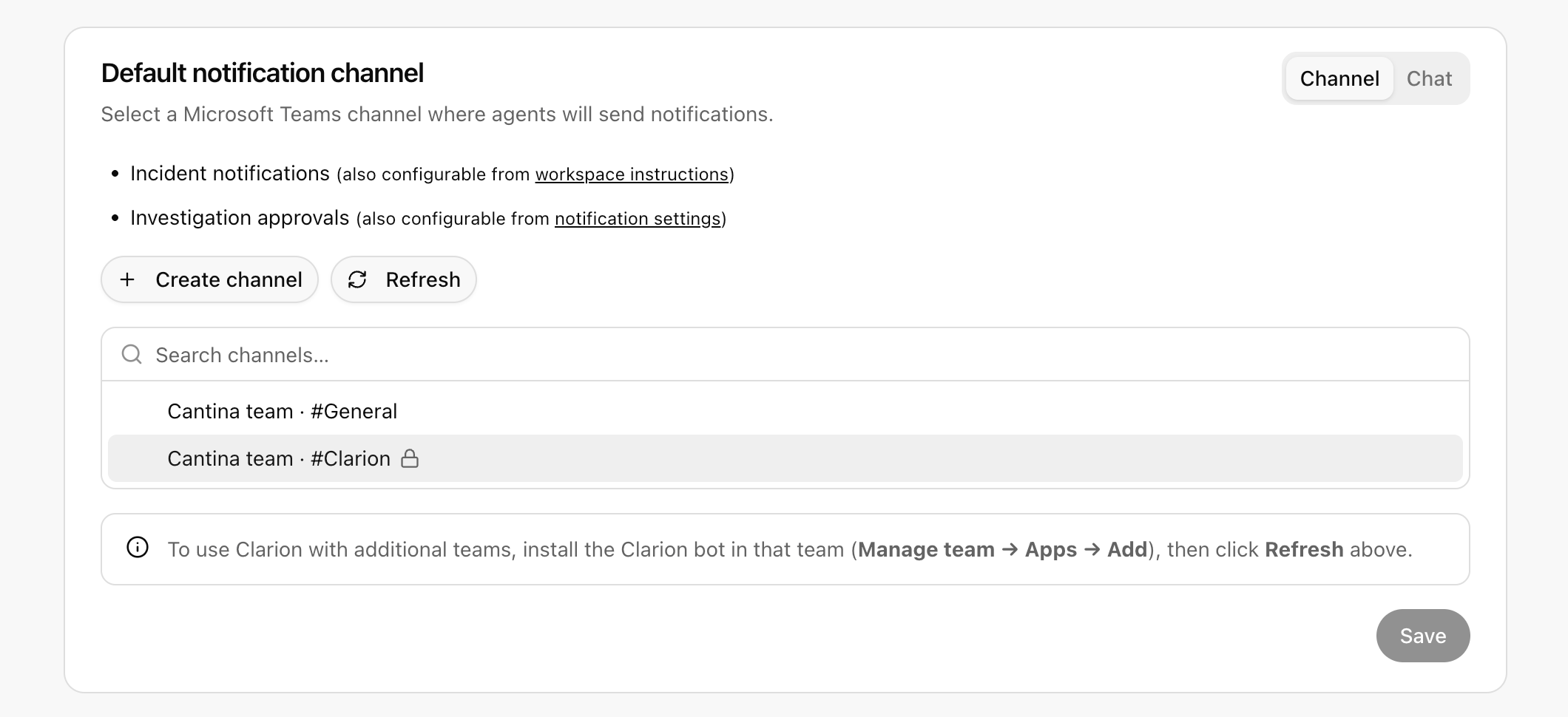
- Channel (recommended for broadcasts) — pick a team, then a channel within that team. Anyone in the channel can see and respond to Clarion’s messages and approval cards.
- Chat — pick an existing Teams chat, or have Clarion create a new ad-hoc group chat with the workspace members you choose.
What Clarion can do
Once Microsoft Teams is fully connected, agents can:- Post messages to a Teams channel — broadcast incident updates to a team channel.
- Post messages to a Teams chat — send updates to an existing chat (group or 1:1) by chat ID.
- List channels and chats the bot has access to, so agents can pick the right destination.
- Create an ad-hoc group chat with specific users — used as a last resort when no existing channel or chat fits.
- List users in your Microsoft Entra directory to look up who to message.
Disconnect Microsoft Teams
To disconnect:- Open the Microsoft Teams integration in Clarion.
- Click Disconnect in the status card and confirm.