

Prerequisites
- A Tenderly account with access to the project you want to monitor.
- Access to the Clarion dashboard.
Step 1 — Generate a Tenderly Access Token
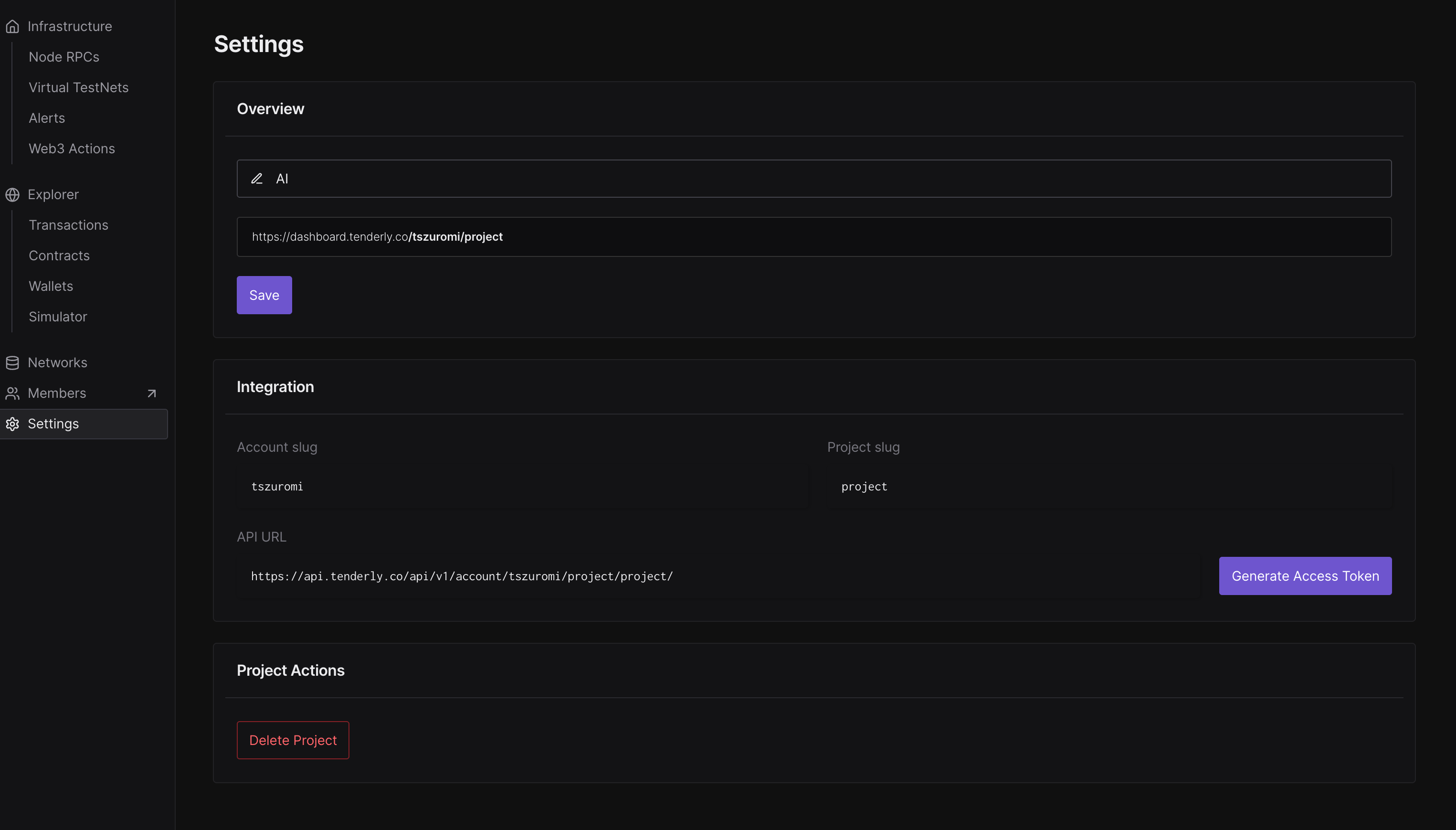
- Open Tenderly and go to Settings.
- Under settings, find the Integrations section and click Generate Access Token.
- Give the token a descriptive name (e.g.
Clarion).
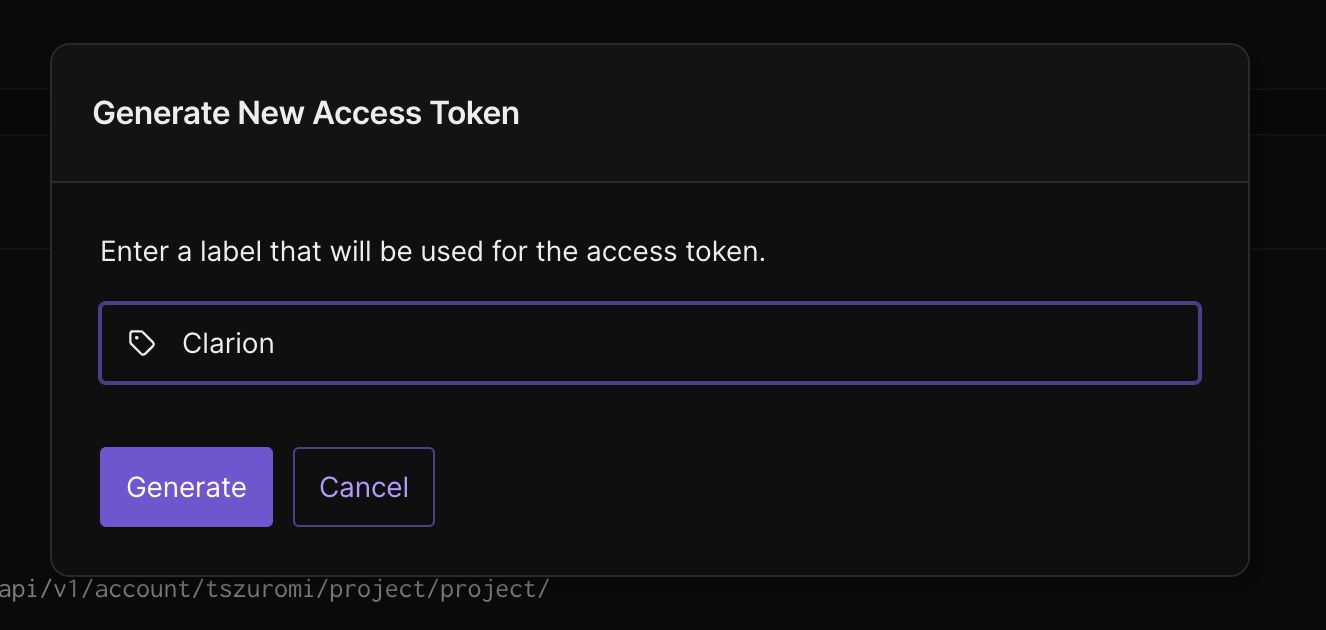
- Copy the access token immediately — it is only displayed once.
Step 2 — Connect Tenderly to Clarion
- In Clarion, navigate to Integrations and find the Tenderly integration.
- Paste the access token you copied in Step 1 and click Connect.
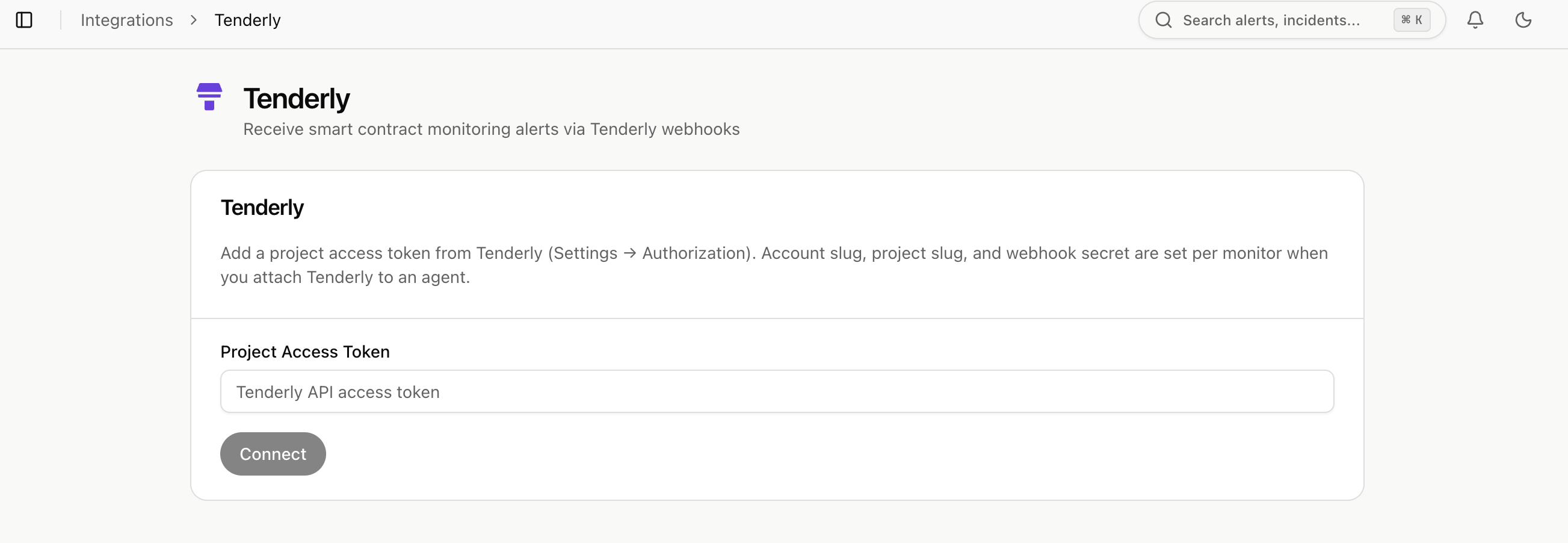
- Once connected, click Configure on the integration page.
Step 3 — Create a Monitor in Clarion
- Switch to the Monitor tab and click Add New Monitor.
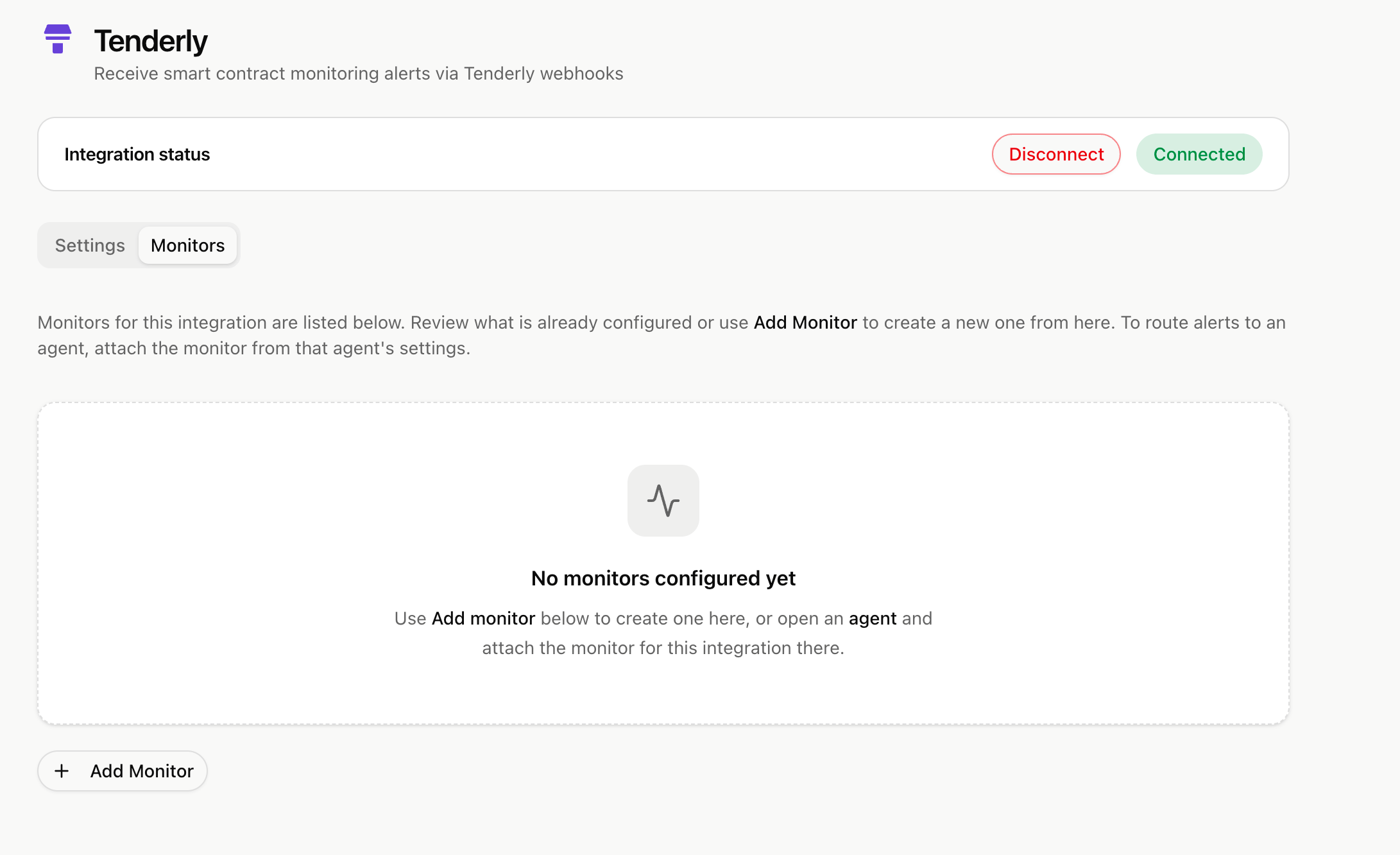
- Go back to Tenderly Settings and copy your Account Slug and Project Slug.
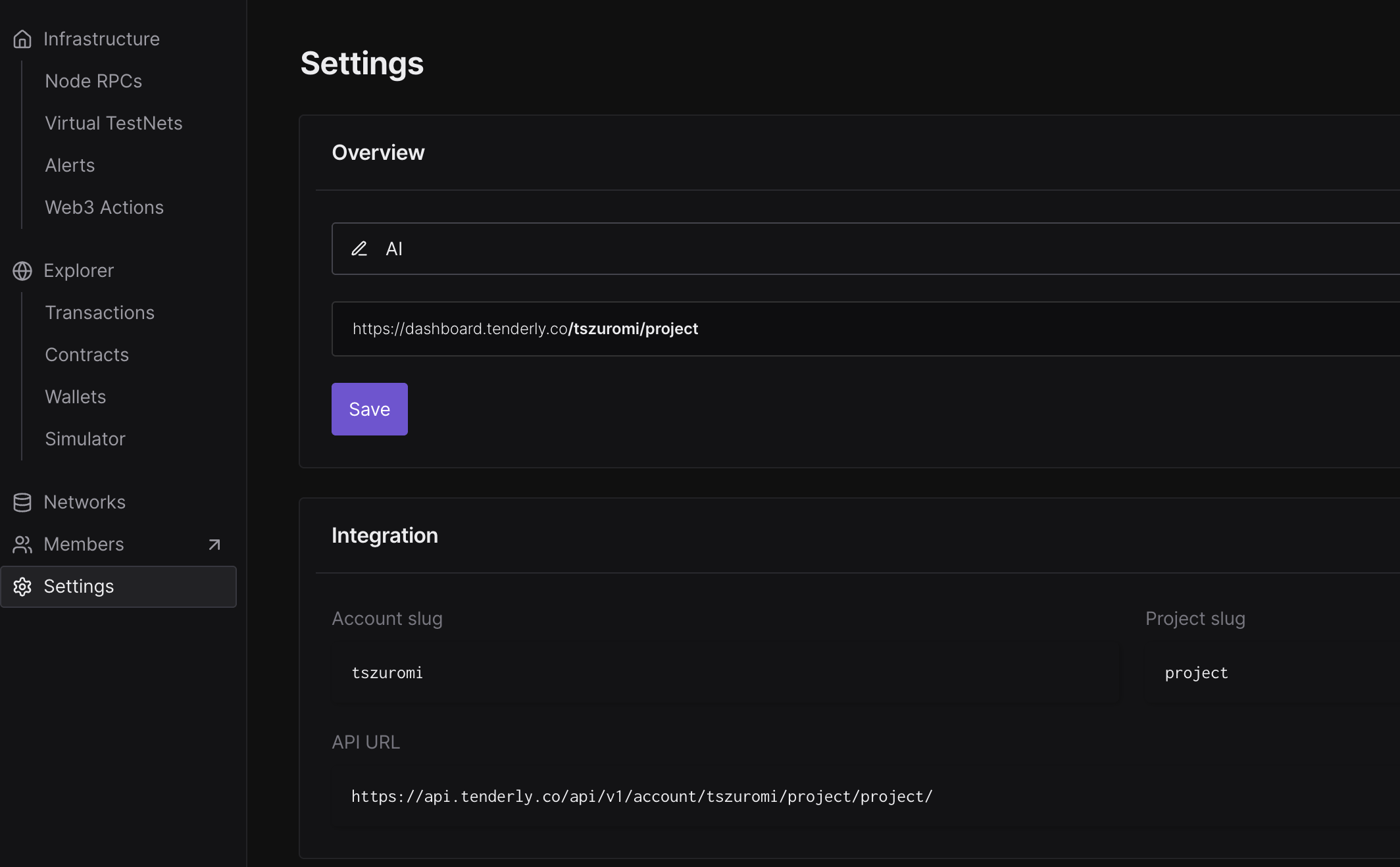
- Paste both slugs into the corresponding fields in Clarion.
- Leave the Webhook Secret field empty for now — you’ll fill it in after setting up the webhook in Tenderly.
- Click Create Monitor. Clarion will generate a webhook URL that you’ll need in the next step.
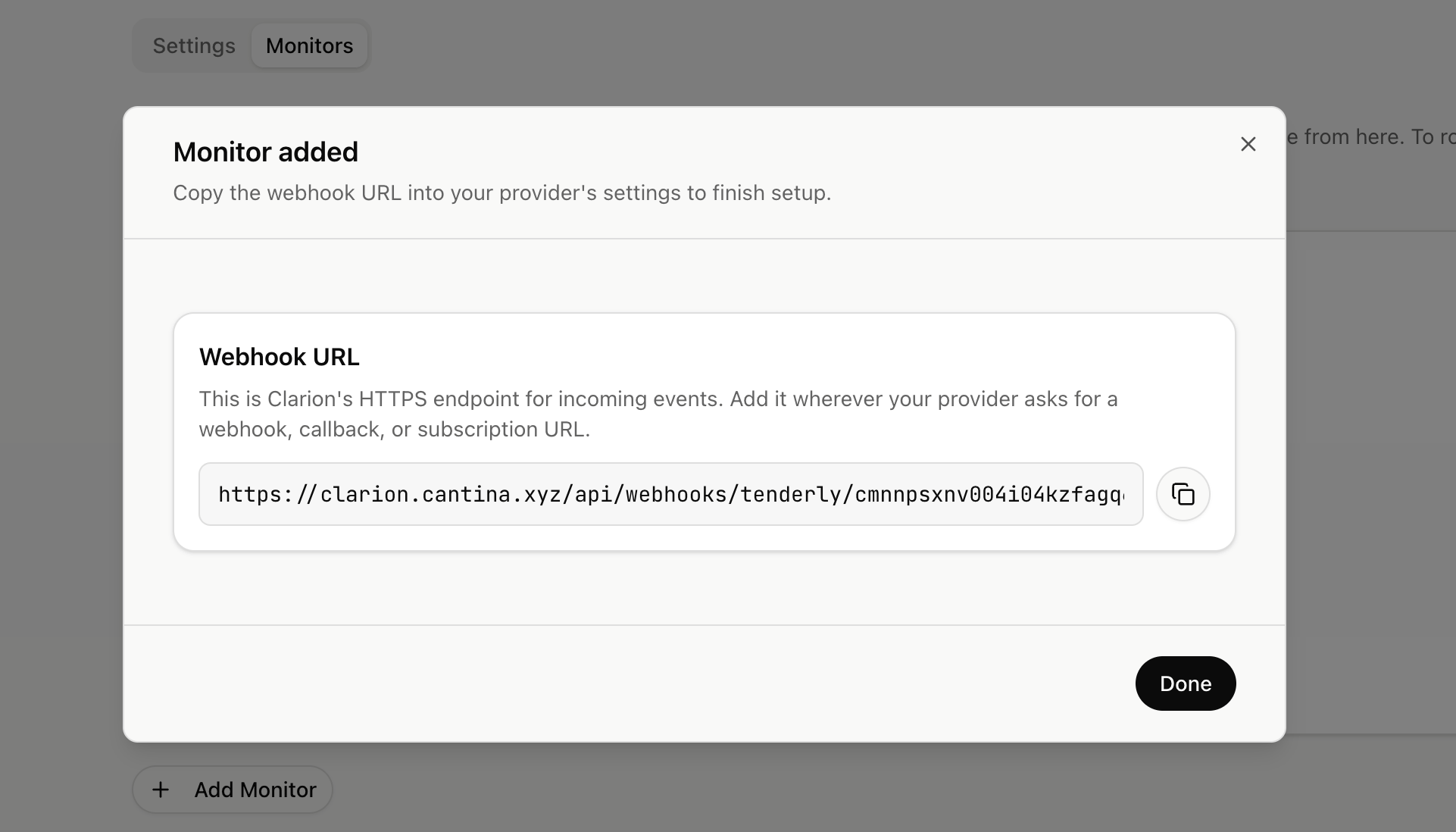
Step 4 — Set Up the Webhook Destination in Tenderly
- In Tenderly, go to Alerts and switch to the Destinations tab.
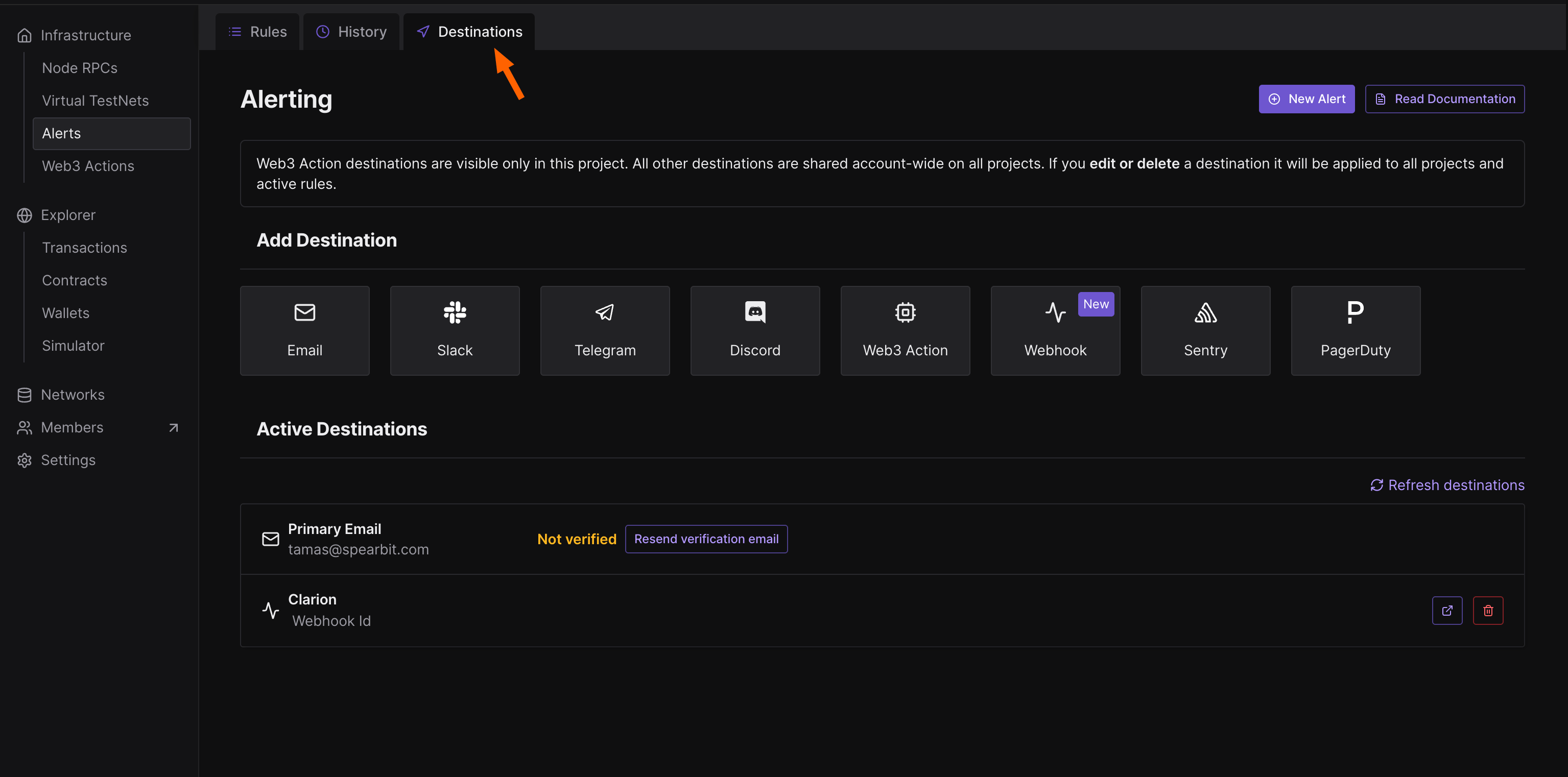
- Select Webhook as the type under Add Destination.
- Paste the webhook URL generated by Clarion in Step 3.
- Save the destination. Once created, Tenderly will display a Signing Secret for this webhook.
- Copy the Signing Secret.
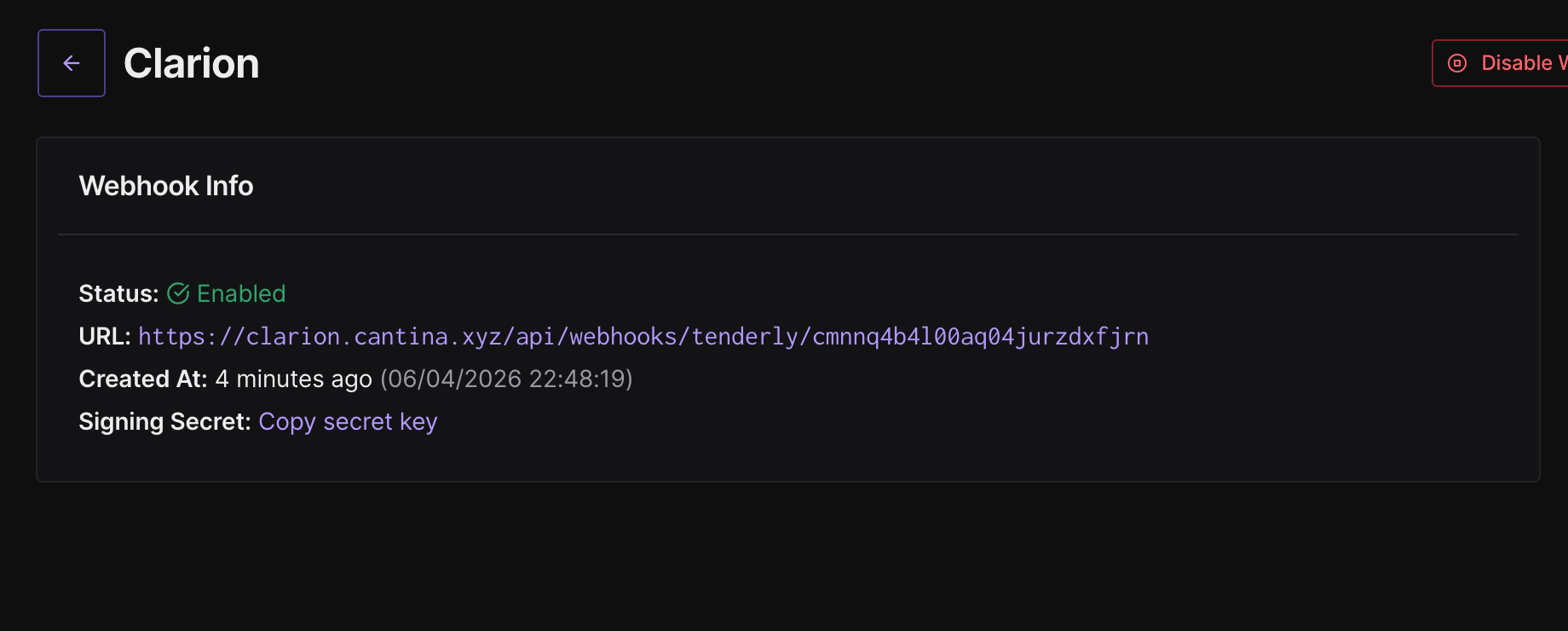
Step 5 — Add the Signing Secret to Clarion
- Go back to Clarion and open the monitor you created in Step 3.
- Click on the monitor.
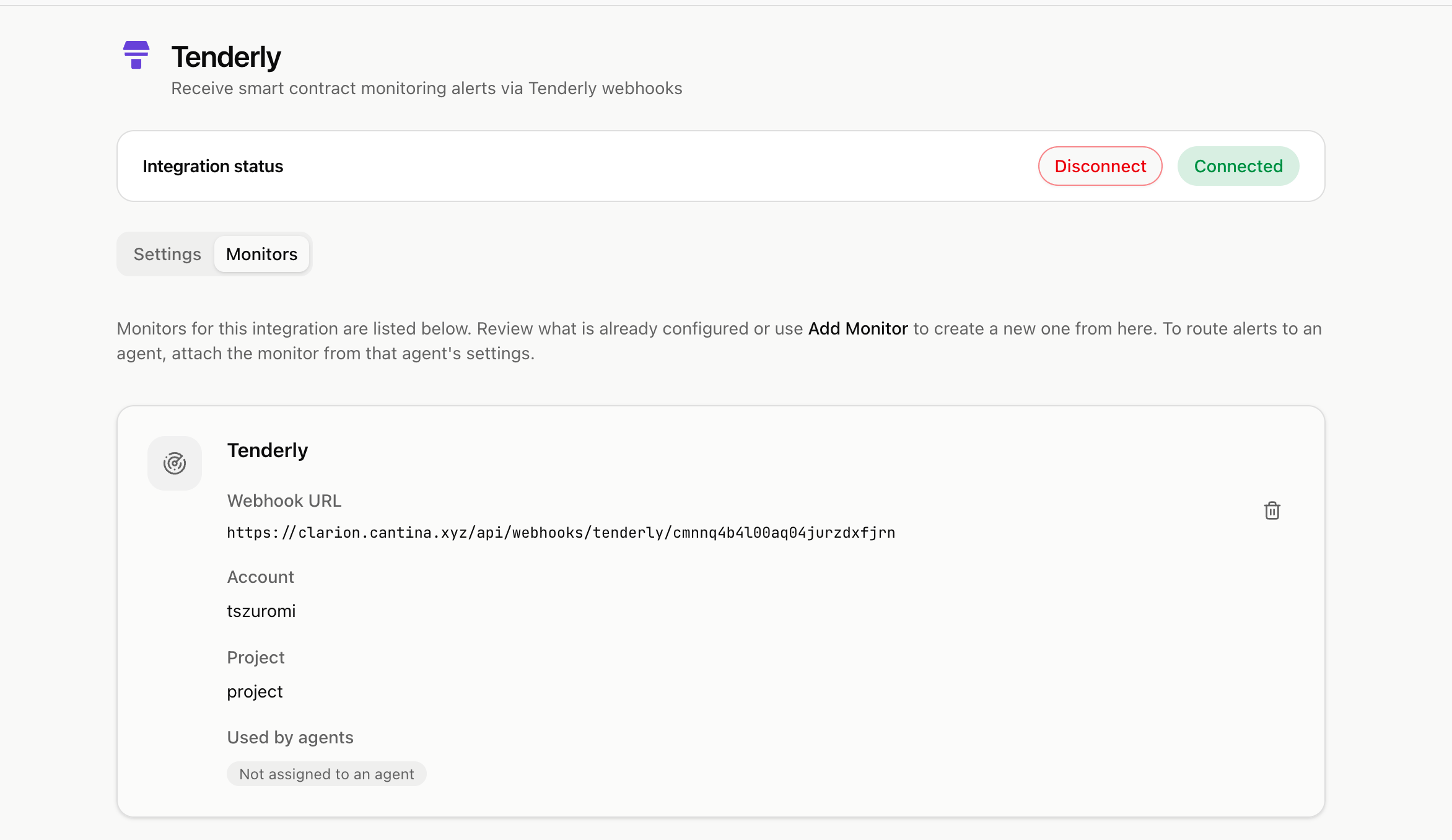
- Paste the Signing Secret from Tenderly into the Webhook Signing Secret field.
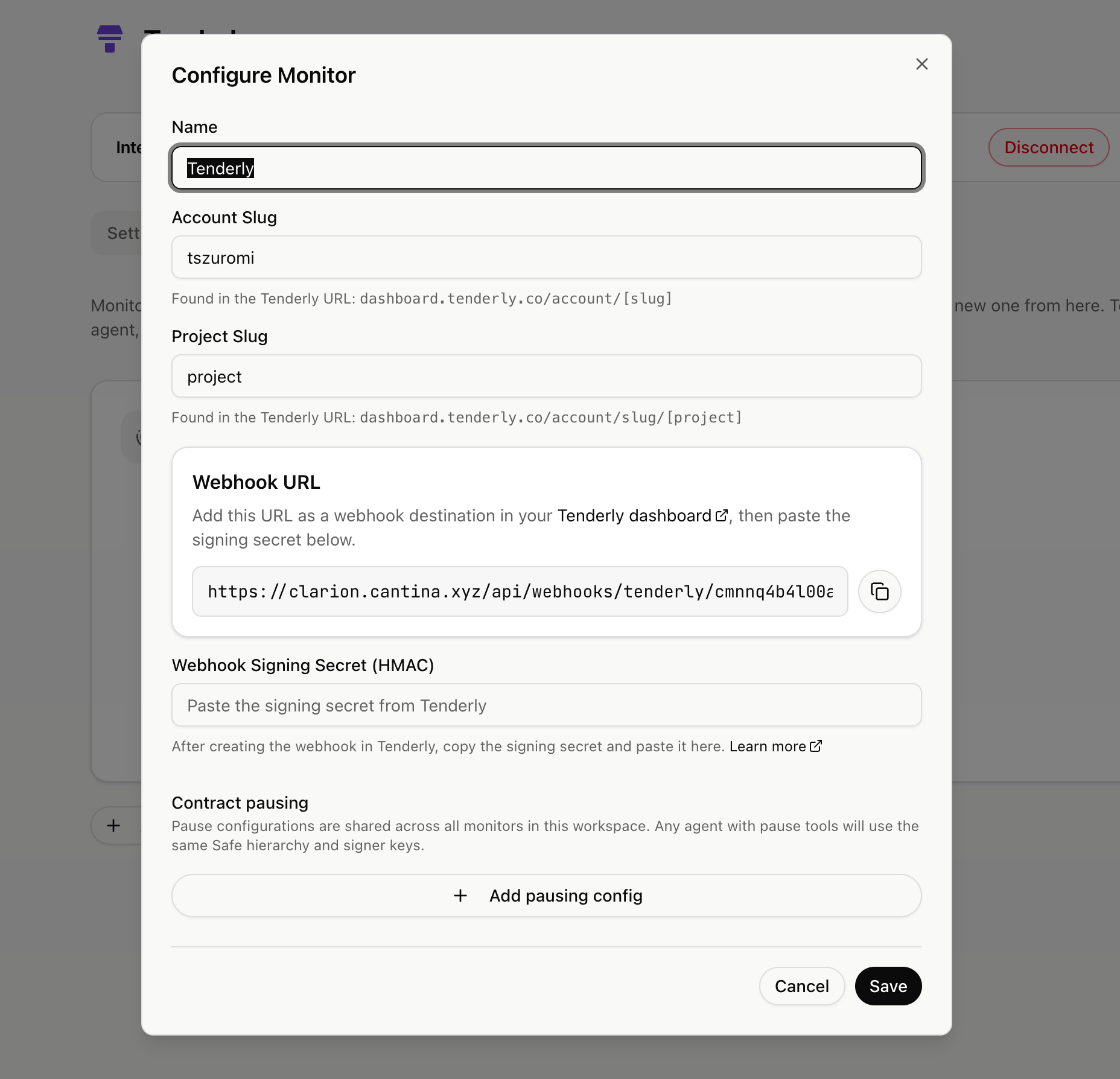
- Save the monitor.
Your Tenderly monitor is now fully configured and secured with the signing secret.
Step 6 — Attach the Webhook to Your Alerts
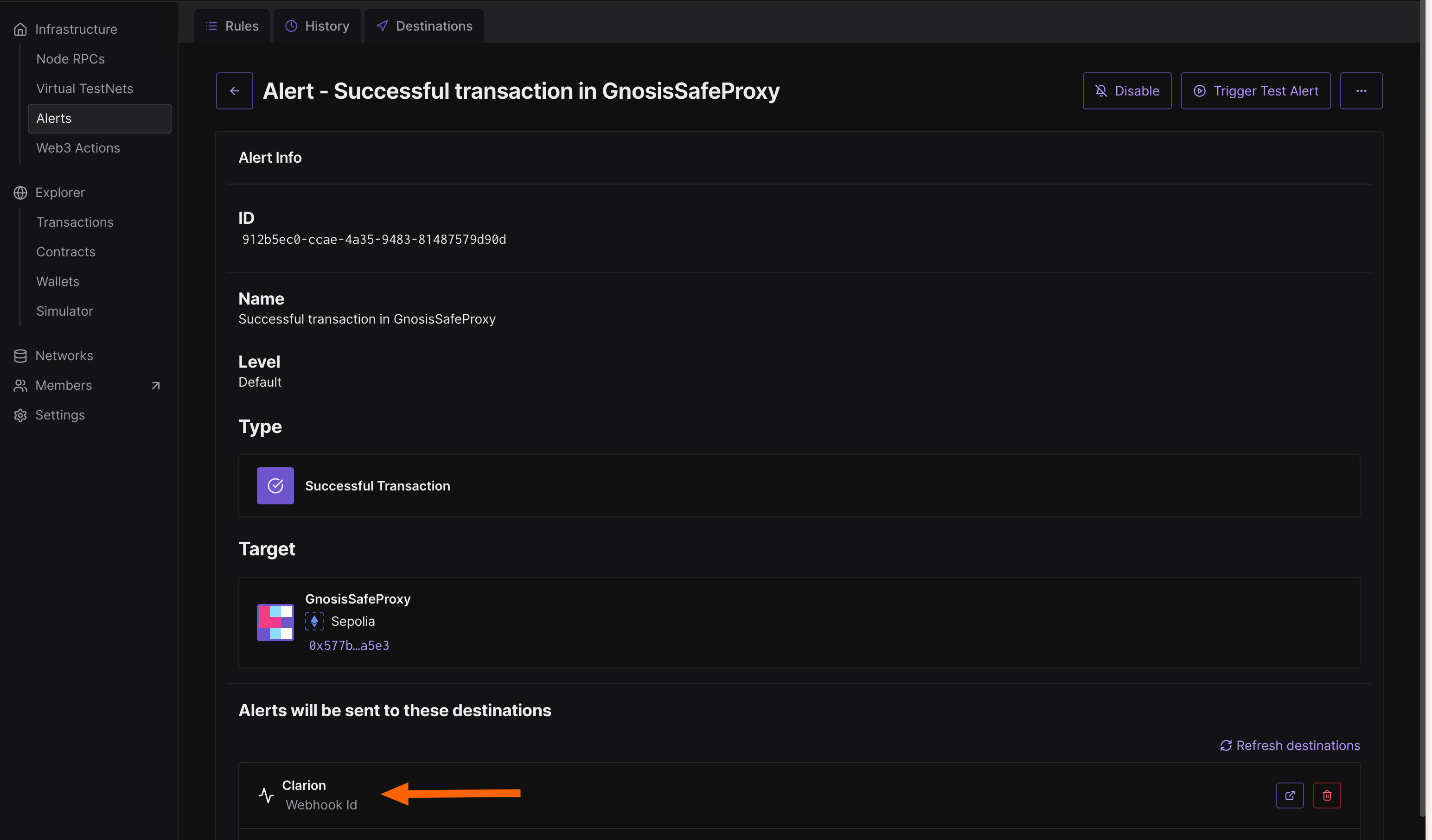
- In Tenderly, go to Alerts and review each alert rule that is defined.
- For every alert you want Clarion to receive, edit the rule and ensure the Clarion webhook is set as a destination.
You’re done! Clarion is now connected to Tenderly and will receive alerts for all configured monitors.