

What Clarion does
Clarion is Cantina’s agentic security orchestration platform. Security teams are overwhelmed by fragmented tooling, alert fatigue, and manual response processes. Clarion connects to the tools in your security stack — SIEM, EDR, WAF, IAM, cloud providers, on-chain monitors, and more — ingests their signals into a single place, correlates related events in real time, and uses AI agents to triage, investigate, and respond: autonomously where you allow it, with human approval where you don’t. Slack is where your team meets Clarion. Agents deliver issue updates to your channels, ask for approval before running sensitive actions, and answer questions when you mention the app — so most of the day-to-day workflow happens without leaving Slack.How Clarion integrates with Slack
Messages Clarion sends
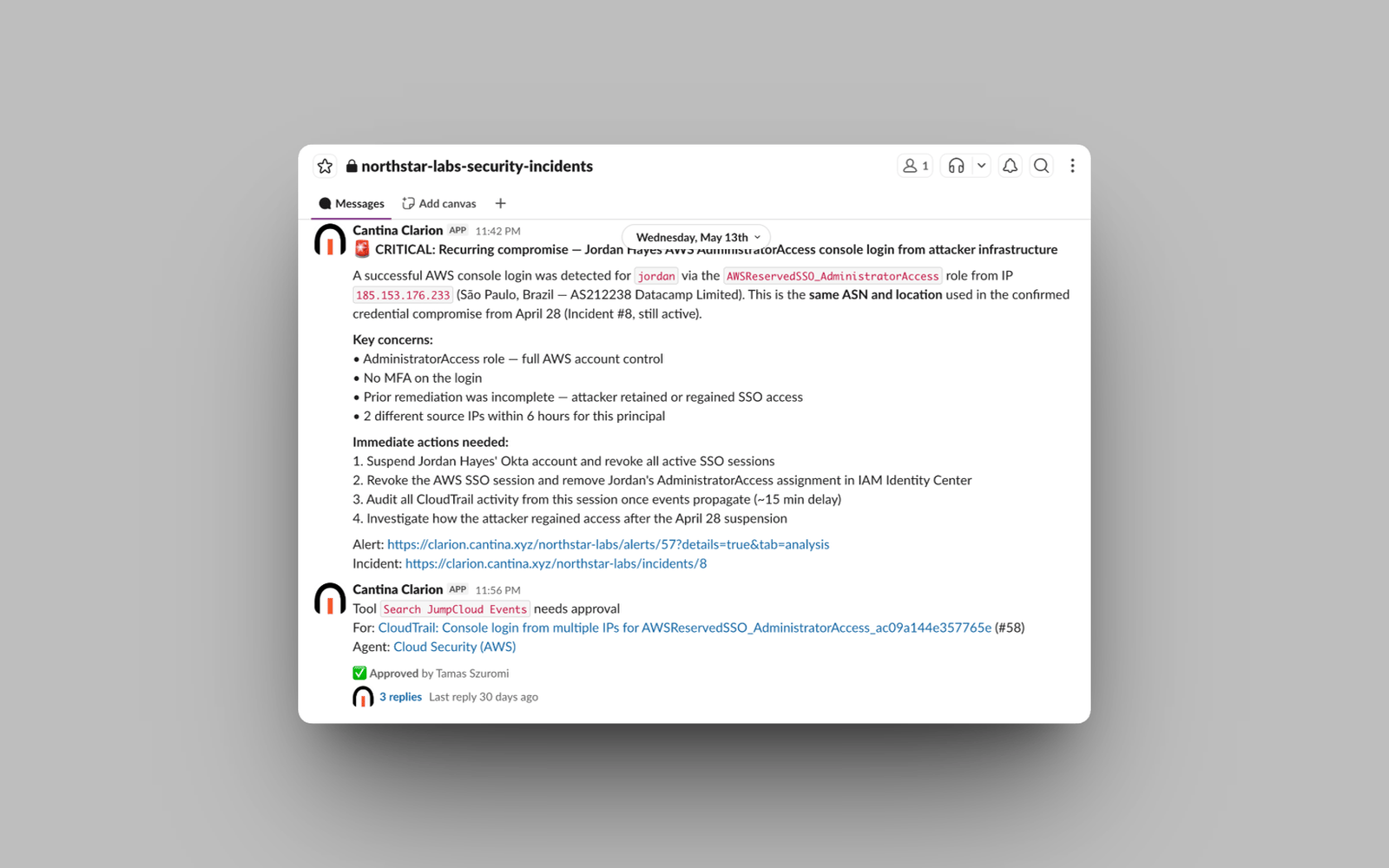
Clarion posts to Slack in these situations:- Issue notifications — when a monitor or a connected security tool raises something that needs attention, Clarion posts a summary to your configured notification channel.
- Approval requests — when an agent wants to run a gated action (for example, suspending a user account), it posts an approval request with interactive Approve / Reject buttons. The agent stays paused until someone responds or the request times out.
- Clarification requests — when an agent needs input to continue (a choice between options, or freeform input), it asks in the channel or via direct message.
- Agent updates during investigations — agents can post progress updates, reply in threads, and send direct messages to linked workspace members (for example, paging the on-call engineer).
- Incident channels — during incident response, agents can create a dedicated channel and invite the relevant responders. Creating a channel requires human approval by default; change this for Create Slack Channel in Settings → Tools.
- Weekly triage summary — every Monday morning Clarion posts last week’s triage numbers (issues opened, triage runs, resolved, false-positive rate) together with the issues still waiting on a human and any integrations that need fixing. It posts to your Agent notifications channel by default, and is on by default — both can be changed on Integrations → Slack.
Agents can only post to channels and people that are explicitly configured as notification destinations or mentioned in your agent behavior and skills — they cannot pick arbitrary destinations.
Messages Clarion responds to
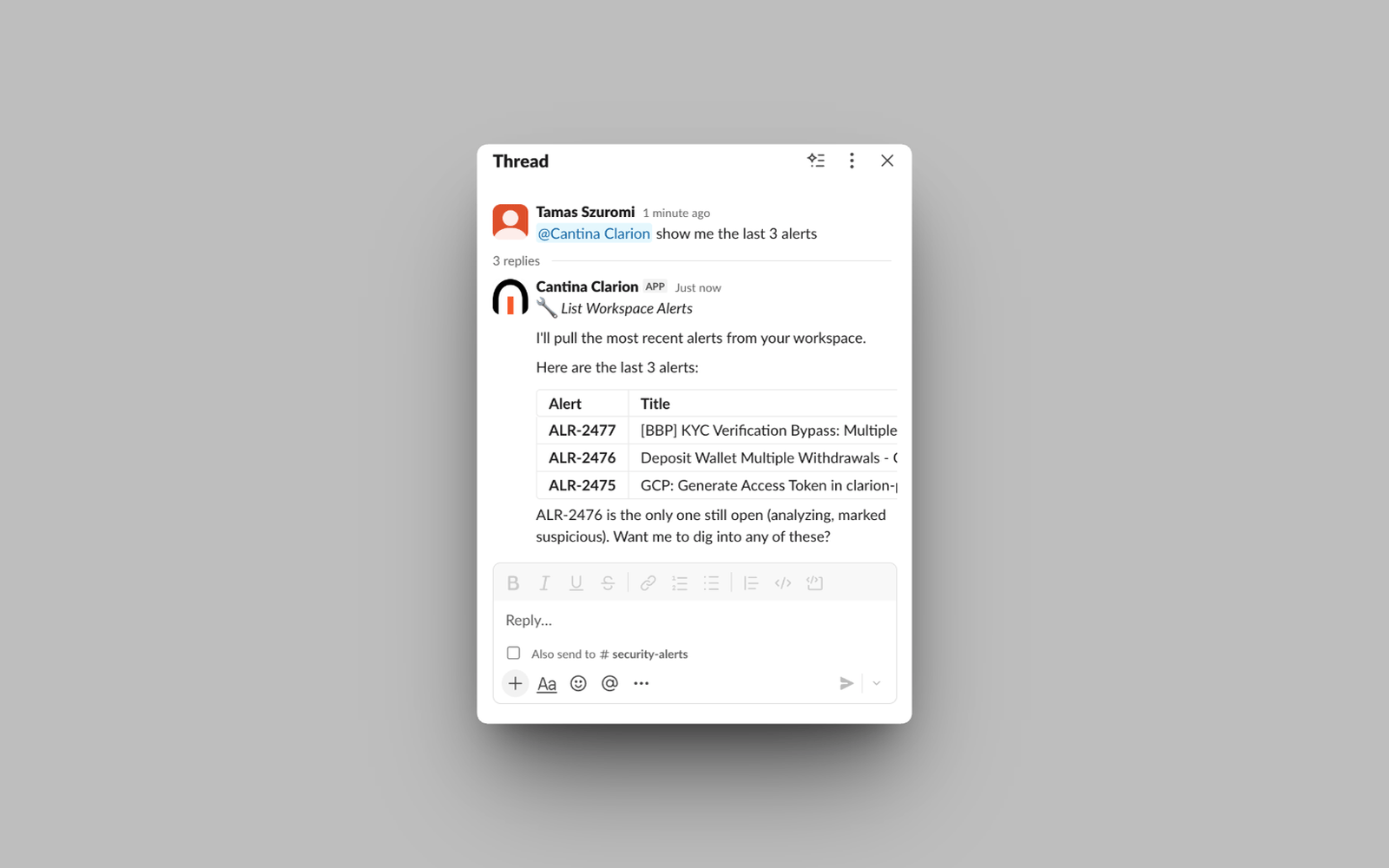
- @-mentions — mention the Clarion app in any channel it has been invited to (for example,
@Cantina Clarion what happened with issue #42?) to start a conversation. The app acknowledges with a 👀 reaction, then an agent replies in a thread. Mention it again in the same thread to ask follow-ups. - Button clicks — Approve / Reject buttons on approval requests and option buttons on clarification requests are wired back to Clarion and resume the paused agent run.
Installing — where the “Add to Slack” button is
The Clarion app for Slack is installed from inside the Clarion dashboard, so the install button becomes visible after you sign in:- Go to clarion.cantina.xyz and click Log in in the top-right corner — or Get started to create an account.
- Once you’re in your workspace, open Integrations in the sidebar.
- Select Slack in the integrations catalog.
- Click Install Slack App — this is the app’s “Add to Slack” button. A new tab opens to Slack’s standard authorization screen.
- Check that the correct Slack workspace is selected in the top-right of Slack’s page, review the requested permissions, and click Allow.
- Slack confirms the installation and redirects you back to Clarion. Return to Integrations → Slack — the integration now shows Installed app along with your Slack workspace’s name.
Estimated time: about 5 minutes. You need access to a Clarion workspace with permission to manage integrations, and permission to install apps in your Slack workspace — some Slack workspaces require admin approval for new apps.
After installing — first steps
- Choose a default notification channel. On Integrations → Slack, the Default notification channel section appears once the app is installed. Type to search your channels, pick the one where Clarion should post notifications and approval requests by default — or click Create channel to make a fresh one such as
#clarion-alerts— then click Save. Saving points agents at that channel for routine notifications and routes investigation approvals there; both can be changed later in your workspace settings. - Give the channel list a moment. Slack has no channel-search API, so Clarion keeps its own searchable copy of your channel list and syncs it in the background. Right after installing, a large Slack workspace can take a few minutes to finish; the picker shows the progress and how recently it synced. New channels and renames arrive within seconds after that.
- Using a private channel? Invite the app by mentioning it in that channel — it becomes searchable straight away. Click Refresh if you’d rather re-sync the whole list.
- Link your team members. Approval requests and direct messages reach people through their Slack identity. Members whose Slack email matches their Clarion email are linked automatically; everyone else can set their Slack handle in their notification settings. See Members.
- Check the weekly summary. The Weekly triage summary section on Integrations → Slack controls the Monday digest: switch it off to opt out, point it at a different channel than your Agent notifications channel, or press Send summary now to post last week’s digest immediately and confirm it lands where you expect.
- Say hello. Invite the app to a channel and mention it —
@Cantina Clarion summarize the open issues— to confirm everything works.
Permissions the app requests
Privacy and data handling
When you install the app, Clarion stores your Slack workspace ID and name and the bot access token (encrypted at rest). To operate, it also stores a searchable list of the channels the app can see (name, whether it is private or archived, and channel ID — never message content), the channels you configure for notifications, the mapping between Clarion workspace members and their Slack user IDs, and the Slack conversations the app takes part in — mentions of the app, its replies, and messages agents read for incident context — which are processed by Clarion’s AI agents to generate responses. Cantina’s privacy policy explains in full how third-party data is collected, managed, stored, and deleted:- Privacy policy: cantina.security/privacy-policy
- Terms of use: cantina.security/terms-of-use
- Support: support@cantina.security
Reinstall or remove the app
- Reinstall — if the connection breaks or Clarion requests new permissions, the button on Integrations → Slack reads Reinstall Slack App; click it to run the authorization flow again.
- Remove — uninstall Clarion from your Slack workspace’s app management page (Settings & administration → Manage apps in Slack). This revokes the bot token and stops all Clarion messages to that workspace.