> ## Documentation Index
> Fetch the complete documentation index at: https://docs.clarion.cantina.xyz/llms.txt
> Use this file to discover all available pages before exploring further.
# Microsoft Teams
> Connect Microsoft Teams to Clarion so agents can post alerts to channels and chats, request approvals via Adaptive Cards, and reach the right people during incidents.
This guide walks you through connecting Microsoft Teams to Clarion. Once configured, Clarion can post issue notifications to Teams channels and chats, request approvals through interactive Adaptive Cards, and let agents send messages to users in your Microsoft Entra tenant.
The setup has four parts and is driven entirely from the Clarion UI:
1. **OAuth admin consent** — grant Clarion access to your Microsoft Entra tenant.
2. **Bot installation** — add the Clarion bot from the Microsoft Teams app store.
3. **Member mapping** — link Clarion workspace members to their Teams accounts.
4. **Notification channel** — pick a default Teams channel or chat for alerts.
**Estimated time:** 15-20 minutes. You will need **Microsoft Entra admin** access (to grant tenant-wide consent), permission to add apps to your **Microsoft Teams** organization, and access to the Clarion workspace where you are configuring the integration.
## Prerequisites
* A **Clarion workspace** with permission to manage integrations
* A **Microsoft Entra** (Azure AD) account with permission to grant admin consent for tenant-wide applications
* Permission to add apps from the Microsoft Teams app store (or [Teams Admin Center](https://admin.teams.microsoft.com) access if your organization blocks store apps)
* A team and channel (or chat) in Microsoft Teams where Clarion should post notifications
***
## Step 1 — Connect with Microsoft
1. In Clarion, open **Integrations** and find **Microsoft Teams**.
2. Click **Connect with Microsoft**. A new tab opens to the Microsoft admin consent screen.
3. Sign in with a Microsoft Entra account that can grant tenant-wide consent.
4. Review the requested permissions and click **Accept** to grant consent for the entire tenant.
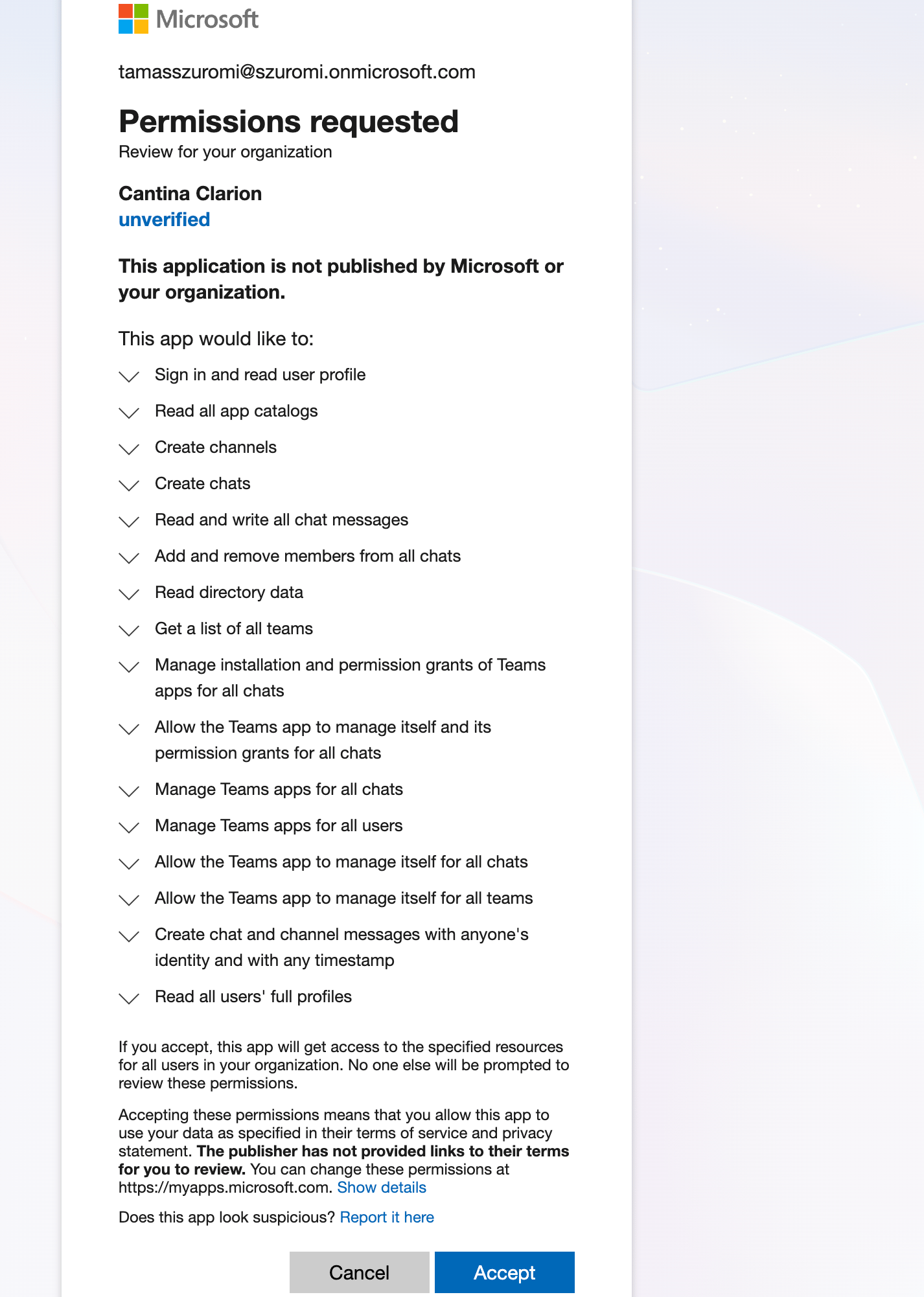 Microsoft redirects back to Clarion and the integration is marked as connected.
Clarion uses the **admin consent** flow with app-only (client credentials) tokens. The consenting account does not need to be the same account that uses Clarion day-to-day, because admin consent applies to your whole Microsoft Entra tenant.
After connecting, Clarion shows a banner that setup is not complete until the remaining steps are finished. Click **Finish setup** to continue, or open **Integrations → Microsoft Teams → Open Teams configuration** at any time.
***
## Step 2 — Install the Clarion bot in Teams
OAuth gives Clarion access to your tenant's directory and chats, but posting messages requires the Clarion bot app to be installed in your organization's Teams app catalog. The bot is published on the Microsoft Teams app store, so you can add it directly without uploading a package.
1. On the **Setup** page, find the **Bot Installation** card.
Microsoft redirects back to Clarion and the integration is marked as connected.
Clarion uses the **admin consent** flow with app-only (client credentials) tokens. The consenting account does not need to be the same account that uses Clarion day-to-day, because admin consent applies to your whole Microsoft Entra tenant.
After connecting, Clarion shows a banner that setup is not complete until the remaining steps are finished. Click **Finish setup** to continue, or open **Integrations → Microsoft Teams → Open Teams configuration** at any time.
***
## Step 2 — Install the Clarion bot in Teams
OAuth gives Clarion access to your tenant's directory and chats, but posting messages requires the Clarion bot app to be installed in your organization's Teams app catalog. The bot is published on the Microsoft Teams app store, so you can add it directly without uploading a package.
1. On the **Setup** page, find the **Bot Installation** card.
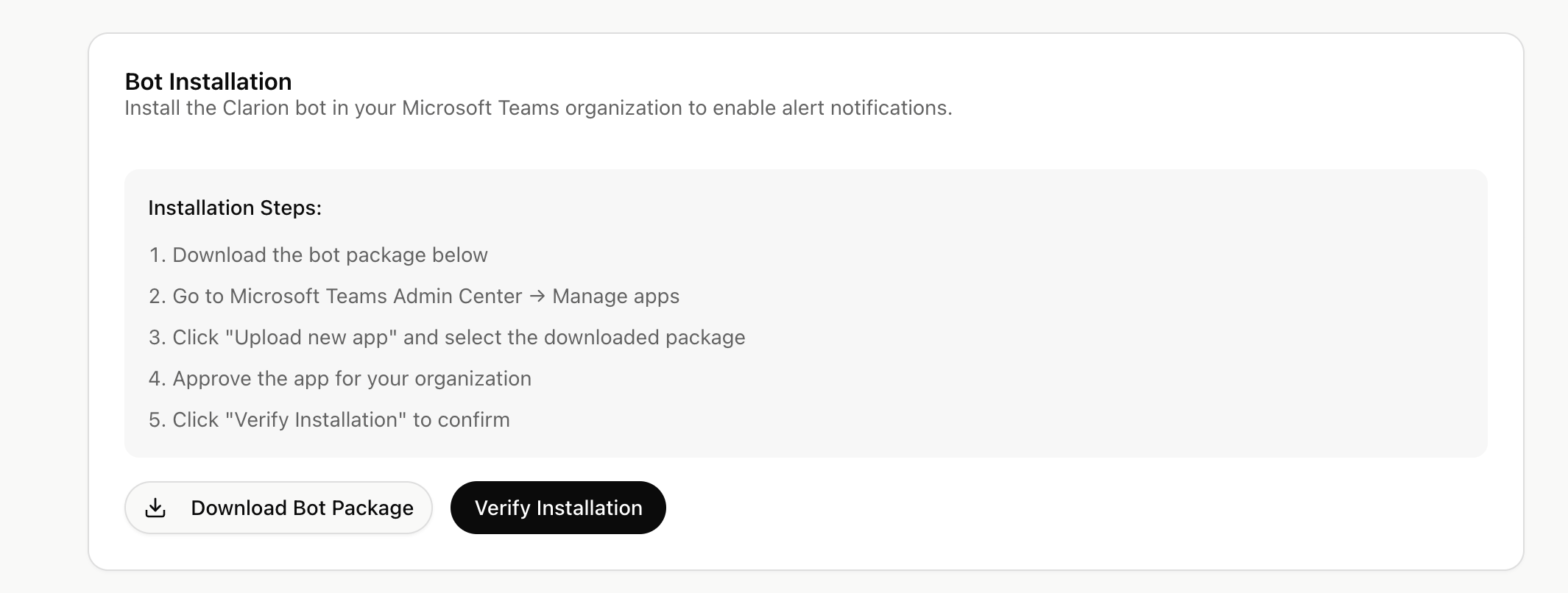 2. Click **Open in Teams app store** to open the [**Clarion by Cantina**](https://teams.cloud.microsoft/l/app/24e750bb-eba3-4abb-be8c-023749e0faf8) listing.
3. Click **Add** to install the bot for your organization.
4. Back in Clarion, click **Verify Installation**.
When verification succeeds, the card shows a **Verified** badge and Clarion stores the bot's catalog ID for your tenant.
The bot only needs to be installed once per Microsoft Entra tenant. If you reconnect Clarion later, the existing bot installation is reused.
### Install the app for everyone
Adding the bot to your app catalog makes it **available**, but by default only the person who added it — and the workspace members you map in Step 3 — can act on Clarion's Adaptive Cards from inside Teams. When someone the app is not installed for clicks a button on an approval or clarification card, Teams blocks the click before it reaches Clarion and shows:
> This action can't be performed since the app does not exist or has been uninstalled.
To let **any teammate in a Teams chat or channel** — including guests and people without a Clarion account — respond to approval and clarification requests, install the Clarion app for everyone in your tenant:
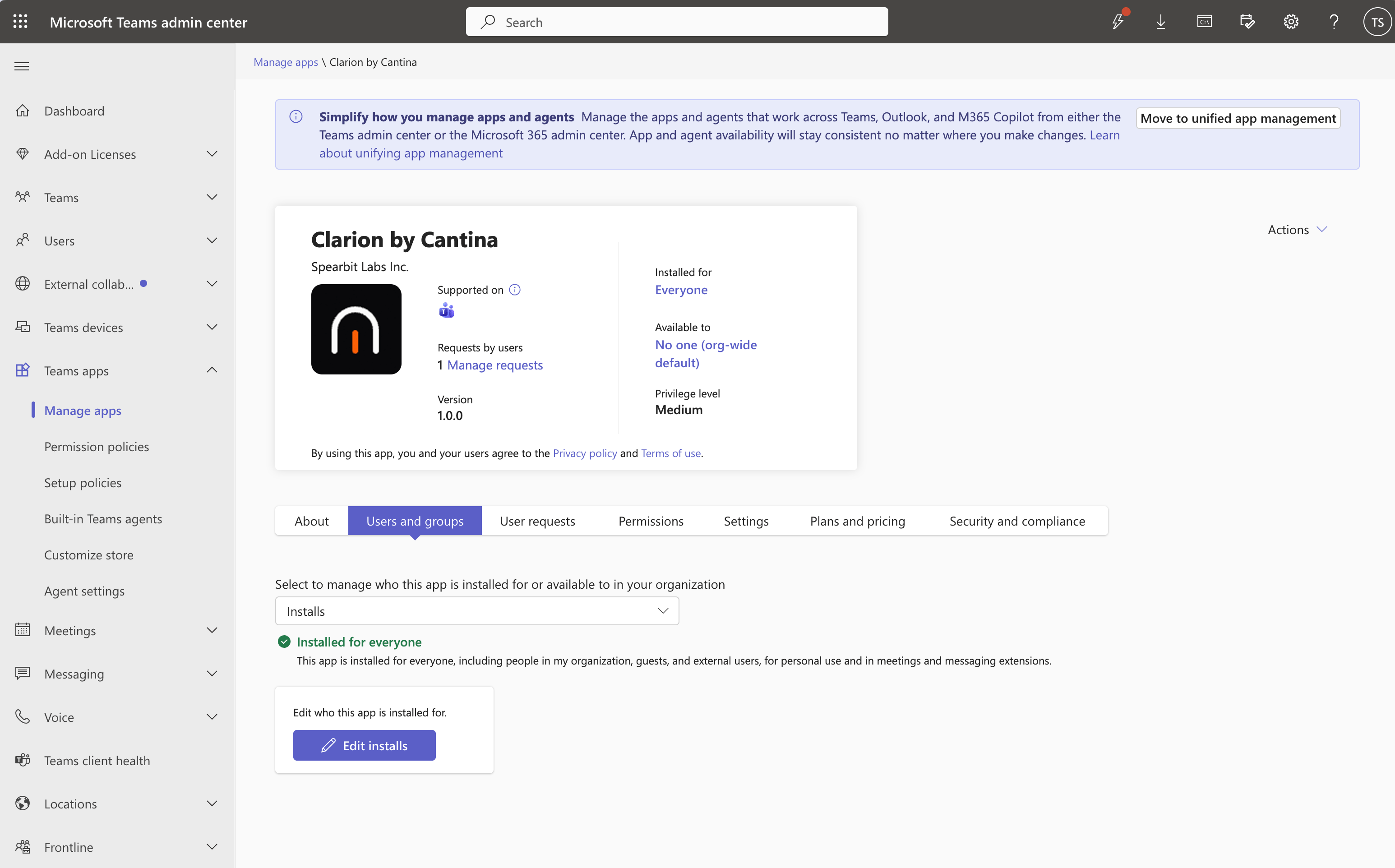
1. Open [Teams Admin Center → Manage apps → **Clarion by Cantina** → Users and groups](https://admin.teams.microsoft.com/policies/manage-apps/24e750bb-eba3-4abb-be8c-023749e0faf8/users-and-groups?action=installs).
2. With **Installs** selected, click **Edit installs** and choose **Everyone**, then save.
2. Click **Open in Teams app store** to open the [**Clarion by Cantina**](https://teams.cloud.microsoft/l/app/24e750bb-eba3-4abb-be8c-023749e0faf8) listing.
3. Click **Add** to install the bot for your organization.
4. Back in Clarion, click **Verify Installation**.
When verification succeeds, the card shows a **Verified** badge and Clarion stores the bot's catalog ID for your tenant.
The bot only needs to be installed once per Microsoft Entra tenant. If you reconnect Clarion later, the existing bot installation is reused.
### Install the app for everyone
Adding the bot to your app catalog makes it **available**, but by default only the person who added it — and the workspace members you map in Step 3 — can act on Clarion's Adaptive Cards from inside Teams. When someone the app is not installed for clicks a button on an approval or clarification card, Teams blocks the click before it reaches Clarion and shows:
> This action can't be performed since the app does not exist or has been uninstalled.
To let **any teammate in a Teams chat or channel** — including guests and people without a Clarion account — respond to approval and clarification requests, install the Clarion app for everyone in your tenant:
1. Open [Teams Admin Center → Manage apps → **Clarion by Cantina** → Users and groups](https://admin.teams.microsoft.com/policies/manage-apps/24e750bb-eba3-4abb-be8c-023749e0faf8/users-and-groups?action=installs).
2. With **Installs** selected, click **Edit installs** and choose **Everyone**, then save.
 This pairs with two workspace settings under **Settings → Tool policies**:
* **Anyone can respond to human input** — lets any workspace member (including read-only users) and any teammate in the linked chat answer approvals and clarifications, even without a Clarion account.
* **Unrestricted Microsoft Teams messaging** — lets agents deliver those cards to any chat or channel, not only the ones named in skills or instructions.
Installing the app for everyone is what makes those responders able to click the card buttons; the audit log still records who unblocked the agent. Guests and federated (cross-tenant) users cannot be provisioned this way — Clarion's bot is single-tenant, so they will still see the error.
### Alternative: manual upload
If your organization blocks apps from the Teams app store, you can side-load the bot package instead:
1. In the **Bot Installation** card, click **Download Bot Package** to download the Clarion bot manifest (a `.zip` file).
2. Open [Microsoft Teams Admin Center → Manage apps](https://admin.teams.microsoft.com/policies/manage-apps). You can also click the **Manage apps** link in the Bot Installation card to jump straight there.
3. Click **Upload new app** and select the downloaded package.
This pairs with two workspace settings under **Settings → Tool policies**:
* **Anyone can respond to human input** — lets any workspace member (including read-only users) and any teammate in the linked chat answer approvals and clarifications, even without a Clarion account.
* **Unrestricted Microsoft Teams messaging** — lets agents deliver those cards to any chat or channel, not only the ones named in skills or instructions.
Installing the app for everyone is what makes those responders able to click the card buttons; the audit log still records who unblocked the agent. Guests and federated (cross-tenant) users cannot be provisioned this way — Clarion's bot is single-tenant, so they will still see the error.
### Alternative: manual upload
If your organization blocks apps from the Teams app store, you can side-load the bot package instead:
1. In the **Bot Installation** card, click **Download Bot Package** to download the Clarion bot manifest (a `.zip` file).
2. Open [Microsoft Teams Admin Center → Manage apps](https://admin.teams.microsoft.com/policies/manage-apps). You can also click the **Manage apps** link in the Bot Installation card to jump straight there.
3. Click **Upload new app** and select the downloaded package.
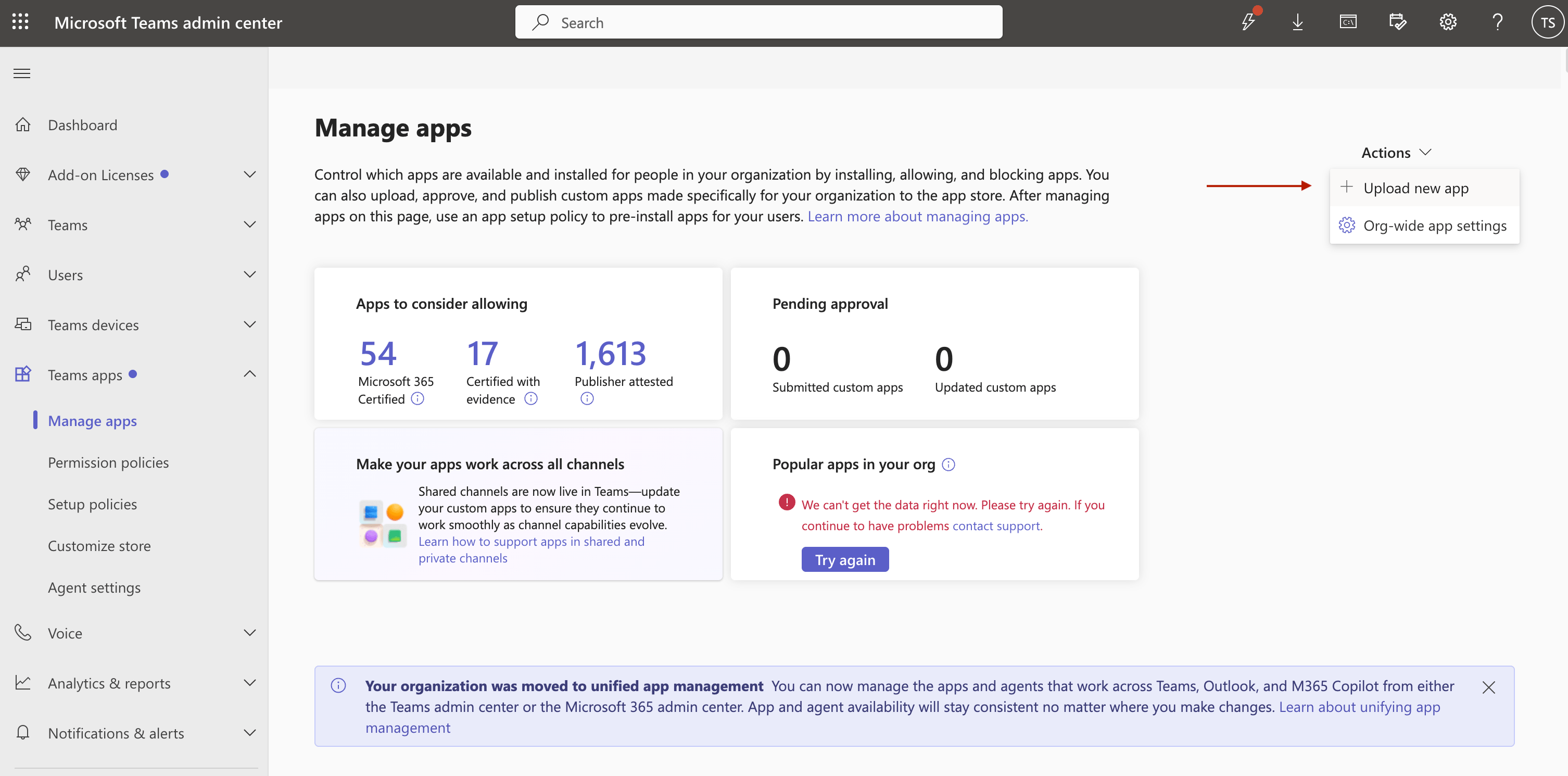 4. Approve the app for your organization, then click **Verify Installation** back in Clarion.
***
## Private-label the bot (MSPs)
Managed service providers running one Clarion workspace per client can rename the Teams bot so the client sees the provider's brand instead of Clarion. This is a beta feature. Ask your Clarion contact to enable it for a workspace.
When it is on, the **Setup** page shows a **Bot branding** card above **Bot Installation**:
1. Enter a **Bot name** (up to 30 characters; Microsoft rejects longer names) and, optionally, a **Publisher** name. Save.
2. Click **Download Bot Package**. The manifest carries your brand.
3. Upload it in [Microsoft Teams Admin Center → Manage apps](https://admin.teams.microsoft.com/policies/manage-apps) → **Upload new app**, and approve it for the organization.
4. Back in Clarion, click **Verify Installation**.
Your client then sees your name and publisher on the app in Teams, a description with no mention of Clarion, and a welcome message that omits the Cantina sign-up, docs, and support buttons the default bot shows.
Branded workspaces skip the app store. Clarion verifies the installation by bot name, and the store listing is named "Clarion by Cantina", so a store install will not match the name you set.
Renaming after the package is uploaded invalidates the installed app. The uploaded package still carries the old name, so verification fails until you download the new package, upload it again, and re-verify. Each save increments the manifest version, which is what makes Admin Center treat the re-upload as an update instead of rejecting it as a duplicate.
### Known limitations
* **Developer links stay Cantina's.** Teams requires website, privacy, and terms URLs in every manifest; branded packages still point at `cantina.xyz`. These appear in the app's About page in Teams.
* **Issue cards deep-link to Clarion.** The "View Details" button on an issue card opens `clarion.cantina.xyz`, because that is where the issue lives.
* **Icons are Clarion's.** Custom icons are not supported yet; the package ships the default color and outline icons.
* **One brand per Microsoft tenant.** The tenant app catalog holds a single entry per app, so two workspaces on the same Entra tenant cannot use different bot names. Clarion rejects the second, conflicting brand.
* **Branded tenants are upload-only.** There is no store listing under your name, so every install goes through Admin Center.
* **Clearing a brand needs a fresh install.** Reverting to default branding resets the manifest version to `1.0.0`, which Admin Center will not accept as an update over a branded package. Remove the uploaded app first, then install "Clarion by Cantina" from the store.
***
## Step 3 — Link workspace members to Teams accounts
For approval cards and direct messages to reach the right person, Clarion needs to know each workspace member's Microsoft Teams identity.
1. On the **Member Mapping** card, click **Auto-match** to link members whose Clarion email matches a Microsoft Entra user.
2. For any members who did not auto-match, use the dropdown next to their name to pick the correct Teams user.
3. At least one member must be linked before you can run the test connection in Step 4.
Member mapping is stored as the user's Microsoft Entra object ID. If you re-invite a workspace member or they change email, you may need to re-link them.
***
## Step 4 — Test the connection
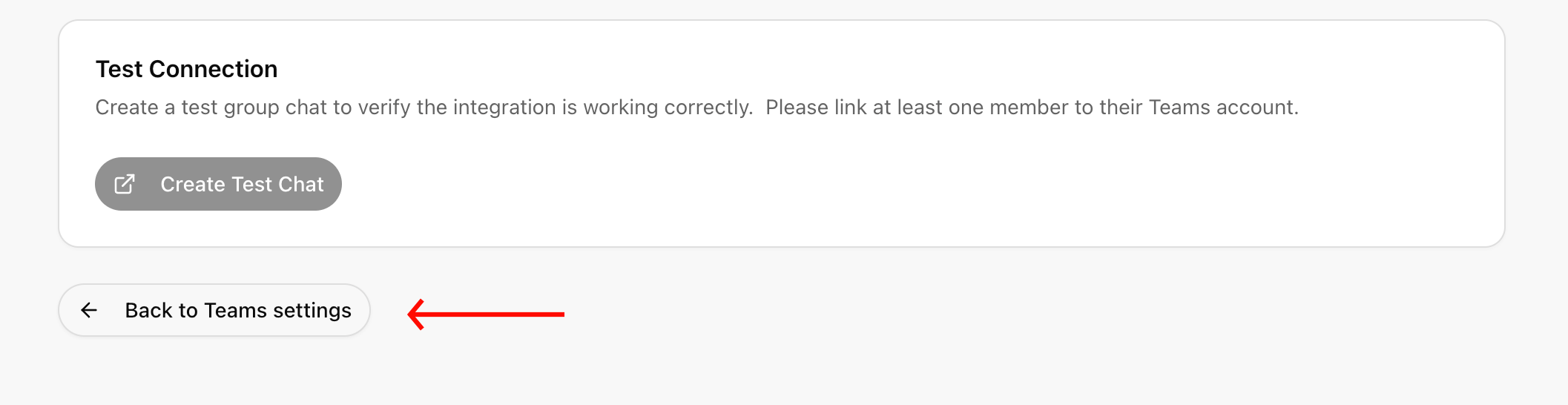
1. On the **Test Connection** card, click **Create Test Chat**.
2. Clarion creates a small group chat in Teams that includes the linked members and posts a test message.
3. Open Teams and confirm the message arrived. The card also shows a direct link to the test chat.
If the test succeeds, the integration is ready to use. If it fails, check the troubleshooting section below.
***
## Step 5 — Choose a default notification channel
Click **Back to Teams settings** to return to the main configuration page.
4. Approve the app for your organization, then click **Verify Installation** back in Clarion.
***
## Private-label the bot (MSPs)
Managed service providers running one Clarion workspace per client can rename the Teams bot so the client sees the provider's brand instead of Clarion. This is a beta feature. Ask your Clarion contact to enable it for a workspace.
When it is on, the **Setup** page shows a **Bot branding** card above **Bot Installation**:
1. Enter a **Bot name** (up to 30 characters; Microsoft rejects longer names) and, optionally, a **Publisher** name. Save.
2. Click **Download Bot Package**. The manifest carries your brand.
3. Upload it in [Microsoft Teams Admin Center → Manage apps](https://admin.teams.microsoft.com/policies/manage-apps) → **Upload new app**, and approve it for the organization.
4. Back in Clarion, click **Verify Installation**.
Your client then sees your name and publisher on the app in Teams, a description with no mention of Clarion, and a welcome message that omits the Cantina sign-up, docs, and support buttons the default bot shows.
Branded workspaces skip the app store. Clarion verifies the installation by bot name, and the store listing is named "Clarion by Cantina", so a store install will not match the name you set.
Renaming after the package is uploaded invalidates the installed app. The uploaded package still carries the old name, so verification fails until you download the new package, upload it again, and re-verify. Each save increments the manifest version, which is what makes Admin Center treat the re-upload as an update instead of rejecting it as a duplicate.
### Known limitations
* **Developer links stay Cantina's.** Teams requires website, privacy, and terms URLs in every manifest; branded packages still point at `cantina.xyz`. These appear in the app's About page in Teams.
* **Issue cards deep-link to Clarion.** The "View Details" button on an issue card opens `clarion.cantina.xyz`, because that is where the issue lives.
* **Icons are Clarion's.** Custom icons are not supported yet; the package ships the default color and outline icons.
* **One brand per Microsoft tenant.** The tenant app catalog holds a single entry per app, so two workspaces on the same Entra tenant cannot use different bot names. Clarion rejects the second, conflicting brand.
* **Branded tenants are upload-only.** There is no store listing under your name, so every install goes through Admin Center.
* **Clearing a brand needs a fresh install.** Reverting to default branding resets the manifest version to `1.0.0`, which Admin Center will not accept as an update over a branded package. Remove the uploaded app first, then install "Clarion by Cantina" from the store.
***
## Step 3 — Link workspace members to Teams accounts
For approval cards and direct messages to reach the right person, Clarion needs to know each workspace member's Microsoft Teams identity.
1. On the **Member Mapping** card, click **Auto-match** to link members whose Clarion email matches a Microsoft Entra user.
2. For any members who did not auto-match, use the dropdown next to their name to pick the correct Teams user.
3. At least one member must be linked before you can run the test connection in Step 4.
Member mapping is stored as the user's Microsoft Entra object ID. If you re-invite a workspace member or they change email, you may need to re-link them.
***
## Step 4 — Test the connection
1. On the **Test Connection** card, click **Create Test Chat**.
2. Clarion creates a small group chat in Teams that includes the linked members and posts a test message.
3. Open Teams and confirm the message arrived. The card also shows a direct link to the test chat.
If the test succeeds, the integration is ready to use. If it fails, check the troubleshooting section below.
***
## Step 5 — Choose a default notification channel
Click **Back to Teams settings** to return to the main configuration page.
 The **Default notification channel** section lets you pick where Clarion posts alerts and approval requests by default.
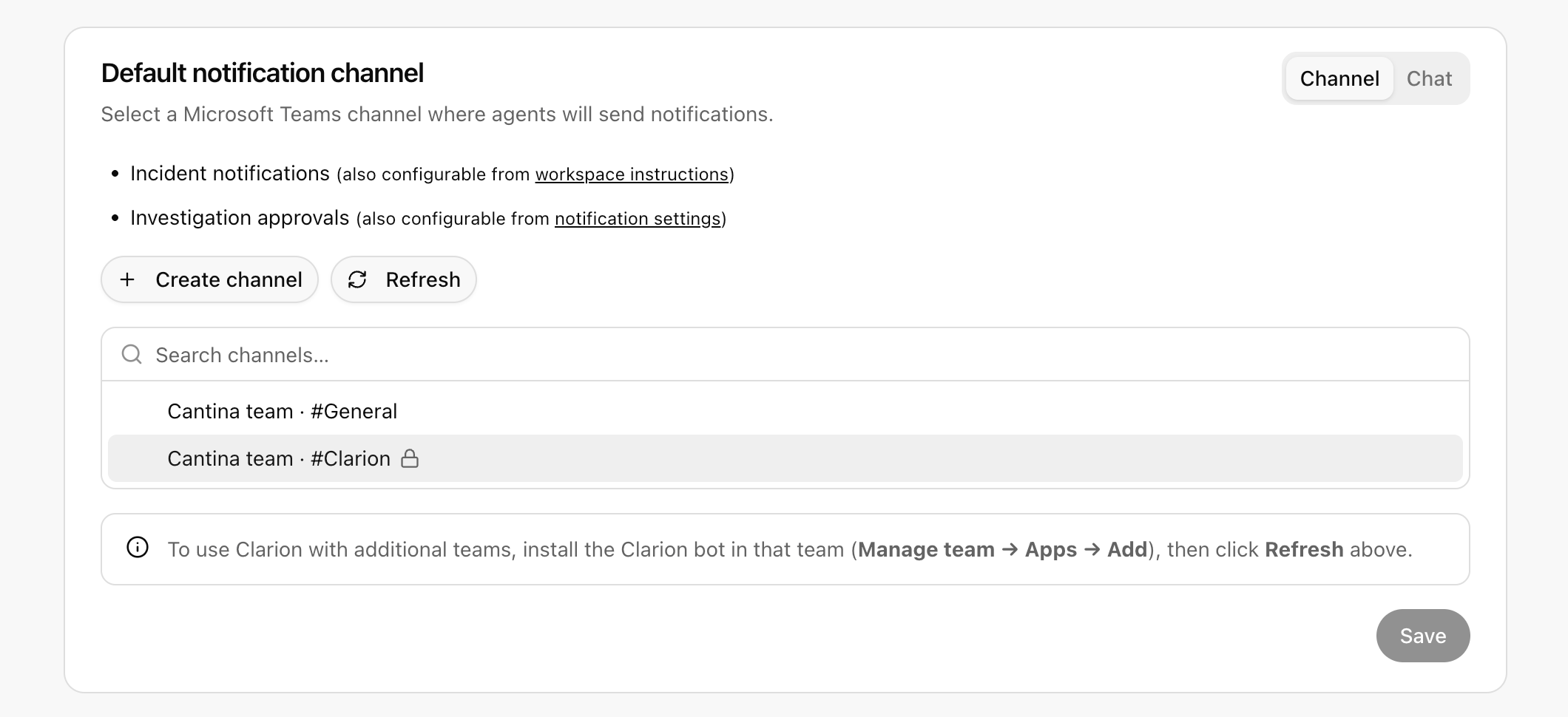 You can choose between two target types:
* **Channel** *(recommended for broadcasts)* — pick a team, then a channel within that team. Anyone in the channel can see and respond to Clarion's messages and approval cards.
* **Chat** — pick an existing Teams chat, or have Clarion create a new ad-hoc group chat with the workspace members you choose.
Agents can still post to other channels or chats per-call when needed; this default is used when an agent does not specify a target.
***
## What Clarion can do
Once Microsoft Teams is fully connected, agents can:
* **Post messages to a Teams channel** — broadcast incident updates to a team channel.
* **Post messages to a Teams chat** — send updates to an existing chat (group or 1:1) by chat ID.
* **List channels and chats** the bot has access to, so agents can pick the right destination.
* **Create an ad-hoc group chat** with specific users — used as a last resort when no existing channel or chat fits.
* **List users in your Microsoft Entra directory** to look up who to message.
Clarion also sends **issue notifications** and **approval cards** to the default target. Approval buttons (Approve / Reject) inside Teams are wired back to Clarion through the bot, so on-call responders can resolve approval requests without leaving Teams.
***
## Disconnect Microsoft Teams
To disconnect:
1. Open the **Microsoft Teams** integration in Clarion.
2. Click **Disconnect** in the status card and confirm.
Clarion stops sending notifications to Teams and clears the stored tenant credentials. The Clarion bot app remains in your Teams Admin Center until you remove it manually from **Manage apps**.
You can choose between two target types:
* **Channel** *(recommended for broadcasts)* — pick a team, then a channel within that team. Anyone in the channel can see and respond to Clarion's messages and approval cards.
* **Chat** — pick an existing Teams chat, or have Clarion create a new ad-hoc group chat with the workspace members you choose.
Agents can still post to other channels or chats per-call when needed; this default is used when an agent does not specify a target.
***
## What Clarion can do
Once Microsoft Teams is fully connected, agents can:
* **Post messages to a Teams channel** — broadcast incident updates to a team channel.
* **Post messages to a Teams chat** — send updates to an existing chat (group or 1:1) by chat ID.
* **List channels and chats** the bot has access to, so agents can pick the right destination.
* **Create an ad-hoc group chat** with specific users — used as a last resort when no existing channel or chat fits.
* **List users in your Microsoft Entra directory** to look up who to message.
Clarion also sends **issue notifications** and **approval cards** to the default target. Approval buttons (Approve / Reject) inside Teams are wired back to Clarion through the bot, so on-call responders can resolve approval requests without leaving Teams.
***
## Disconnect Microsoft Teams
To disconnect:
1. Open the **Microsoft Teams** integration in Clarion.
2. Click **Disconnect** in the status card and confirm.
Clarion stops sending notifications to Teams and clears the stored tenant credentials. The Clarion bot app remains in your Teams Admin Center until you remove it manually from **Manage apps**.