> ## Documentation Index
> Fetch the complete documentation index at: https://docs.clarion.cantina.xyz/llms.txt
> Use this file to discover all available pages before exploring further.
# Hexagate
> Connect Hexagate to Clarion to receive on-chain monitor alerts for AI-powered triage and response.
This guide walks you through connecting your Hexagate account to Clarion. The setup involves adding a Clarion webhook to your Hexagate monitors so that alerts are forwarded automatically.
**Estimated time:** 5-10 minutes. You will need access to your **Hexagate dashboard** and **Clarion workspace**.
The Clarion integration wizard generates the webhook URL for you. Keep the wizard open alongside your Hexagate dashboard.
## Prerequisites
* Access to your **Hexagate** dashboard with permissions to manage Monitors
* A **Clarion workspace** with the Hexagate integration wizard open
***
## Part 1: Get the Webhook URL from Clarion
### Step 1 — Open the Clarion integration wizard
1. In Clarion, go to **Integrations**
2. Navigate to **Hexagate** and start the setup wizard
3. Copy the **Webhook URL** generated by Clarion — you will need this in the next steps
***
## Part 2: Add the Webhook to a Hexagate Monitor
### Step 2 — Open Hexagate and navigate to your Monitors
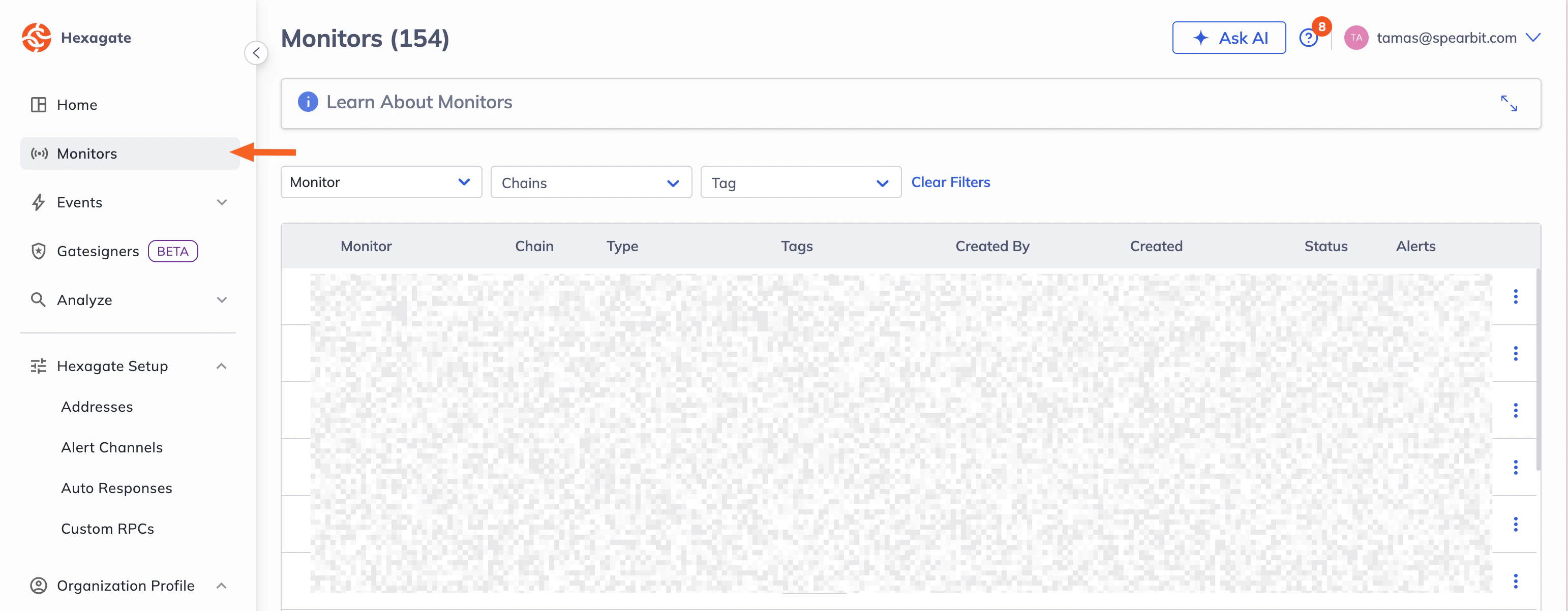
1. Log in to your **Hexagate** dashboard
2. Navigate to **Monitors**
 ### Step 3 — Open a monitor you want to connect
1. Select one of your existing monitors
2. Navigate to the **Actions** step within the monitor configuration
### Step 4 — Add the Clarion webhook channel
1. Click **Add a new channel**
### Step 3 — Open a monitor you want to connect
1. Select one of your existing monitors
2. Navigate to the **Actions** step within the monitor configuration
### Step 4 — Add the Clarion webhook channel
1. Click **Add a new channel**
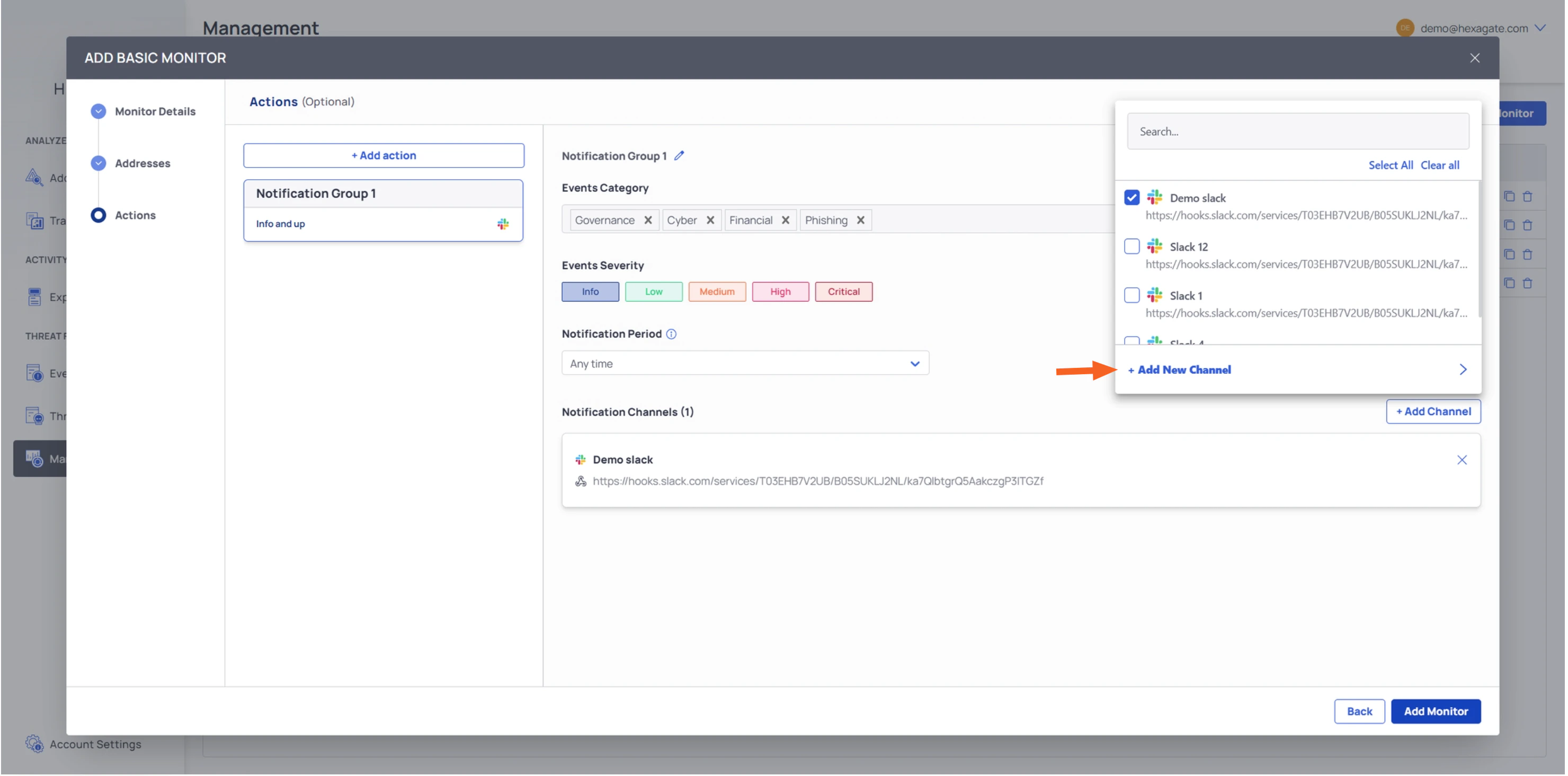 2. Select **Webhooks** as the channel type
3. Paste the **Webhook URL** you copied from the Clarion wizard
2. Select **Webhooks** as the channel type
3. Paste the **Webhook URL** you copied from the Clarion wizard
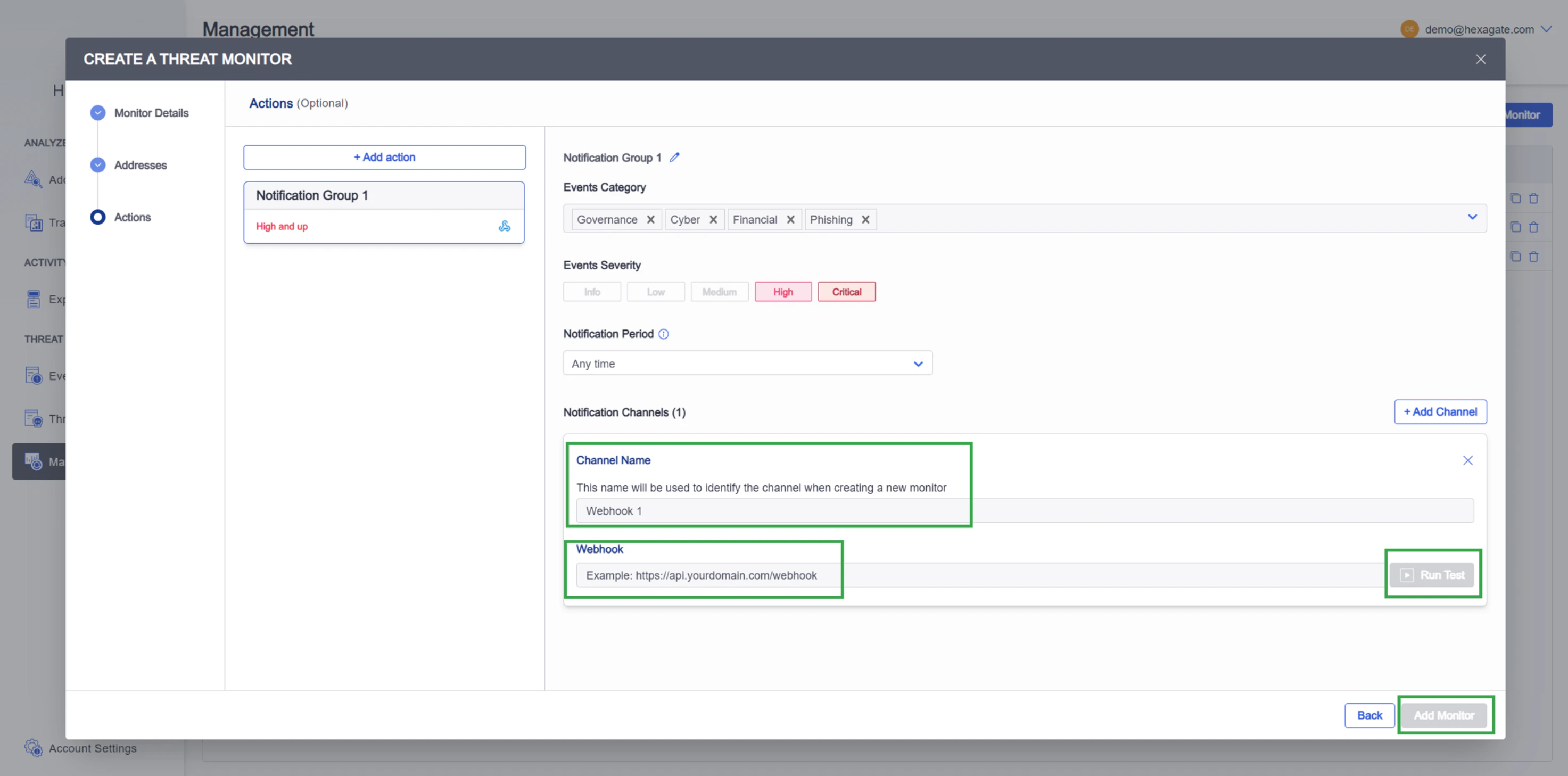 4. Add it to the monitor
**Important:** Make sure you paste the webhook URL exactly as provided by Clarion — any extra spaces or missing characters will prevent alerts from being delivered.
***
## Part 3: Assign the Webhook to Additional Monitors
### Step 5 — Repeat for each monitor
1. For every additional monitor you want to send alerts to Clarion, open the monitor and navigate to **Actions**
2. Select the **Clarion webhook** you created in Step 4 from the available channels
3. Save the monitor
You only need to create the webhook channel once. After that, you can select it from the channel list on any monitor.
***
## What happens next
Once configured, Clarion will automatically:
* Receive alerts from Hexagate in real time via the webhook
* Analyze and triage incoming monitor events using AI agents
* Surface actionable insights and recommended responses
Hexagate **Info**-severity events are mapped to **Low**-severity alerts in Clarion. If you do not want these events to create alerts, disable **Low** severity for the Hexagate monitor. This also suppresses Hexagate **Low**-severity events, since both map to Clarion **Low**.
4. Add it to the monitor
**Important:** Make sure you paste the webhook URL exactly as provided by Clarion — any extra spaces or missing characters will prevent alerts from being delivered.
***
## Part 3: Assign the Webhook to Additional Monitors
### Step 5 — Repeat for each monitor
1. For every additional monitor you want to send alerts to Clarion, open the monitor and navigate to **Actions**
2. Select the **Clarion webhook** you created in Step 4 from the available channels
3. Save the monitor
You only need to create the webhook channel once. After that, you can select it from the channel list on any monitor.
***
## What happens next
Once configured, Clarion will automatically:
* Receive alerts from Hexagate in real time via the webhook
* Analyze and triage incoming monitor events using AI agents
* Surface actionable insights and recommended responses
Hexagate **Info**-severity events are mapped to **Low**-severity alerts in Clarion. If you do not want these events to create alerts, disable **Low** severity for the Hexagate monitor. This also suppresses Hexagate **Low**-severity events, since both map to Clarion **Low**.