> ## Documentation Index
> Fetch the complete documentation index at: https://docs.clarion.cantina.xyz/llms.txt
> Use this file to discover all available pages before exploring further.
# Google Workspace
> Connect Google Workspace Alert Center to Clarion for real-time security alert ingestion and AI-powered triage.
This guide walks you through connecting Google Workspace Alert Center to Clarion. Once configured, Clarion receives workspace security alerts (suspicious logins, data exfiltration, device compromises, etc.) in real time and can triage and respond using AI agents.
## Setup Options
There are two ways to set up the integration:
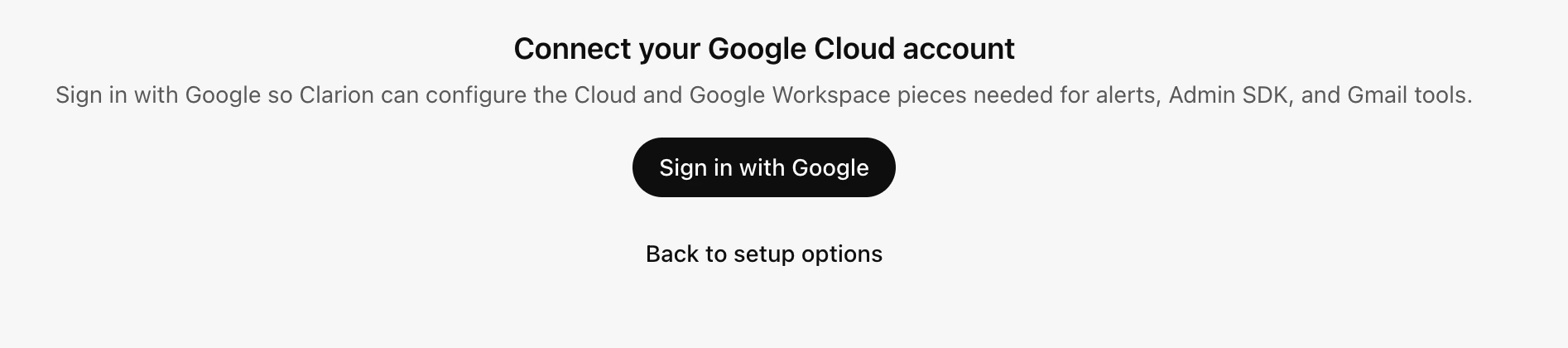
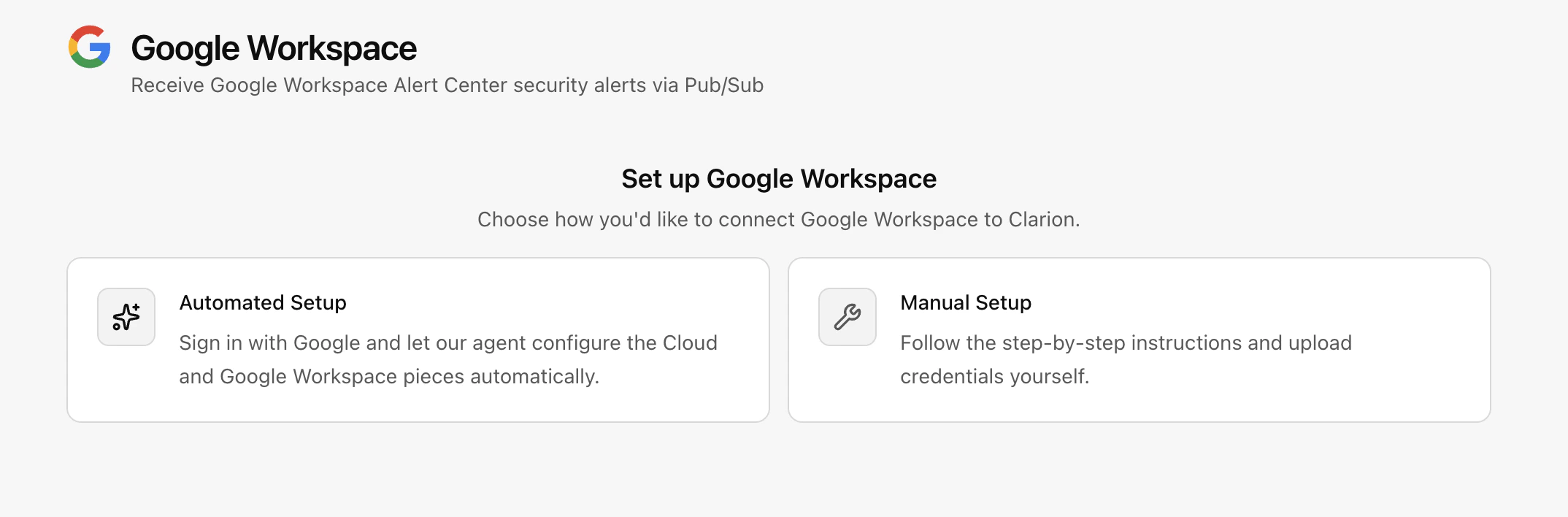 1. **Automated Setup** — Navigate to the Integrations section and use the automated setup flow. This requires an existing GCP project and admin permissions.
2. **Manual Setup** — Follow the step-by-step instructions below to configure the integration manually.
1. **Automated Setup** — Navigate to the Integrations section and use the automated setup flow. This requires an existing GCP project and admin permissions.
2. **Manual Setup** — Follow the step-by-step instructions below to configure the integration manually.
 The manual setup has three parts:
1. **GCP Project & Service Account** (shared prerequisite)
2. **Alert Center > Pub/Sub > Clarion webhook** (inbound alerts)
3. **Admin SDK agent tools** (optional — user lookup, suspend, revoke tokens, etc.)
No environment variables or code changes are needed — everything is configured per-workspace via the Clarion UI.
**Estimated time:** 20-30 minutes. You will need **GCP Project Admin** access and **Google Workspace Super Admin** access.
***
## Part 1: GCP Project & Service Account
### Step 1: Create a Google Cloud Project (or use existing)
1. Go to [Google Cloud Console](https://console.cloud.google.com)
2. Click the project selector dropdown at the top > **New Project**
3. Enter a project name, select your organization > **Create**
4. Note your **Project ID** (e.g. `clarion-workspace`)
### Step 2: Enable Required APIs
In **APIs & Services > Library**, search for and enable each of these:
* **Google Workspace Alert Center API** (`alertcenter.googleapis.com`)
* **Cloud Pub/Sub API** (`pubsub.googleapis.com`)
* **Gmail API** (`gmail.googleapis.com`) — required for email investigation agent tools
### Step 3: Create a Service Account
1. Go to **IAM & Admin > Service Accounts** > **Create Service Account**
2. Name: e.g. `clarion-pubsub-push`
3. Click **Create and Continue** > **Done** (no roles needed)
4. Click the new service account > **Keys** tab > **Add Key** > **Create new key** > **JSON**
5. Save the downloaded JSON file — you'll need it for the Alert Center configuration script (Part 2) and optionally for Clarion Admin SDK credentials (Part 3)
6. Note the service account email (e.g. `clarion-pubsub-push@your-project.iam.gserviceaccount.com`)
**Org policy note:** If your organization enforces `iam.disableServiceAccountKeyCreation`, you'll need to temporarily disable it:
1. Go to **IAM & Admin > Organization Policies**
2. Search for `iam.disableServiceAccountKeyCreation`
3. Click it > select **Override parent's policy** > set to **Not enforced** > **Set policy**
4. Create the key
5. **Re-enable the policy** by switching back to **Inherit parent's policy**
***
## Part 2: Inbound Alerts (Alert Center via Pub/Sub)
### Step 1: Create a Pub/Sub Topic
1. Go to **Pub/Sub > Topics > Create Topic**
2. Name it (e.g. `clarion-alerts`, full name: `projects/YOUR_PROJECT/topics/clarion-alerts`)
3. Click **Create**
4. On the topic page, go to the **Permissions** tab > **Grant Access**
5. Add principal: `alerts-api-push-notifications@system.gserviceaccount.com`
6. Role: **Pub/Sub Publisher**
7. Click **Save**
This is a Google-managed service account that the Alert Center uses internally to publish alerts into Pub/Sub. Without this permission, alert delivery to the topic will be rejected.
### Step 2: Enable Domain-Wide Delegation
The Alert Center API is a Google Workspace API (not a standard GCP API), so configuring it requires domain-wide delegation. This same delegation is reused by Part 3 (Admin SDK tools) if you set that up later.
1. Go to **IAM & Admin > Service Accounts** and click the service account from Part 1
2. Expand **Advanced settings**
3. Under **Domain-wide Delegation**, click **Edit** and enable **Google Workspace Domain-wide Delegation**
4. Note the **Client ID** (numeric, e.g. `107729743480716689292`)
### Step 3: Grant the Alert Center Scope in Google Workspace Admin Console
1. Go to [Google Workspace Admin Console](https://admin.google.com) as a **Super Admin**
2. Navigate to **Security > Access and data control > API controls**
3. Click **Manage Domain Wide Delegation**
4. Click **Add new**
5. Enter:
* **Client ID**: the numeric client ID from Step 2
* **OAuth Scopes**: `https://www.googleapis.com/auth/apps.alerts`
6. Click **Authorize**
**Both sides are required.** Enabling delegation on the service account (Cloud Console) says "I want to use delegation." Authorizing the client ID with scopes (Admin Console) says "I allow this service account to use these scopes." Both must be configured or delegation calls will fail with `unauthorized_client`.
**Propagation delay:** Changes can take up to 24 hours to propagate, though they typically take effect within a few minutes. If you get `unauthorized_client` errors immediately after setup, wait 2-3 minutes and retry.
### Step 4: Configure Alert Center to Publish to Pub/Sub
There is no UI for this step — it requires the Alert Center API. Save the following as `alert_setup.py` and run it in Google Cloud Shell or locally:
```python theme={null}
import json, urllib.request, urllib.error
from google.oauth2 import service_account
from google.auth.transport.requests import Request
creds = service_account.Credentials.from_service_account_file(
'/path/to/your-service-account-key.json',
scopes=['https://www.googleapis.com/auth/apps.alerts'],
subject='admin@yourdomain.com' # Must be a Super Admin
)
creds.refresh(Request())
req = urllib.request.Request(
'https://alertcenter.googleapis.com/v1beta1/settings',
method='PATCH',
headers={
'Authorization': 'Bearer ' + creds.token,
'Content-Type': 'application/json'
},
data=json.dumps({
"notifications": [{
"cloudPubsubTopic": {
"topicName": "projects/YOUR_PROJECT_ID/topics/clarion-alerts",
"payloadFormat": "JSON"
}
}]
}).encode()
)
try:
resp = urllib.request.urlopen(req)
print(resp.status, resp.read().decode())
except urllib.error.HTTPError as e:
print(f"Error {e.code}: {e.read().decode()}")
```
Replace:
* `/path/to/your-service-account-key.json` with the path to your service account JSON key
* `admin@yourdomain.com` with your Super Admin email
* `YOUR_PROJECT_ID` with your Google Cloud project ID
A successful response looks like:
```json theme={null}
{"notifications":[{"cloudPubsubTopic":{"topicName":"projects/YOUR_PROJECT/topics/clarion-alerts","payloadFormat":"JSON"}}]}
```
**Why not `gcloud` CLI?** The `gcloud auth print-access-token` command stamps tokens with the `cloud-platform` scope, which covers most Google Cloud APIs. But the Alert Center API is a **Google Workspace API** that requires the `apps.alerts` scope — and gcloud has no flag to request it. The Python script uses the same service account key but explicitly requests the correct scope.
### Step 5: Connect Clarion
1. Open Clarion > Integrations > Google Workspace
2. Select which alert severities to ingest
3. Click **Connect** — this creates the integration
4. Copy the generated **Webhook URL** and **OIDC Audience** — you'll need them for the next step
### Step 6: Create a Pub/Sub Push Subscription
1. Go to **Pub/Sub > Subscriptions > Create Subscription**
2. Configure:
* **Subscription ID**: e.g. `clarion-alerts-push`
* **Topic**: select the topic from Step 1
* **Delivery type**: **Push**
* **Endpoint URL**: paste the webhook URL from Clarion
* **Enable authentication**: toggle on
* **Service account**: select the service account from Part 1
* **Audience**: enter the OIDC Audience from Clarion. If you did not customize the audience, this is the same as the webhook URL.
* **Message retention**: 7 days (default)
* **Acknowledgement deadline**: 30 seconds
3. Click **Create**
4. Copy the subscription's full resource name, for example `projects/YOUR_PROJECT_ID/subscriptions/clarion-alerts-push`
5. Return to Clarion and save:
* **Pub/Sub OIDC signer service account**: the service account email from Part 1
* **Pub/Sub subscription resource**: the full subscription resource name from this step
* **OIDC signer client ID**: optional, but recommended if you have the numeric client ID
Clarion rejects Google Workspace Pub/Sub deliveries until the OIDC signer service account and full subscription resource are saved. If Clarion shows **Action required: reconnect Pub/Sub delivery**, enter the existing subscription details from Google Cloud or rerun guided setup to refresh the Pub/Sub delivery configuration.
If you get a permission error on the service account, grant your user the `iam.serviceAccounts.actAs` permission on that service account.
### Step 7: Verify
* Check **Admin Console > Security > Alert Center** for existing alerts
* Verify alerts appear in Clarion — Pub/Sub will retry delivery if the webhook returns a non-2xx status
* Most security alerts (suspicious login, leaked password, phishing) are on by default. Custom alerts (DLP violations, activity rules) require additional rule configuration in the Admin Console.
***
## Part 3: Admin SDK Agent Tools (Optional)
This enables Clarion's AI agents to look up users, suspend accounts, revoke OAuth tokens, investigate emails, and more. It uses the same service account and delegation from Part 2 — you just need to add the Admin SDK and Gmail scopes.
### Step 1: Add Admin SDK and Gmail Scopes
1. Go to [Google Workspace Admin Console](https://admin.google.com) as a **Super Admin**
2. Navigate to **Security > Access and data control > API controls**
3. Click **Manage Domain Wide Delegation**
4. Find the existing entry for your service account's Client ID (added in Part 2, Step 2)
5. Click **Edit** and update the OAuth Scopes to include all six (comma-separated, no spaces):
```
https://www.googleapis.com/auth/apps.alerts,https://www.googleapis.com/auth/admin.directory.user,https://www.googleapis.com/auth/admin.directory.user.security,https://www.googleapis.com/auth/admin.reports.audit.readonly,https://www.googleapis.com/auth/gmail.readonly,https://www.googleapis.com/auth/gmail.modify
```
6. Click **Authorize**
**Gmail scopes**: `gmail.readonly` enables the agent to search and read emails during investigation. `gmail.modify` enables trashing malicious emails. Both scopes use domain-wide delegation to impersonate the affected user's mailbox — the service account does not need direct mailbox access.
**Propagation delay:** Scope changes can take up to 24 hours to propagate, though they typically take effect within a few minutes.
### Step 2: Upload Credentials in Clarion
1. In the Clarion integration settings, go to the **Agent Tools (Admin SDK)** tab:
* Enter the **Super Admin Email** (e.g. `admin@yourdomain.com`) — this is the account the service account will impersonate
* Upload the **JSON key file** from Part 1, Step 3
2. Click **Save**
### Step 3: Verify
* When an alert comes in and triggers an agent, the agent should be able to use Google Workspace tools (user lookup, suspend, etc.)
* You can test by ensuring the service account can impersonate the admin: if credentials are wrong, agent tool calls will fail with auth errors
***
## Troubleshooting
### `Request had insufficient authentication scopes`
The token doesn't include the required scope. This happens when using `gcloud auth print-access-token` for Workspace APIs. Use the Python script method (Part 2, Step 4) which explicitly requests the correct scope.
### `unauthorized_client: Client is unauthorized to retrieve access tokens using this method`
Domain-wide delegation is not configured correctly. Verify both:
1. **Cloud Console**: Service account has domain-wide delegation enabled (Advanced settings)
2. **Admin Console**: Client ID is authorized with the required scopes (Security > API controls > Domain-wide Delegation)
If both are set, wait a few minutes for propagation and retry.
### `Service account key creation is disabled`
Your organization enforces `iam.disableServiceAccountKeyCreation`. See the note in Part 1, Step 3 for how to temporarily override this policy.
### `Google Workspace Alert Center API has not been used in project ... before or it is disabled`
Enable the Alert Center API in **APIs & Services > Library**. Search for "Google Workspace Alert Center API" and click **Enable**.
***
## Summary Checklist
| Task | Where |
| ----------------------------------------------------------- | -------------------------------------------------------- |
| Create Google Cloud project | Google Cloud Console |
| Enable Alert Center + Pub/Sub + Gmail APIs | Google Cloud Console |
| Create service account with JSON key | Google Cloud Console |
| Create Pub/Sub topic with Alert Center publisher permission | Google Cloud Console |
| Enable domain-wide delegation on service account | Google Cloud Console (service account Advanced settings) |
| Authorize `apps.alerts` scope in Admin Console | Google Workspace Admin Console |
| Configure Alert Center to publish to topic | Python script |
| Connect integration in Clarion + create monitor | Clarion UI |
| Create push subscription with OIDC auth | Google Cloud Console |
| (Optional) Add Admin SDK + Gmail scopes in Admin Console | Google Workspace Admin Console |
| (Optional) Upload service account credentials in Clarion | Clarion UI |
The manual setup has three parts:
1. **GCP Project & Service Account** (shared prerequisite)
2. **Alert Center > Pub/Sub > Clarion webhook** (inbound alerts)
3. **Admin SDK agent tools** (optional — user lookup, suspend, revoke tokens, etc.)
No environment variables or code changes are needed — everything is configured per-workspace via the Clarion UI.
**Estimated time:** 20-30 minutes. You will need **GCP Project Admin** access and **Google Workspace Super Admin** access.
***
## Part 1: GCP Project & Service Account
### Step 1: Create a Google Cloud Project (or use existing)
1. Go to [Google Cloud Console](https://console.cloud.google.com)
2. Click the project selector dropdown at the top > **New Project**
3. Enter a project name, select your organization > **Create**
4. Note your **Project ID** (e.g. `clarion-workspace`)
### Step 2: Enable Required APIs
In **APIs & Services > Library**, search for and enable each of these:
* **Google Workspace Alert Center API** (`alertcenter.googleapis.com`)
* **Cloud Pub/Sub API** (`pubsub.googleapis.com`)
* **Gmail API** (`gmail.googleapis.com`) — required for email investigation agent tools
### Step 3: Create a Service Account
1. Go to **IAM & Admin > Service Accounts** > **Create Service Account**
2. Name: e.g. `clarion-pubsub-push`
3. Click **Create and Continue** > **Done** (no roles needed)
4. Click the new service account > **Keys** tab > **Add Key** > **Create new key** > **JSON**
5. Save the downloaded JSON file — you'll need it for the Alert Center configuration script (Part 2) and optionally for Clarion Admin SDK credentials (Part 3)
6. Note the service account email (e.g. `clarion-pubsub-push@your-project.iam.gserviceaccount.com`)
**Org policy note:** If your organization enforces `iam.disableServiceAccountKeyCreation`, you'll need to temporarily disable it:
1. Go to **IAM & Admin > Organization Policies**
2. Search for `iam.disableServiceAccountKeyCreation`
3. Click it > select **Override parent's policy** > set to **Not enforced** > **Set policy**
4. Create the key
5. **Re-enable the policy** by switching back to **Inherit parent's policy**
***
## Part 2: Inbound Alerts (Alert Center via Pub/Sub)
### Step 1: Create a Pub/Sub Topic
1. Go to **Pub/Sub > Topics > Create Topic**
2. Name it (e.g. `clarion-alerts`, full name: `projects/YOUR_PROJECT/topics/clarion-alerts`)
3. Click **Create**
4. On the topic page, go to the **Permissions** tab > **Grant Access**
5. Add principal: `alerts-api-push-notifications@system.gserviceaccount.com`
6. Role: **Pub/Sub Publisher**
7. Click **Save**
This is a Google-managed service account that the Alert Center uses internally to publish alerts into Pub/Sub. Without this permission, alert delivery to the topic will be rejected.
### Step 2: Enable Domain-Wide Delegation
The Alert Center API is a Google Workspace API (not a standard GCP API), so configuring it requires domain-wide delegation. This same delegation is reused by Part 3 (Admin SDK tools) if you set that up later.
1. Go to **IAM & Admin > Service Accounts** and click the service account from Part 1
2. Expand **Advanced settings**
3. Under **Domain-wide Delegation**, click **Edit** and enable **Google Workspace Domain-wide Delegation**
4. Note the **Client ID** (numeric, e.g. `107729743480716689292`)
### Step 3: Grant the Alert Center Scope in Google Workspace Admin Console
1. Go to [Google Workspace Admin Console](https://admin.google.com) as a **Super Admin**
2. Navigate to **Security > Access and data control > API controls**
3. Click **Manage Domain Wide Delegation**
4. Click **Add new**
5. Enter:
* **Client ID**: the numeric client ID from Step 2
* **OAuth Scopes**: `https://www.googleapis.com/auth/apps.alerts`
6. Click **Authorize**
**Both sides are required.** Enabling delegation on the service account (Cloud Console) says "I want to use delegation." Authorizing the client ID with scopes (Admin Console) says "I allow this service account to use these scopes." Both must be configured or delegation calls will fail with `unauthorized_client`.
**Propagation delay:** Changes can take up to 24 hours to propagate, though they typically take effect within a few minutes. If you get `unauthorized_client` errors immediately after setup, wait 2-3 minutes and retry.
### Step 4: Configure Alert Center to Publish to Pub/Sub
There is no UI for this step — it requires the Alert Center API. Save the following as `alert_setup.py` and run it in Google Cloud Shell or locally:
```python theme={null}
import json, urllib.request, urllib.error
from google.oauth2 import service_account
from google.auth.transport.requests import Request
creds = service_account.Credentials.from_service_account_file(
'/path/to/your-service-account-key.json',
scopes=['https://www.googleapis.com/auth/apps.alerts'],
subject='admin@yourdomain.com' # Must be a Super Admin
)
creds.refresh(Request())
req = urllib.request.Request(
'https://alertcenter.googleapis.com/v1beta1/settings',
method='PATCH',
headers={
'Authorization': 'Bearer ' + creds.token,
'Content-Type': 'application/json'
},
data=json.dumps({
"notifications": [{
"cloudPubsubTopic": {
"topicName": "projects/YOUR_PROJECT_ID/topics/clarion-alerts",
"payloadFormat": "JSON"
}
}]
}).encode()
)
try:
resp = urllib.request.urlopen(req)
print(resp.status, resp.read().decode())
except urllib.error.HTTPError as e:
print(f"Error {e.code}: {e.read().decode()}")
```
Replace:
* `/path/to/your-service-account-key.json` with the path to your service account JSON key
* `admin@yourdomain.com` with your Super Admin email
* `YOUR_PROJECT_ID` with your Google Cloud project ID
A successful response looks like:
```json theme={null}
{"notifications":[{"cloudPubsubTopic":{"topicName":"projects/YOUR_PROJECT/topics/clarion-alerts","payloadFormat":"JSON"}}]}
```
**Why not `gcloud` CLI?** The `gcloud auth print-access-token` command stamps tokens with the `cloud-platform` scope, which covers most Google Cloud APIs. But the Alert Center API is a **Google Workspace API** that requires the `apps.alerts` scope — and gcloud has no flag to request it. The Python script uses the same service account key but explicitly requests the correct scope.
### Step 5: Connect Clarion
1. Open Clarion > Integrations > Google Workspace
2. Select which alert severities to ingest
3. Click **Connect** — this creates the integration
4. Copy the generated **Webhook URL** and **OIDC Audience** — you'll need them for the next step
### Step 6: Create a Pub/Sub Push Subscription
1. Go to **Pub/Sub > Subscriptions > Create Subscription**
2. Configure:
* **Subscription ID**: e.g. `clarion-alerts-push`
* **Topic**: select the topic from Step 1
* **Delivery type**: **Push**
* **Endpoint URL**: paste the webhook URL from Clarion
* **Enable authentication**: toggle on
* **Service account**: select the service account from Part 1
* **Audience**: enter the OIDC Audience from Clarion. If you did not customize the audience, this is the same as the webhook URL.
* **Message retention**: 7 days (default)
* **Acknowledgement deadline**: 30 seconds
3. Click **Create**
4. Copy the subscription's full resource name, for example `projects/YOUR_PROJECT_ID/subscriptions/clarion-alerts-push`
5. Return to Clarion and save:
* **Pub/Sub OIDC signer service account**: the service account email from Part 1
* **Pub/Sub subscription resource**: the full subscription resource name from this step
* **OIDC signer client ID**: optional, but recommended if you have the numeric client ID
Clarion rejects Google Workspace Pub/Sub deliveries until the OIDC signer service account and full subscription resource are saved. If Clarion shows **Action required: reconnect Pub/Sub delivery**, enter the existing subscription details from Google Cloud or rerun guided setup to refresh the Pub/Sub delivery configuration.
If you get a permission error on the service account, grant your user the `iam.serviceAccounts.actAs` permission on that service account.
### Step 7: Verify
* Check **Admin Console > Security > Alert Center** for existing alerts
* Verify alerts appear in Clarion — Pub/Sub will retry delivery if the webhook returns a non-2xx status
* Most security alerts (suspicious login, leaked password, phishing) are on by default. Custom alerts (DLP violations, activity rules) require additional rule configuration in the Admin Console.
***
## Part 3: Admin SDK Agent Tools (Optional)
This enables Clarion's AI agents to look up users, suspend accounts, revoke OAuth tokens, investigate emails, and more. It uses the same service account and delegation from Part 2 — you just need to add the Admin SDK and Gmail scopes.
### Step 1: Add Admin SDK and Gmail Scopes
1. Go to [Google Workspace Admin Console](https://admin.google.com) as a **Super Admin**
2. Navigate to **Security > Access and data control > API controls**
3. Click **Manage Domain Wide Delegation**
4. Find the existing entry for your service account's Client ID (added in Part 2, Step 2)
5. Click **Edit** and update the OAuth Scopes to include all six (comma-separated, no spaces):
```
https://www.googleapis.com/auth/apps.alerts,https://www.googleapis.com/auth/admin.directory.user,https://www.googleapis.com/auth/admin.directory.user.security,https://www.googleapis.com/auth/admin.reports.audit.readonly,https://www.googleapis.com/auth/gmail.readonly,https://www.googleapis.com/auth/gmail.modify
```
6. Click **Authorize**
**Gmail scopes**: `gmail.readonly` enables the agent to search and read emails during investigation. `gmail.modify` enables trashing malicious emails. Both scopes use domain-wide delegation to impersonate the affected user's mailbox — the service account does not need direct mailbox access.
**Propagation delay:** Scope changes can take up to 24 hours to propagate, though they typically take effect within a few minutes.
### Step 2: Upload Credentials in Clarion
1. In the Clarion integration settings, go to the **Agent Tools (Admin SDK)** tab:
* Enter the **Super Admin Email** (e.g. `admin@yourdomain.com`) — this is the account the service account will impersonate
* Upload the **JSON key file** from Part 1, Step 3
2. Click **Save**
### Step 3: Verify
* When an alert comes in and triggers an agent, the agent should be able to use Google Workspace tools (user lookup, suspend, etc.)
* You can test by ensuring the service account can impersonate the admin: if credentials are wrong, agent tool calls will fail with auth errors
***
## Troubleshooting
### `Request had insufficient authentication scopes`
The token doesn't include the required scope. This happens when using `gcloud auth print-access-token` for Workspace APIs. Use the Python script method (Part 2, Step 4) which explicitly requests the correct scope.
### `unauthorized_client: Client is unauthorized to retrieve access tokens using this method`
Domain-wide delegation is not configured correctly. Verify both:
1. **Cloud Console**: Service account has domain-wide delegation enabled (Advanced settings)
2. **Admin Console**: Client ID is authorized with the required scopes (Security > API controls > Domain-wide Delegation)
If both are set, wait a few minutes for propagation and retry.
### `Service account key creation is disabled`
Your organization enforces `iam.disableServiceAccountKeyCreation`. See the note in Part 1, Step 3 for how to temporarily override this policy.
### `Google Workspace Alert Center API has not been used in project ... before or it is disabled`
Enable the Alert Center API in **APIs & Services > Library**. Search for "Google Workspace Alert Center API" and click **Enable**.
***
## Summary Checklist
| Task | Where |
| ----------------------------------------------------------- | -------------------------------------------------------- |
| Create Google Cloud project | Google Cloud Console |
| Enable Alert Center + Pub/Sub + Gmail APIs | Google Cloud Console |
| Create service account with JSON key | Google Cloud Console |
| Create Pub/Sub topic with Alert Center publisher permission | Google Cloud Console |
| Enable domain-wide delegation on service account | Google Cloud Console (service account Advanced settings) |
| Authorize `apps.alerts` scope in Admin Console | Google Workspace Admin Console |
| Configure Alert Center to publish to topic | Python script |
| Connect integration in Clarion + create monitor | Clarion UI |
| Create push subscription with OIDC auth | Google Cloud Console |
| (Optional) Add Admin SDK + Gmail scopes in Admin Console | Google Workspace Admin Console |
| (Optional) Upload service account credentials in Clarion | Clarion UI |