> ## Documentation Index
> Fetch the complete documentation index at: https://docs.clarion.cantina.xyz/llms.txt
> Use this file to discover all available pages before exploring further.
# CloudTrail via existing S3 bucket
> Ingest CloudTrail events into Clarion from an existing S3 bucket using S3 event notifications and SNS — ideal for centralized, organization-wide logging.
CloudTrail writes its events as log files to an S3 bucket. If you have already set up CloudTrail, you most likely turned on delivery to an S3 bucket — or you use an existing solution such as Red Canary that consolidates CloudTrail logs there. Either way, every CloudTrail event ends up stored in S3.
To bring those events into Clarion, you configure the bucket to publish an **SNS notification whenever a new log file is added**, and Clarion subscribes to that topic. Each new file is fetched and turned into signals.
```
CloudTrail
↓
S3 bucket (new log file added)
↓
S3 event notification
↓
SNS topic
↓
Clarion webhook
```
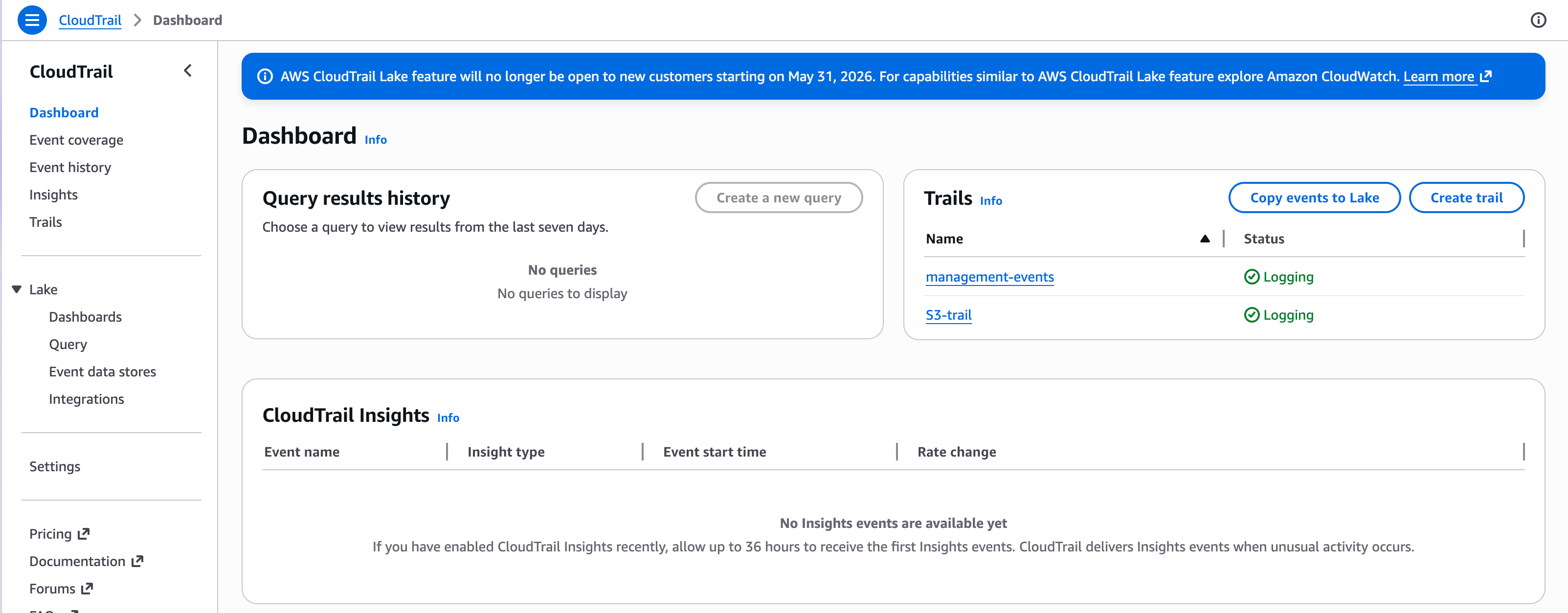 This is one of two ways to connect AWS. For real-time CloudTrail management events, GuardDuty findings, or CloudWatch alarms delivered over SNS, see [AWS via EventBridge and SNS](/integrations/aws/eventbridge).
This setup sends Clarion an S3 object pointer, not the CloudTrail event body. Clarion must assume the customer-side IAM role configured in your AWS integration and read the referenced log file from S3. If the role is missing or cannot read the bucket, Clarion drops the pointer and those CloudTrail events are not ingested.
If the SNS subscription is confirmed but CloudTrail events are not appearing in Clarion, check the IAM role first. Clarion may be receiving the S3 notification but failing to fetch the referenced log object because the role does not have S3 read access.
***
## Before you start
**Pick the right account.**
* **Organization-level integration** — if your CloudTrail logging is centralized from all accounts into one bucket, use the **log-archive account** (or management account) that owns the CloudTrail bucket. One bucket, one SNS topic, and one Clarion subscription cover the whole organization.
* **Single account** — select the account that owns the trail and bucket.
You already have an existing S3 bucket for this flow. You can confirm exactly which bucket your trail writes to from the trail's **log location** in CloudTrail (covered in [Step 5](#step-5-notify-clarion-when-new-log-files-arrive)).
For organization-level trails, the role Clarion assumes must be able to read the bucket owned by the log-archive account. A role in only the member account that produced the CloudTrail event cannot read the centralized log object.
***
## Step 1 — Connect AWS and configure the IAM role
1. In Clarion, open the **AWS** integration page and click **Connect** at the bottom of the page.
2. Set up the IAM role first. For reading CloudTrail logs from S3, select these permission sets:
* **Athena S3 log queries**
* **S3 SSE-KMS log decryption**, only if your bucket uses SSE-KMS
The **Athena S3 log queries** permission set is the one that gives Clarion S3 read access for the log objects. The **CloudTrail events** permission set only grants CloudTrail API calls and is not enough for S3-backed ingestion.
3. The generated policy JSON appears on the right. You have two options to apply it — the **AWS Console** or the **AWS CLI** — and the instructions for both are shown there.
4. Once you have run the AWS CLI commands (or finished the setup in the AWS Console), set the **default region** and the **IAM Role ARN** you created.
5. Click **Configure IAM**.
The generated policy uses `Resource: "*"` on every statement for convenience. Before production, deselect any permission sets you don't use and replace `"*"` with specific ARNs for your resources, such as S3 log buckets and KMS keys. Expand each permission set in the picker for per-set scope-down guidance.
If your CloudTrail bucket uses **SSE-KMS** encryption, the **S3 SSE-KMS log decryption** permission is what lets Clarion read the encrypted log files. If the bucket's KMS key does not delegate to IAM, you also need to allow the Clarion role on the key policy — see [AWS via EventBridge → SSE-KMS](/integrations/aws/eventbridge#step-1b-cloudtrail-via-consolidated-s3-logging).
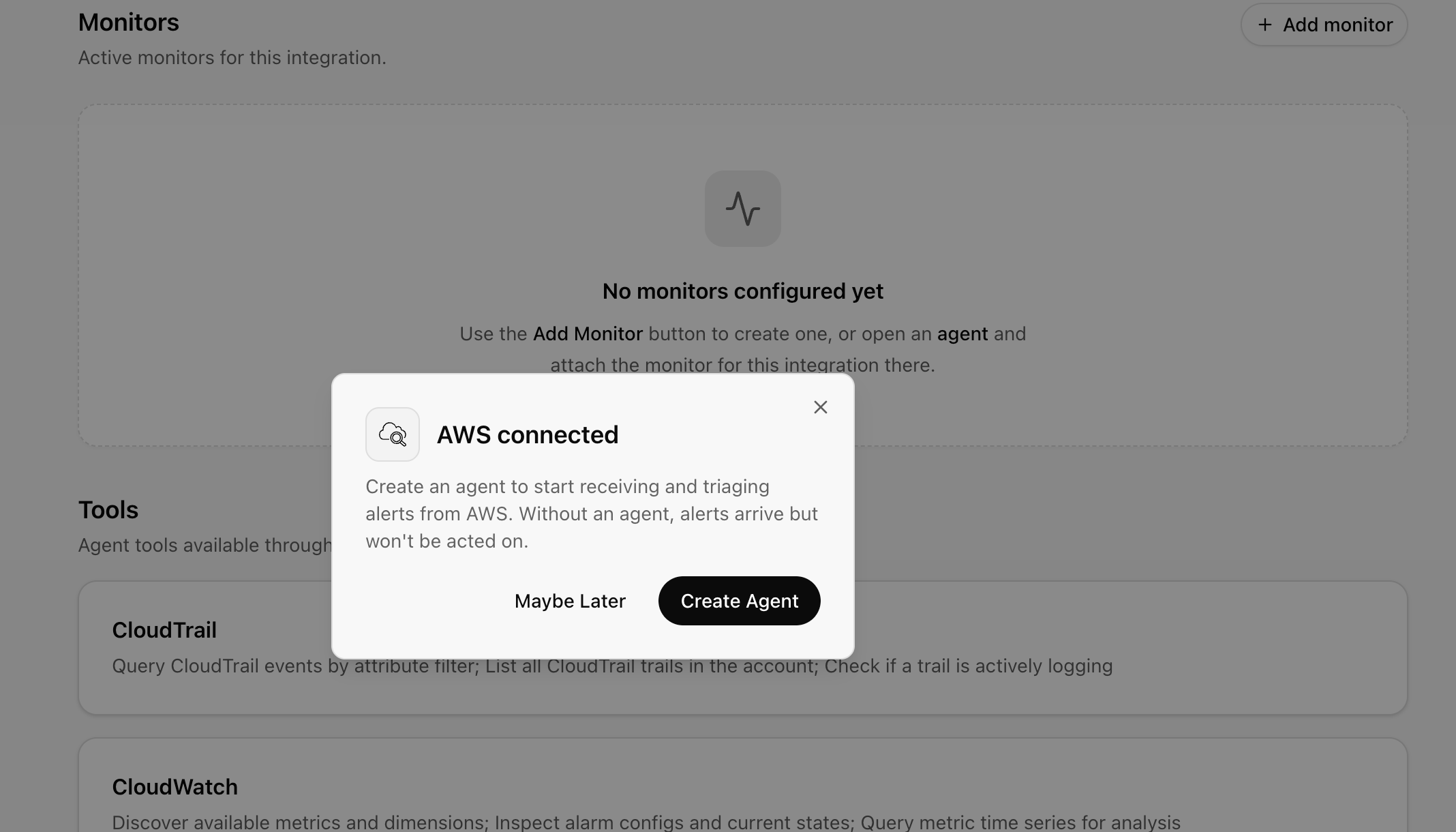
6. You can ignore the popup that offers to create an agent for now — we'll [create the agent in Step 6](#step-6-create-an-agent). First we need to set up SNS so Clarion is notified when new files are added to the S3 bucket.
This is one of two ways to connect AWS. For real-time CloudTrail management events, GuardDuty findings, or CloudWatch alarms delivered over SNS, see [AWS via EventBridge and SNS](/integrations/aws/eventbridge).
This setup sends Clarion an S3 object pointer, not the CloudTrail event body. Clarion must assume the customer-side IAM role configured in your AWS integration and read the referenced log file from S3. If the role is missing or cannot read the bucket, Clarion drops the pointer and those CloudTrail events are not ingested.
If the SNS subscription is confirmed but CloudTrail events are not appearing in Clarion, check the IAM role first. Clarion may be receiving the S3 notification but failing to fetch the referenced log object because the role does not have S3 read access.
***
## Before you start
**Pick the right account.**
* **Organization-level integration** — if your CloudTrail logging is centralized from all accounts into one bucket, use the **log-archive account** (or management account) that owns the CloudTrail bucket. One bucket, one SNS topic, and one Clarion subscription cover the whole organization.
* **Single account** — select the account that owns the trail and bucket.
You already have an existing S3 bucket for this flow. You can confirm exactly which bucket your trail writes to from the trail's **log location** in CloudTrail (covered in [Step 5](#step-5-notify-clarion-when-new-log-files-arrive)).
For organization-level trails, the role Clarion assumes must be able to read the bucket owned by the log-archive account. A role in only the member account that produced the CloudTrail event cannot read the centralized log object.
***
## Step 1 — Connect AWS and configure the IAM role
1. In Clarion, open the **AWS** integration page and click **Connect** at the bottom of the page.
2. Set up the IAM role first. For reading CloudTrail logs from S3, select these permission sets:
* **Athena S3 log queries**
* **S3 SSE-KMS log decryption**, only if your bucket uses SSE-KMS
The **Athena S3 log queries** permission set is the one that gives Clarion S3 read access for the log objects. The **CloudTrail events** permission set only grants CloudTrail API calls and is not enough for S3-backed ingestion.
3. The generated policy JSON appears on the right. You have two options to apply it — the **AWS Console** or the **AWS CLI** — and the instructions for both are shown there.
4. Once you have run the AWS CLI commands (or finished the setup in the AWS Console), set the **default region** and the **IAM Role ARN** you created.
5. Click **Configure IAM**.
The generated policy uses `Resource: "*"` on every statement for convenience. Before production, deselect any permission sets you don't use and replace `"*"` with specific ARNs for your resources, such as S3 log buckets and KMS keys. Expand each permission set in the picker for per-set scope-down guidance.
If your CloudTrail bucket uses **SSE-KMS** encryption, the **S3 SSE-KMS log decryption** permission is what lets Clarion read the encrypted log files. If the bucket's KMS key does not delegate to IAM, you also need to allow the Clarion role on the key policy — see [AWS via EventBridge → SSE-KMS](/integrations/aws/eventbridge#step-1b-cloudtrail-via-consolidated-s3-logging).
6. You can ignore the popup that offers to create an agent for now — we'll [create the agent in Step 6](#step-6-create-an-agent). First we need to set up SNS so Clarion is notified when new files are added to the S3 bucket.
 ***
## Step 2 — Create an SNS topic
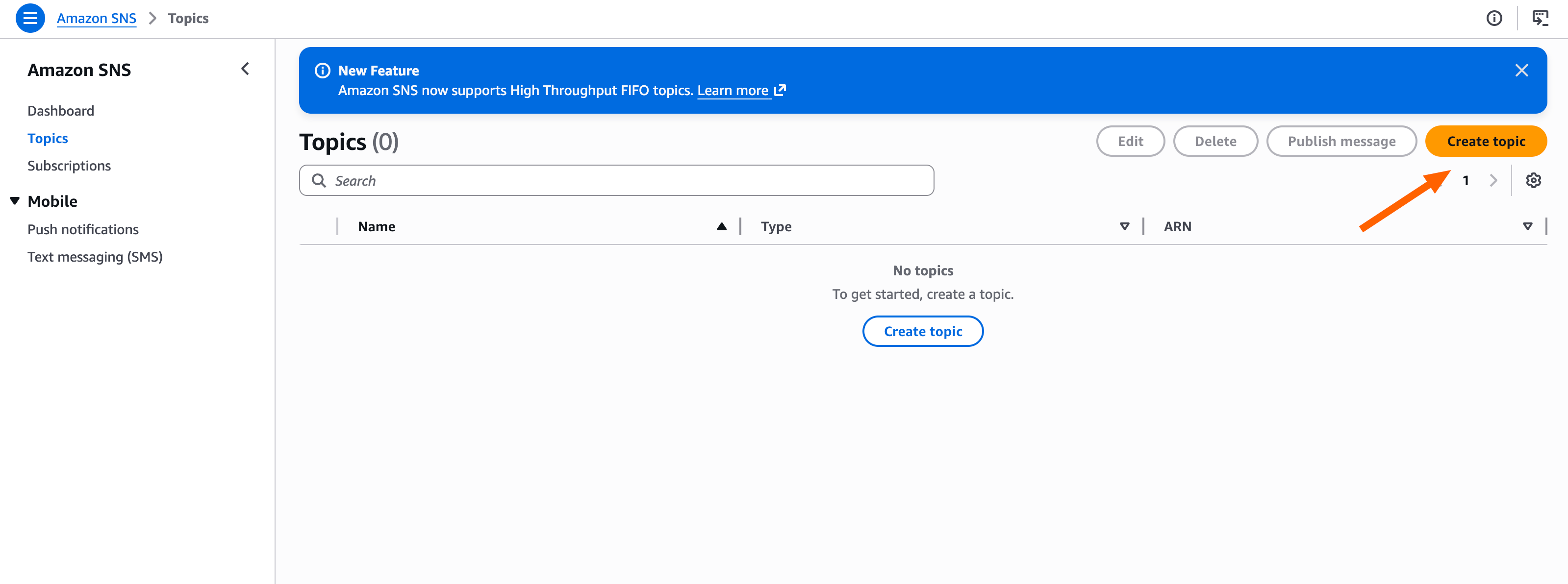
1. Open the Amazon **SNS** console and click **Create topic**.
***
## Step 2 — Create an SNS topic
1. Open the Amazon **SNS** console and click **Create topic**.
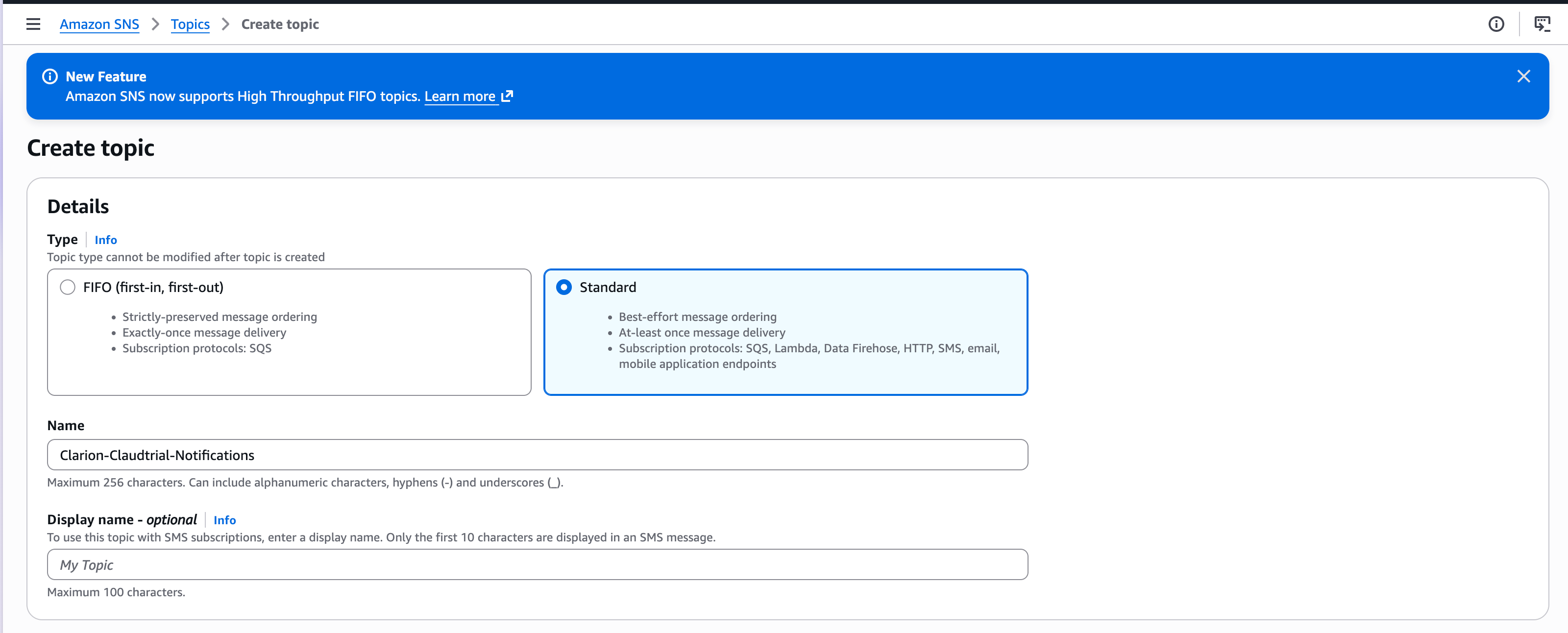
 2. Select the **Standard** type, give the topic a name (e.g. `clarion-cloudtrail-notifications`), and create it.
 3. On the created topic, click **Create subscription**.
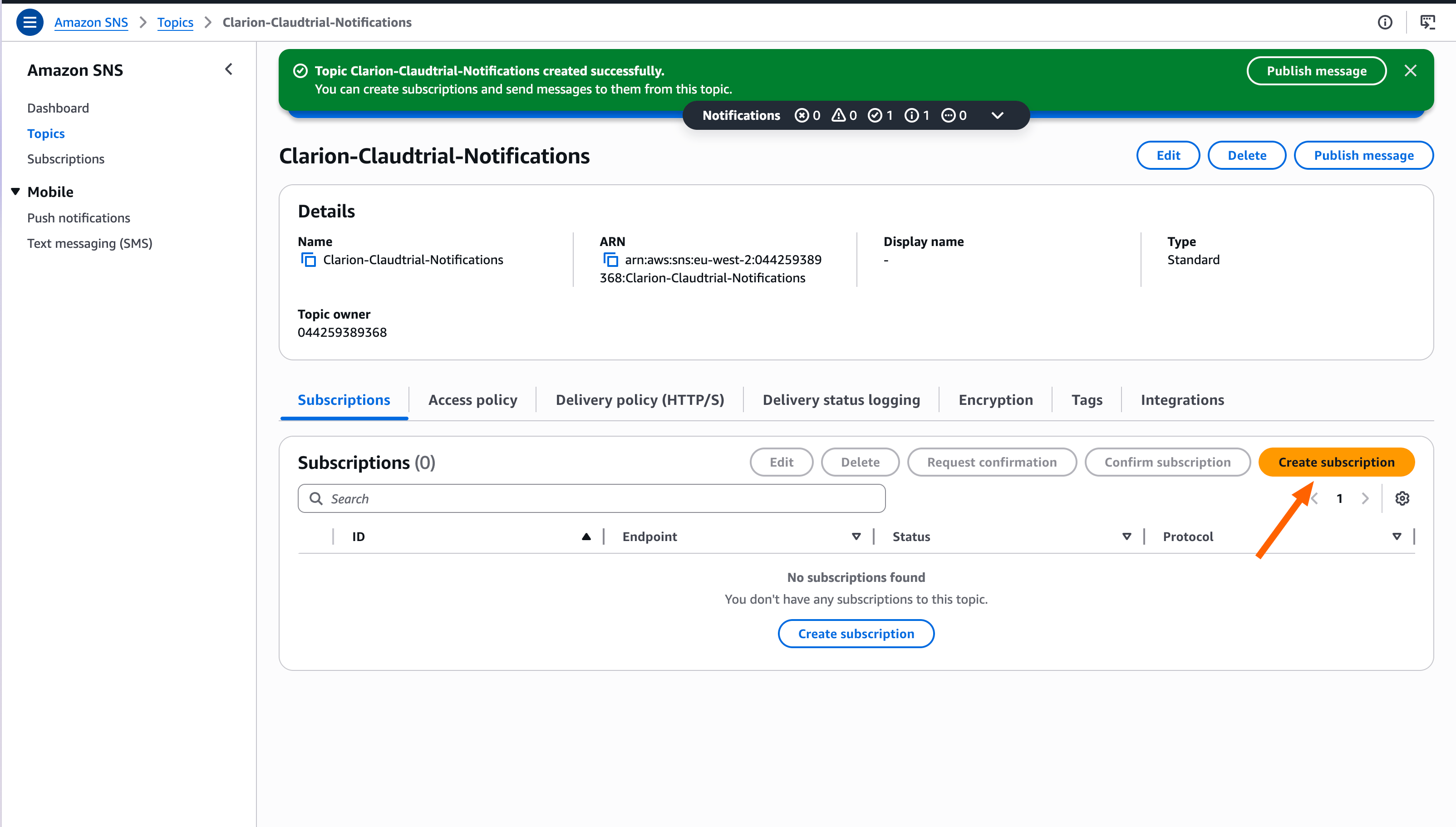 4. Copy the **Topic ARN** shown in the details — you'll paste it into Clarion next.
 S3 event notifications deliver only to an SNS topic in the **same region** as the bucket. Create the topic in the region of your CloudTrail bucket.
***
## Step 3 — Create the CloudTrail monitor in Clarion
1. Navigate back to Clarion and, on the AWS integration page, click **Add monitor**.
S3 event notifications deliver only to an SNS topic in the **same region** as the bucket. Create the topic in the region of your CloudTrail bucket.
***
## Step 3 — Create the CloudTrail monitor in Clarion
1. Navigate back to Clarion and, on the AWS integration page, click **Add monitor**.
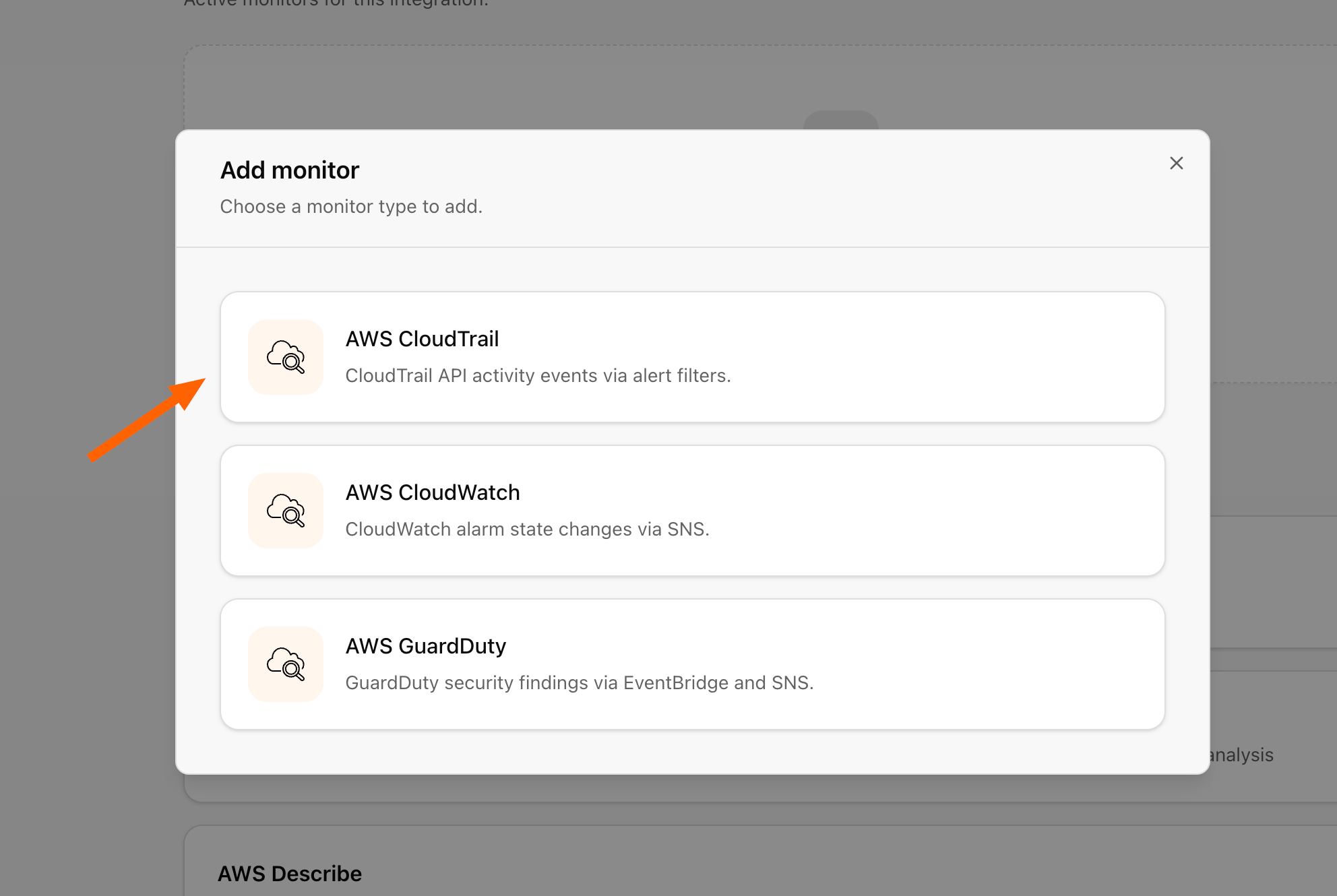
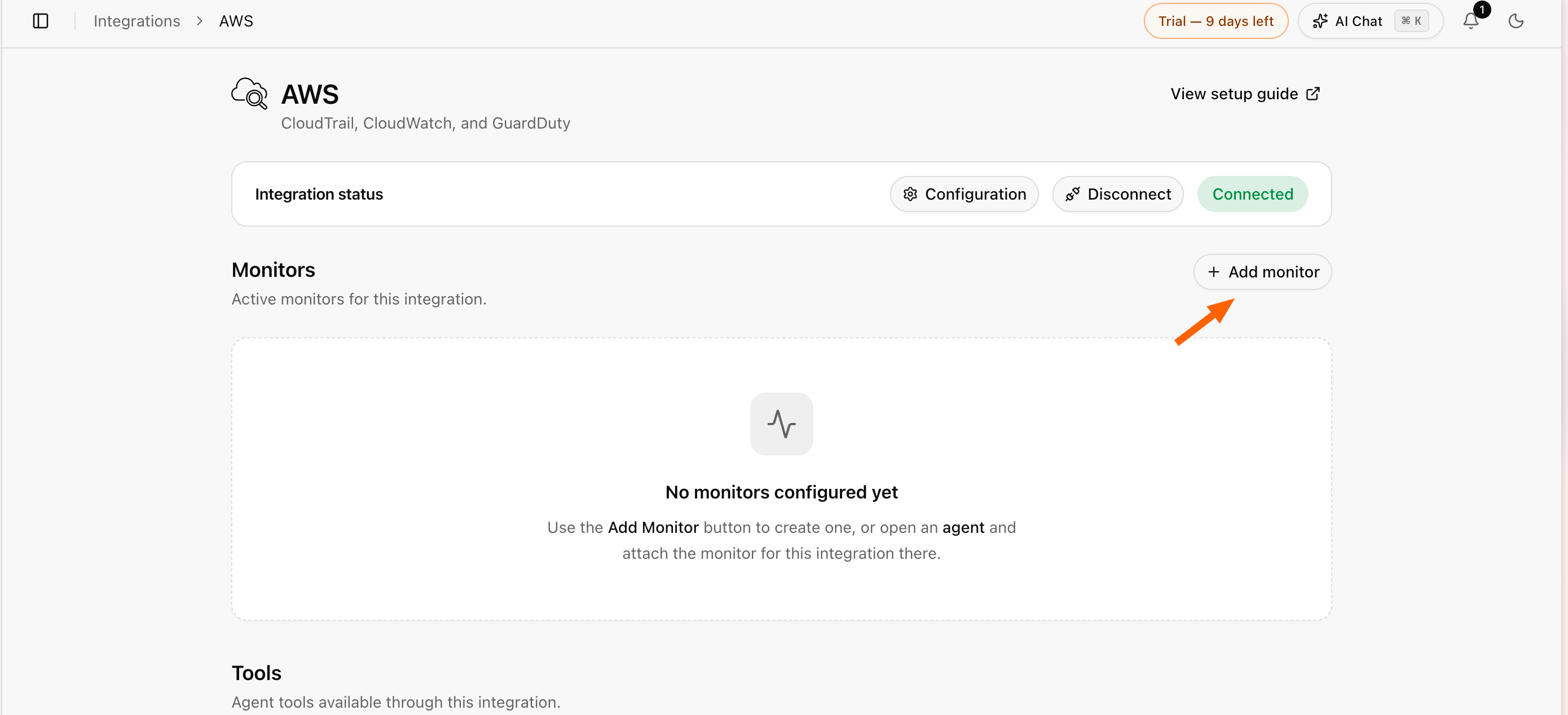 2. Select **AWS CloudTrail**.
 3. Paste the SNS topic ARN into Clarion. Click **Add recommended filters** to apply Clarion's detection rules, then hit **Continue**.
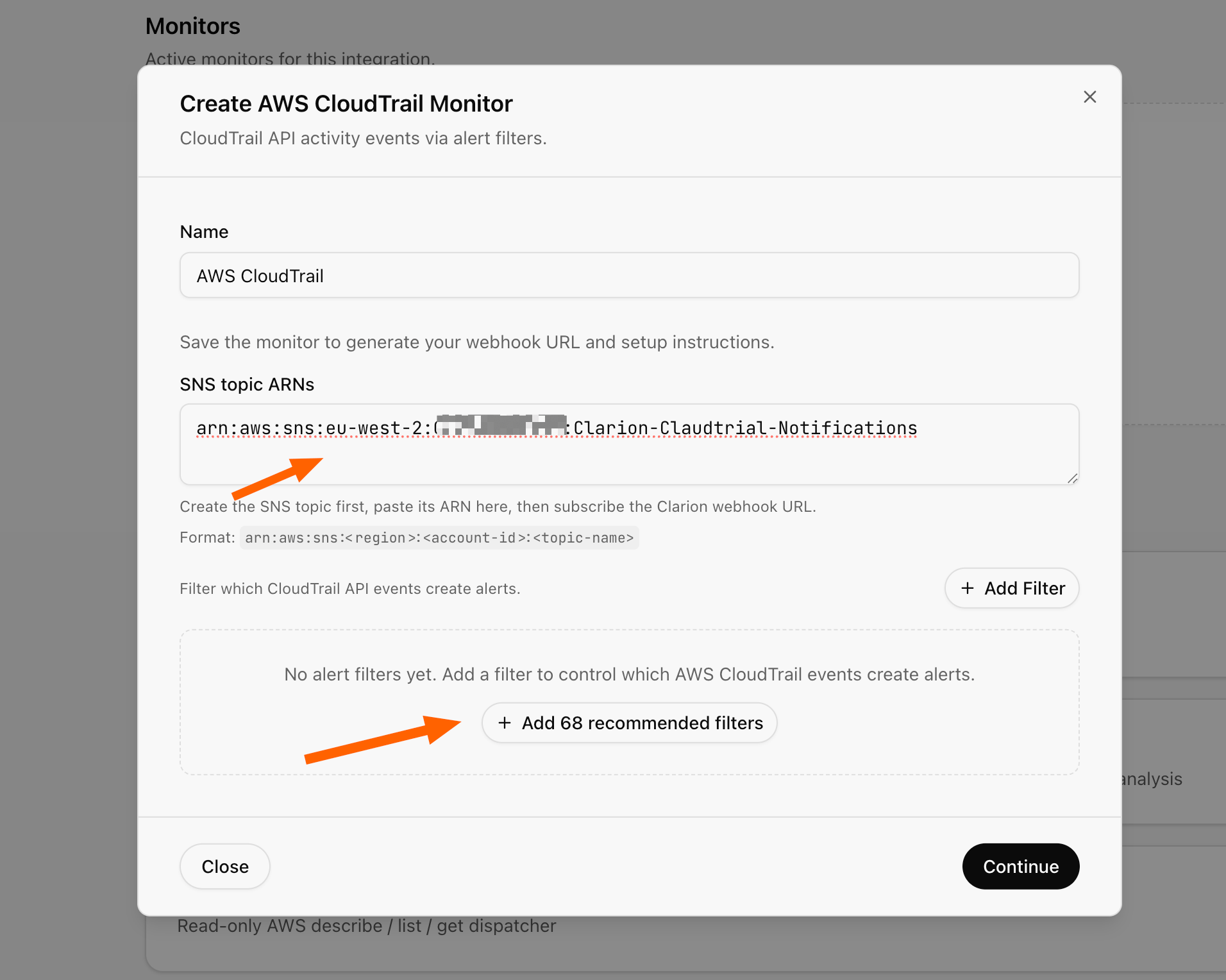 4. Copy the **webhook URL**. You can ignore the rest of the instructions in the modal — simply close it by clicking **Done**.
***
## Step 4 — Subscribe Clarion to the SNS topic
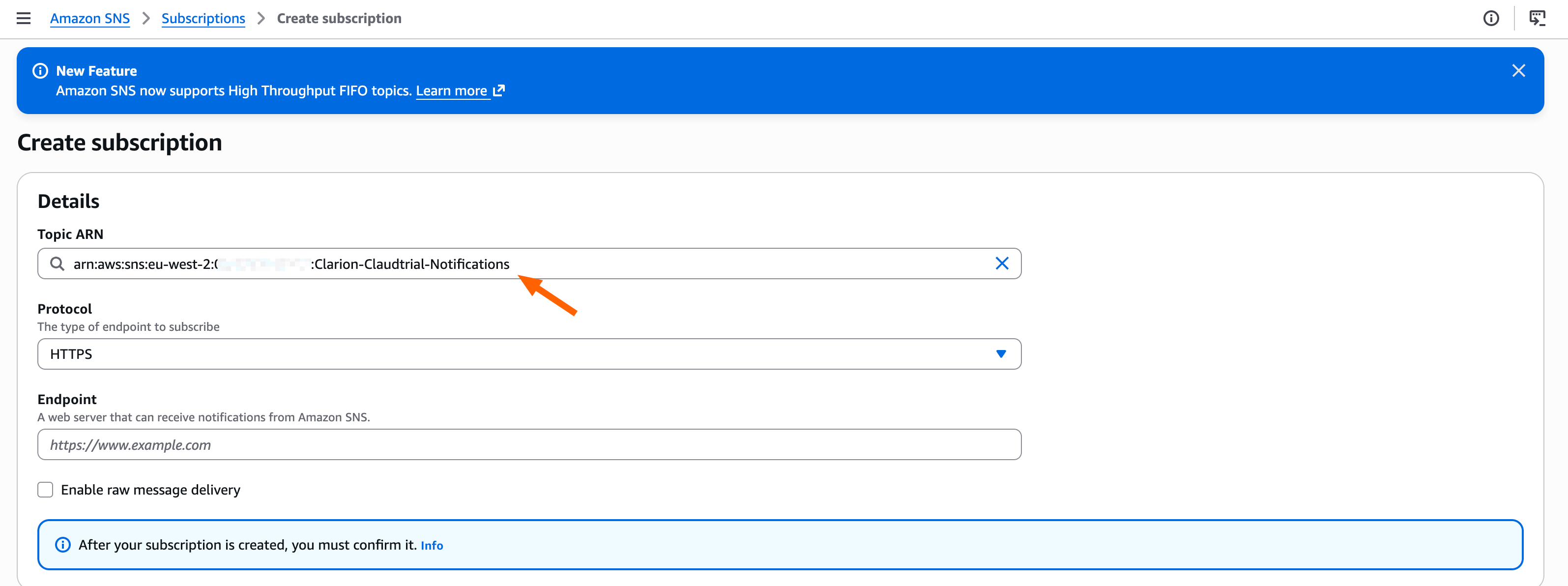
Back on the SNS topic's **Create subscription** screen, point the subscription at the Clarion webhook:
1. Set the protocol to **HTTPS**.
2. Paste the Clarion webhook URL as the **Endpoint**.
3. Create the subscription. Clarion auto-confirms it.
***
## Step 5 — Notify Clarion when new log files arrive
Now configure the S3 bucket to publish to the SNS topic whenever CloudTrail writes a new log file.
1. Open **CloudTrail** and select your existing trail.
4. Copy the **webhook URL**. You can ignore the rest of the instructions in the modal — simply close it by clicking **Done**.
***
## Step 4 — Subscribe Clarion to the SNS topic
Back on the SNS topic's **Create subscription** screen, point the subscription at the Clarion webhook:
1. Set the protocol to **HTTPS**.
2. Paste the Clarion webhook URL as the **Endpoint**.
3. Create the subscription. Clarion auto-confirms it.
***
## Step 5 — Notify Clarion when new log files arrive
Now configure the S3 bucket to publish to the SNS topic whenever CloudTrail writes a new log file.
1. Open **CloudTrail** and select your existing trail.
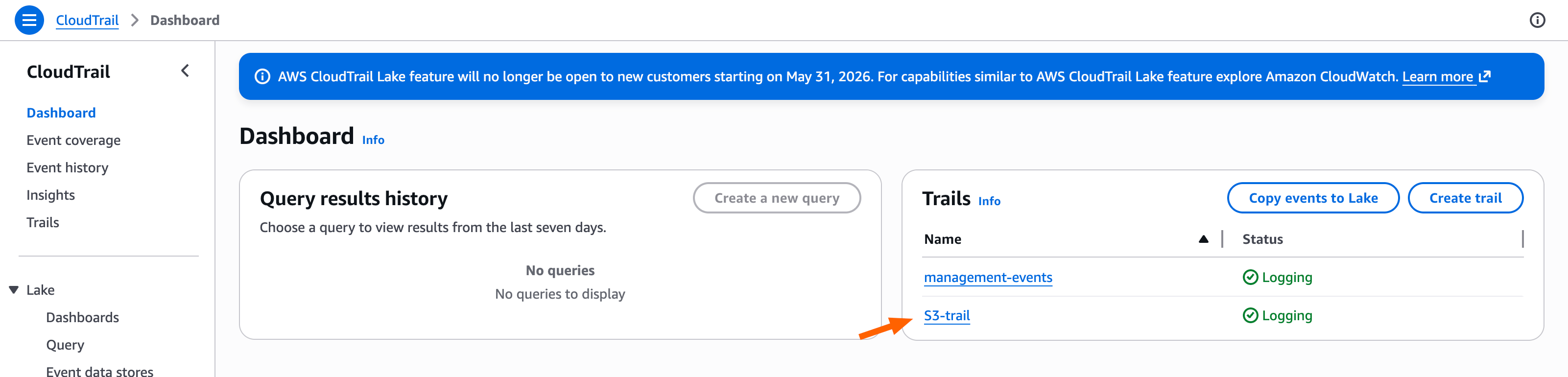 2. Under the trail details, find the **Trail log location** — this is the S3 bucket your CloudTrail logs are stored in.
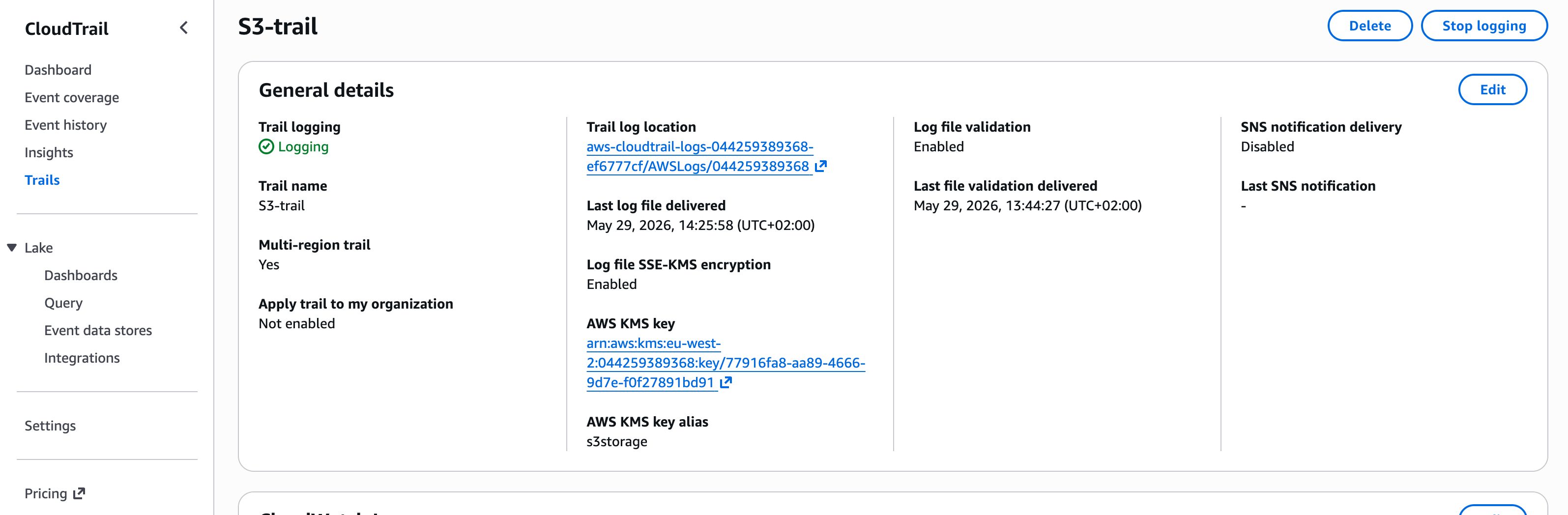 3. Click the **Trail log location** link to open the bucket.
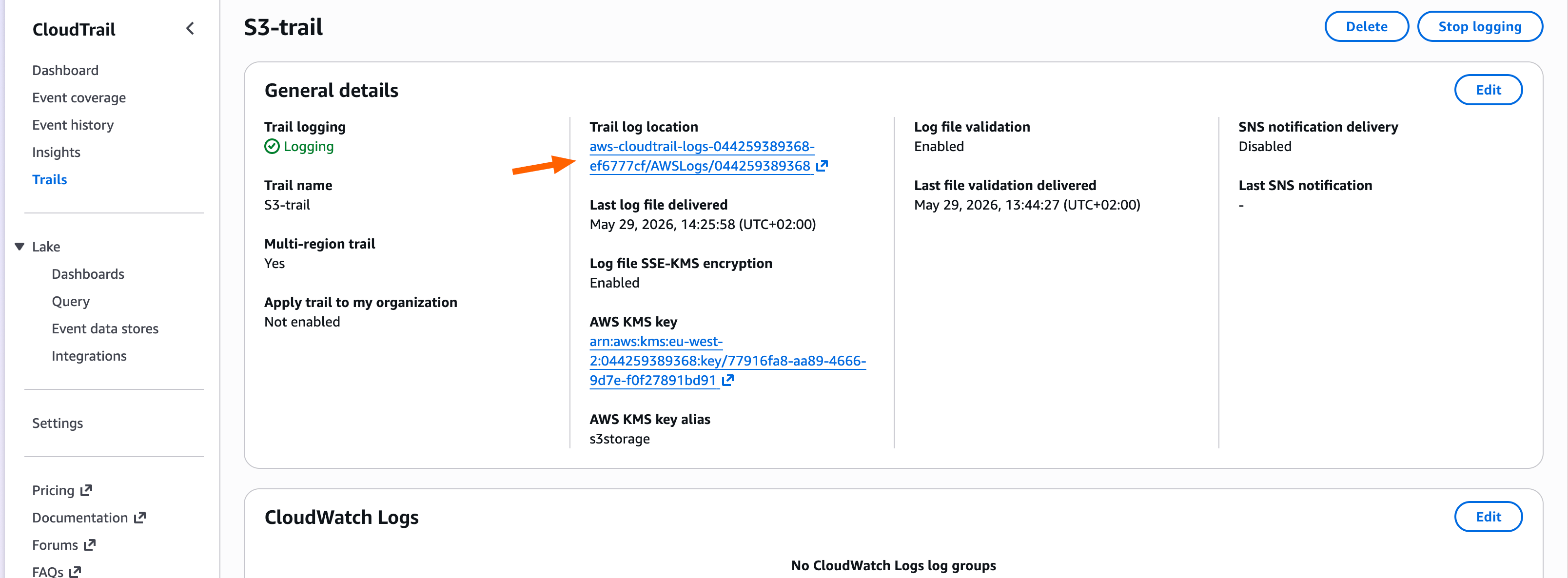 4. Using the breadcrumb navigation at the top, navigate up to the bucket itself (out of the log-location folder).
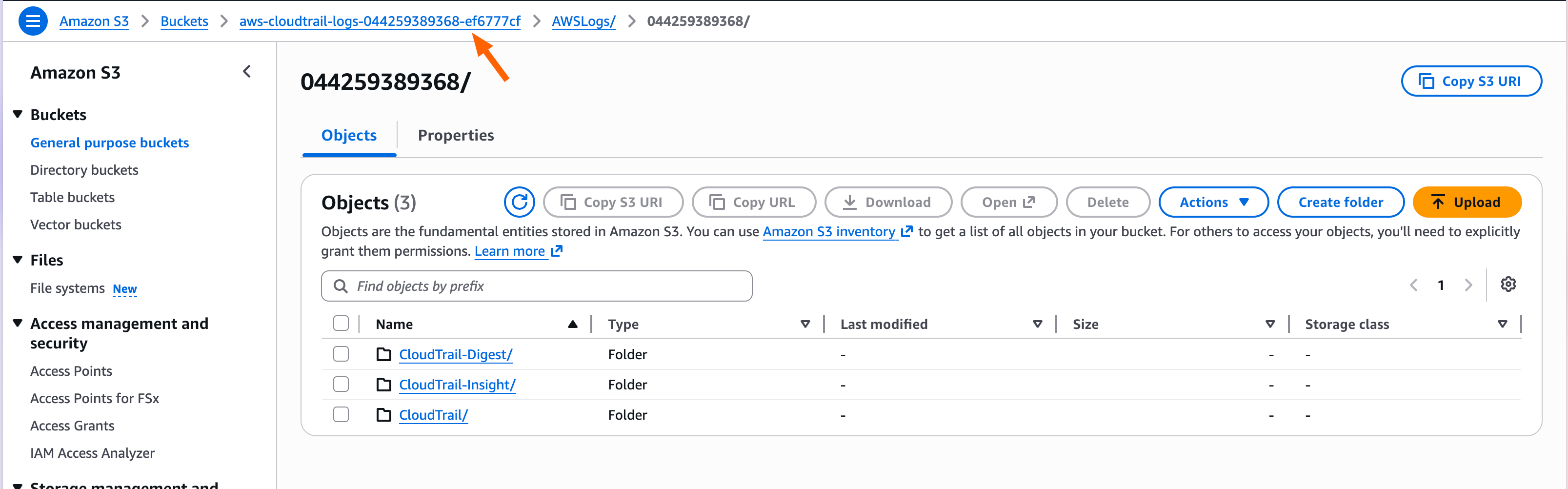 5. Open the **Properties** tab.
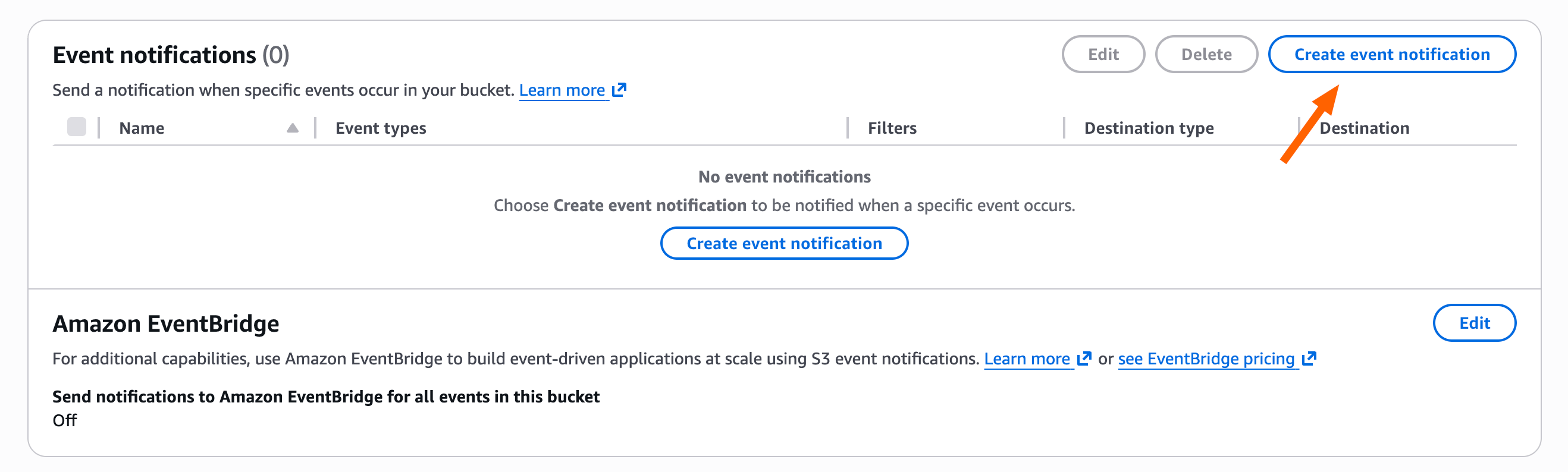
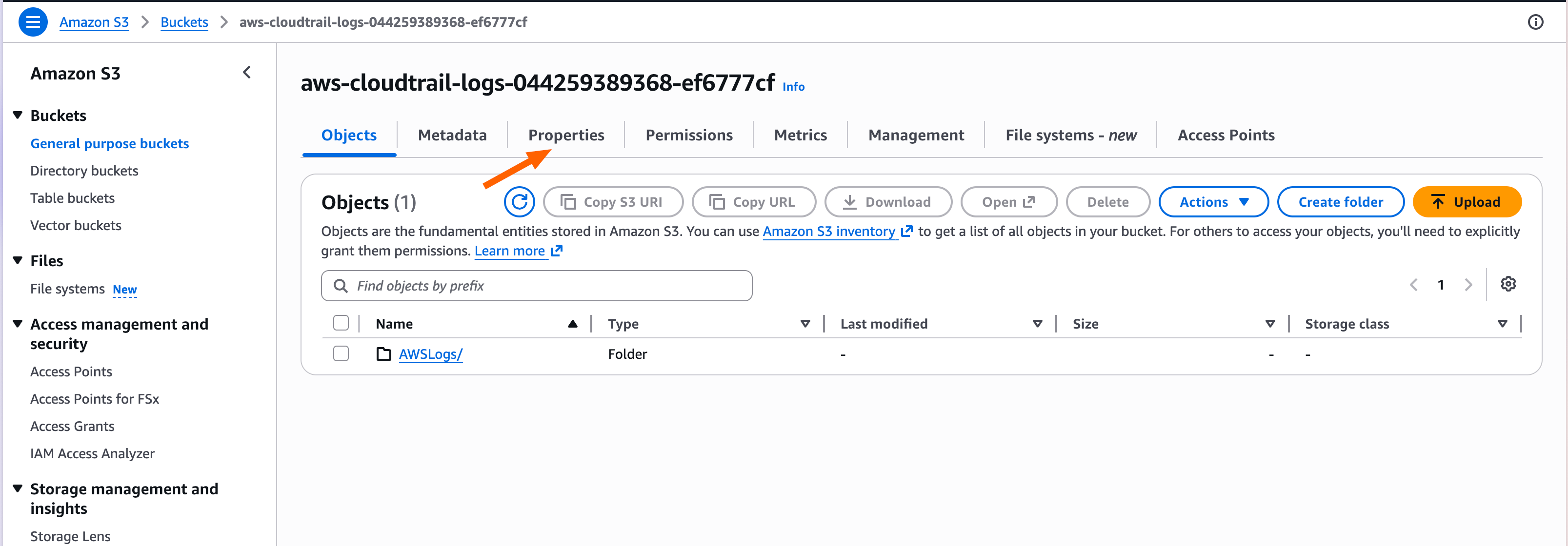 6. Scroll down to **Event notifications** and click **Create event notification**.
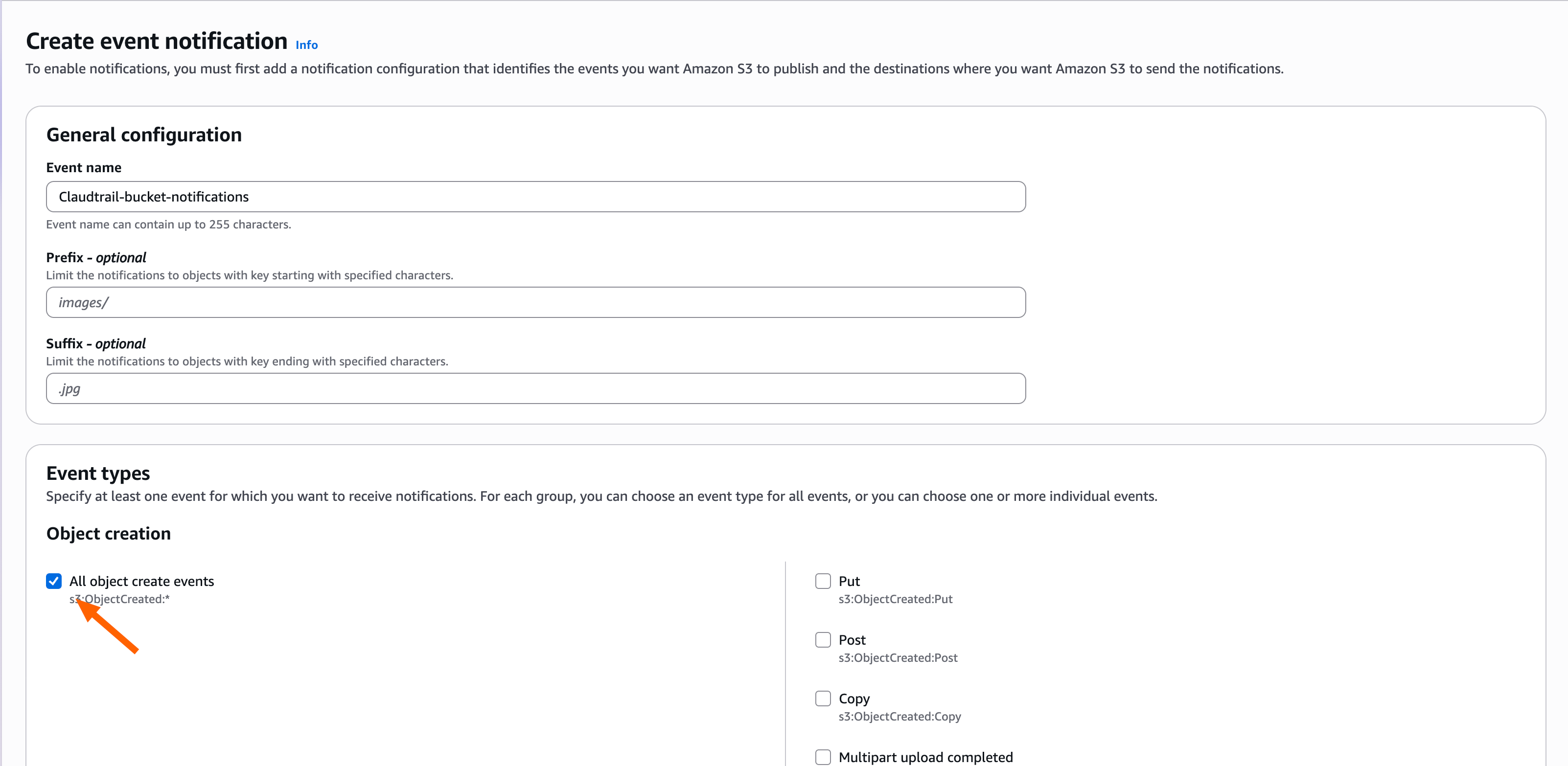
 7. Add an event name and select **All object create events**.
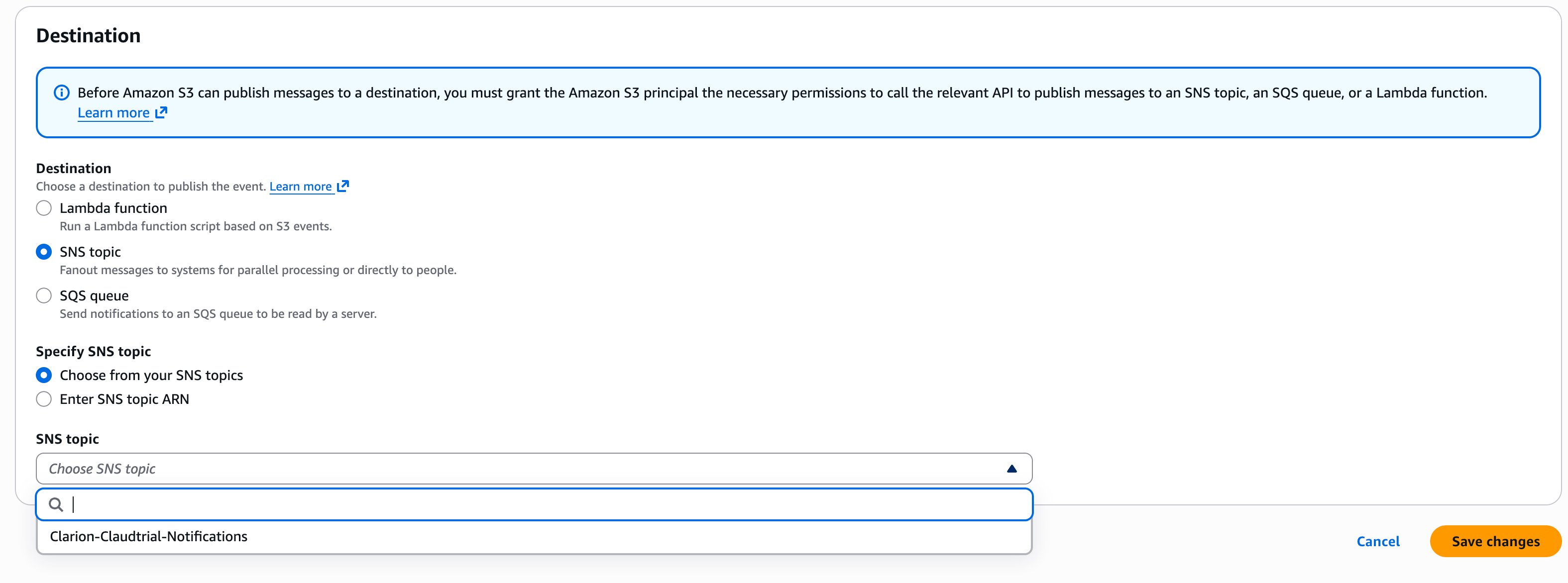
 8. Scroll down to **Destination**, select **SNS topic** as the destination, and use the dropdown to select the SNS topic you created in Step 2. Then hit **Save changes**.
 Clarion is now subscribed and S3 will notify it on every new CloudTrail log file. Next, create an agent so those events get triaged.
***
## Step 6 — Create an agent
1. Back in Clarion, select **Agents** on the left and click **Create agent**.
2. Select the **Cloud Security (AWS)** agent template and click **Continue**.
Clarion is now subscribed and S3 will notify it on every new CloudTrail log file. Next, create an agent so those events get triaged.
***
## Step 6 — Create an agent
1. Back in Clarion, select **Agents** on the left and click **Create agent**.
2. Select the **Cloud Security (AWS)** agent template and click **Continue**.
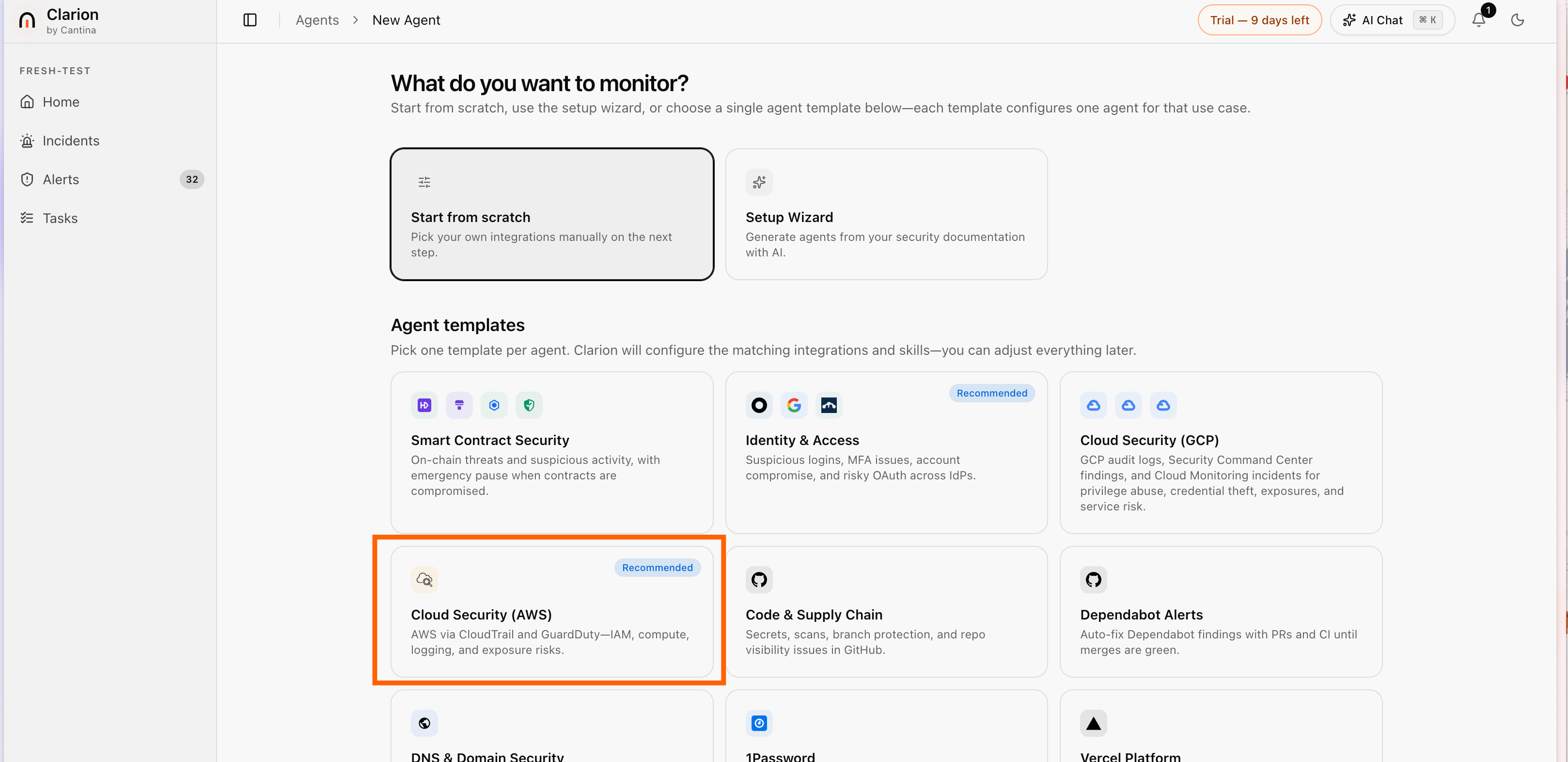 3. Next to **Monitors**, click **Add** and select **AWS CloudTrail**.
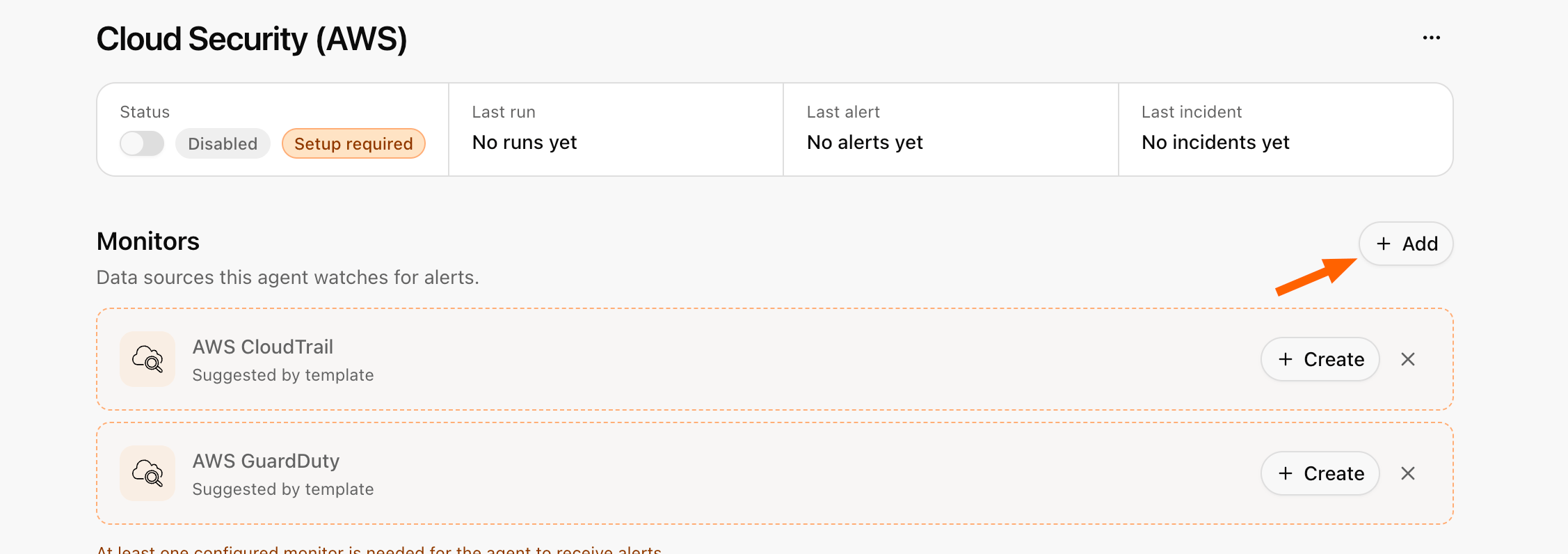 4. You'll see the monitor you created earlier — select it, and it's assigned to your agent.
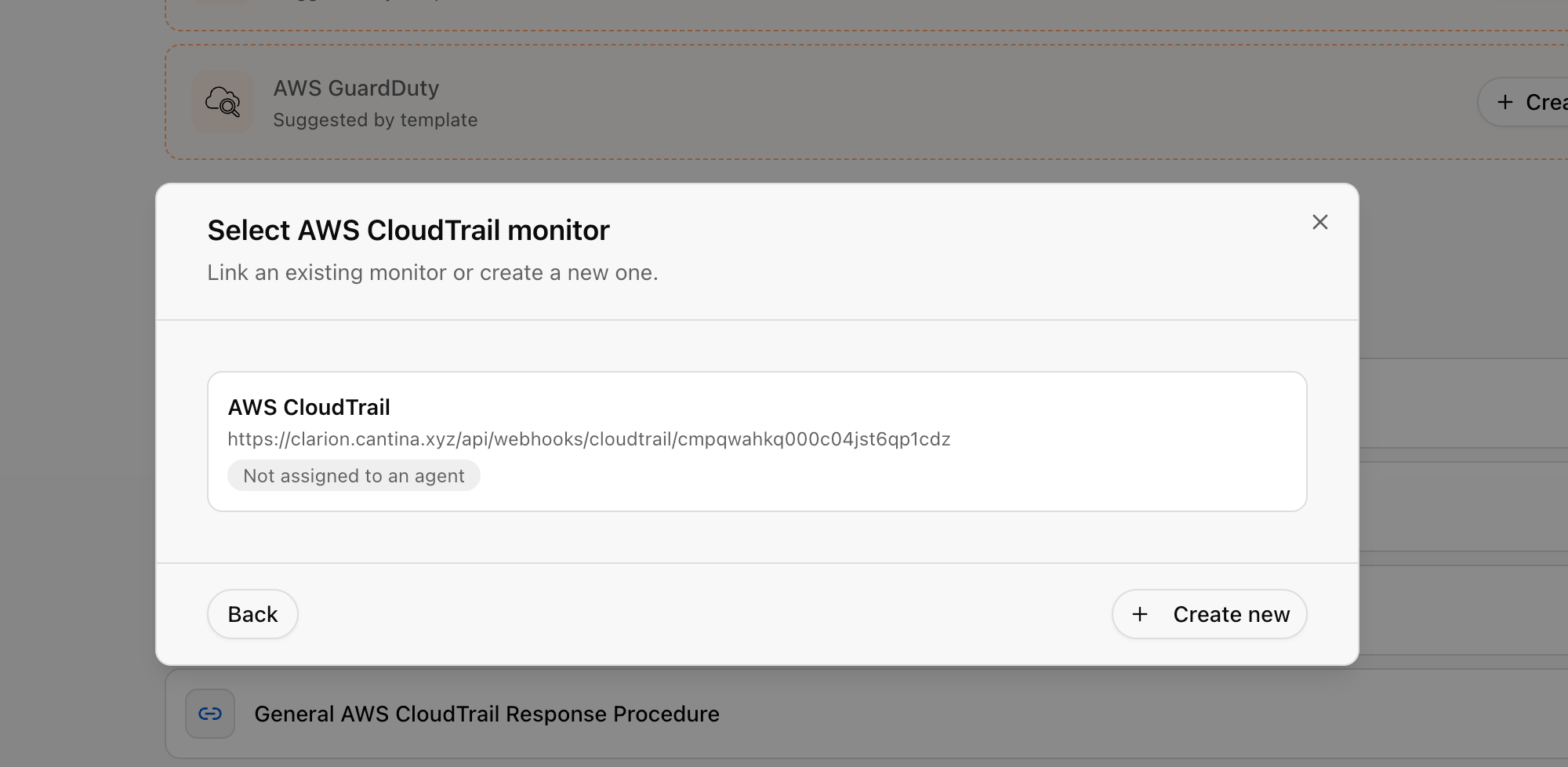 The agent's status automatically changes to **Watching** — you're all set.
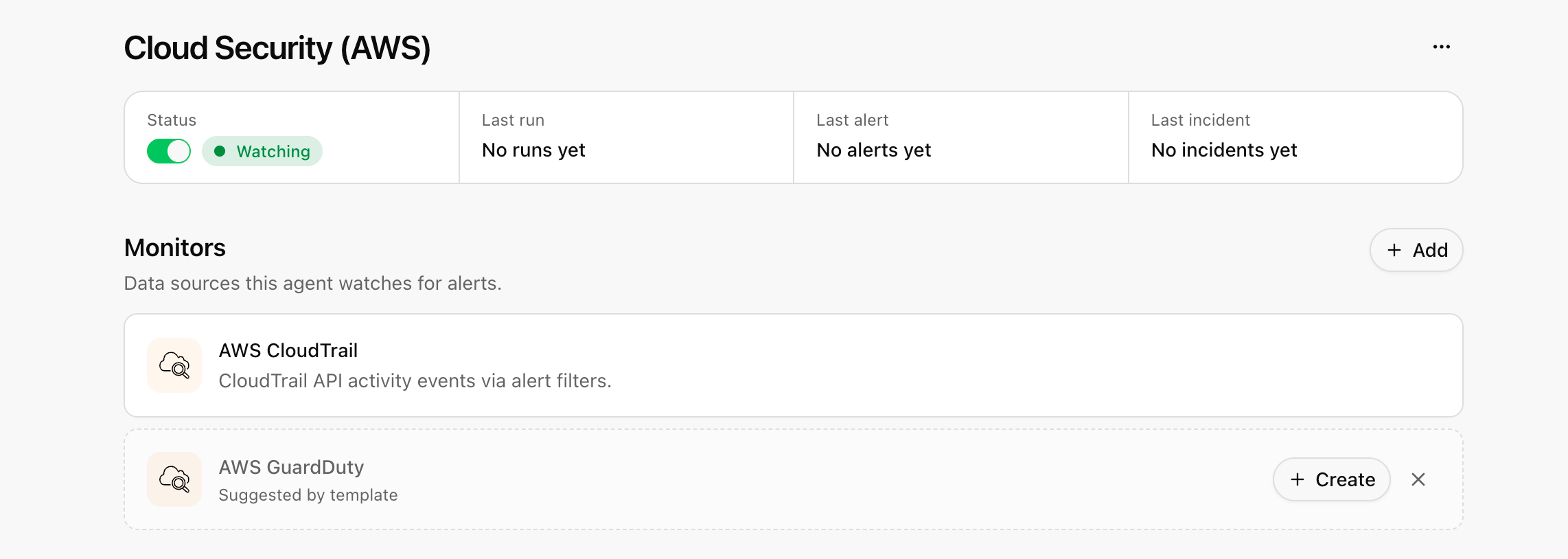 Done! Clarion now ingests CloudTrail events from your existing S3 bucket and your Cloud Security (AWS) agent triages them.